
Make certain your Apple device and printer are on the same Wi-Fi network and restart both to clear glitches. Check if your printer supports AirPrint and update its firmware if needed. Restart your router to improve network stability, and verify your printer is powered on and connected correctly. If it’s still not detected, re-add the printer to your device’s list. For more detailed steps to fix this issue, keep exploring solutions that can help you get connected easily.
Key Takeaways
- Ensure both your Apple device and printer are connected to the same Wi-Fi network and have a strong, stable signal.
- Verify that your printer supports AirPrint and update its firmware to the latest version.
- Restart both your printer and Apple device to resolve temporary glitches and refresh their network connections.
- Remove the printer from your device’s list and then re-add it to establish a new connection.
- Check for and install any available software updates for your device and printer to improve compatibility.
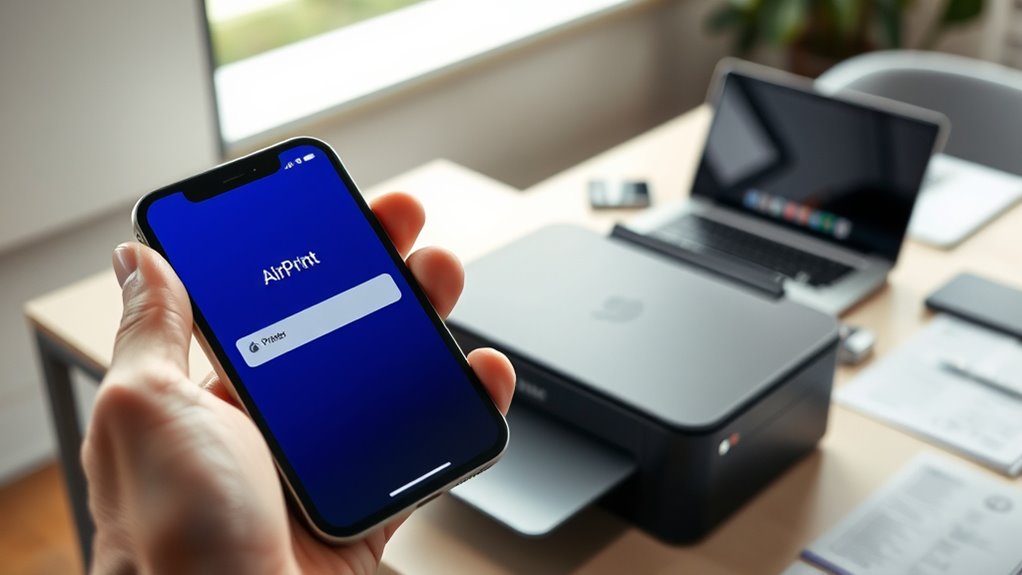
AirPrint makes wireless printing from Apple devices straightforward, but sometimes issues can arise that prevent your printer from responding. If your device isn’t detecting your printer, the first thing to contemplate is your network connectivity. Verify that your iPhone, iPad, or Mac is connected to the same Wi-Fi network as your printer. Sometimes, devices get connected to different networks or a guest network that isolates devices, which can block communication. Restart your router to refresh the network connection and reconnect your Apple device and printer to the same Wi-Fi network. Also, verify that your Wi-Fi signal is strong and stable; a weak connection can cause discovery issues.
Ensure your Apple device and printer are on the same Wi-Fi network for seamless AirPrint functionality.
Next, check whether your printer is compatible with AirPrint. Not all printers support this feature, so confirming compatibility is essential. Review your printer’s specifications or visit the manufacturer’s website to see if it’s listed as AirPrint-compatible. If it isn’t, you might need to update the printer’s firmware or consider using an alternative printing method. Sometimes, even printers that used to support AirPrint may require a firmware update to work correctly with newer Apple devices. Keeping your printer’s firmware current can prevent compatibility issues and improve overall performance.
Once you’ve confirmed network connectivity and printer compatibility, restart both your printer and your Apple device. Power cycling can resolve minor glitches that might be blocking your device from recognizing the printer. After restarting, ensure your printer is properly connected to power, turned on, and in a ready state. Some printers have a specific wireless connection mode; make sure it’s active and that the printer is connected to your Wi-Fi network.
If your printer still doesn’t appear, try removing it from your device’s list of available printers and then add it again. On your iPhone or iPad, go to Settings > Wi-Fi, and tap the “i” icon next to your network to see connected devices. On your Mac, open System Preferences > Printers & Scanners, select your printer, and remove it. Then, add the printer anew, making sure you select the correct AirPrint-compatible device. This refreshes the connection and often resolves the detection problem.
Finally, check for any software updates for your Apple device and the printer itself. Updating your device’s iOS or macOS and installing the latest firmware for your printer can fix bugs that interfere with AirPrint detection. By focusing on network connectivity, printer compatibility, and keeping everything updated, you can troubleshoot most issues that prevent AirPrint from seeing your printer and restore seamless wireless printing. Additionally, understanding the importance of high-quality projectors can enhance your overall home entertainment setup.
Top picks for "airprint doesn printer"
Open Amazon search results for this keyword.
As an affiliate, we earn on qualifying purchases.
Frequently Asked Questions
Can I Use Airprint on Non-Apple Devices?
You can’t natively use AirPrint on non-Apple devices, but you can enable Android compatibility and Windows integration with third-party apps like PrinterOn or apps that mimic AirPrint. These tools let your Android or Windows device communicate with compatible printers, effectively bridging the gap. Just make certain your printer supports network connections, and follow setup instructions for seamless printing. This way, you get the convenience of AirPrint-like functionality on non-Apple devices.
Does My Printer Need Specific Firmware Updates for Airprint?
A stitch in time saves nine. Your printer does need specific firmware updates for AirPrint, as firmware compatibility and update requirements are vital. Check your printer manufacturer’s website for the latest firmware updates to make certain your device supports AirPrint seamlessly. Keeping firmware current prevents connectivity issues and enhances functionality, so don’t delay updating to avoid unnecessary frustration. Regular updates are a simple step toward smooth wireless printing.
How Many Devices Can Connect to My Printer via Airprint?
You can usually connect up to five devices to your printer via AirPrint, but device limitations depend on your printer’s compatibility. Check your printer’s specifications to confirm its maximum device connections. Keep in mind that multiple devices printing simultaneously may slow down performance. To guarantee smooth connections, update your printer’s firmware and verify that all devices are compatible with AirPrint.
Is There a Way to Troubleshoot Network Issues Affecting Airprint?
You can troubleshoot network issues affecting AirPrint by checking your Wi-Fi configuration first. Make certain your printer and device are on the same network, and restart your router and printer to refresh connections. Run network troubleshooting on your device to identify any issues. Also, verify that your Wi-Fi signal is strong enough. If problems persist, update your printer’s firmware or reset your network settings to resolve connection problems.
Can I Print From Third-Party Apps Using Airprint?
Yes, you can print from third-party apps using AirPrint if the app supports printing capabilities. Check the app’s sharing or options menu for a print option, then select your AirPrint-enabled printer. Make sure your device and printer are connected to the same Wi-Fi network. If printing isn’t available, update the app or your device’s software, and confirm that your printer remains compatible with AirPrint.
Conclusion
Think of your printer and AirPrint like dance partners that need perfect timing. When your printer isn’t recognized, it’s like they’re out of sync. But with a few troubleshooting steps—checking connections, restarting devices, or updating software—you can get them back in step. Keep these tips handy, and soon your AirPrint will glide smoothly, turning a frustrating stumble into a graceful dance. Don’t let tech issues trip you up—trust the rhythm of simple fixes.