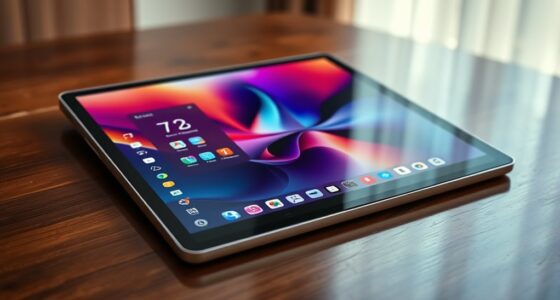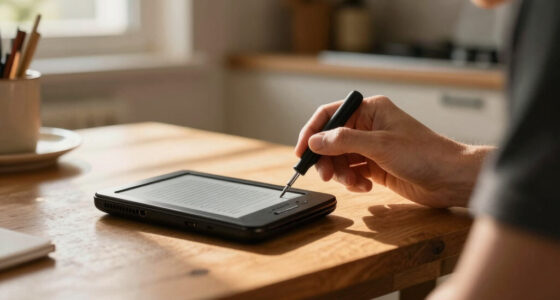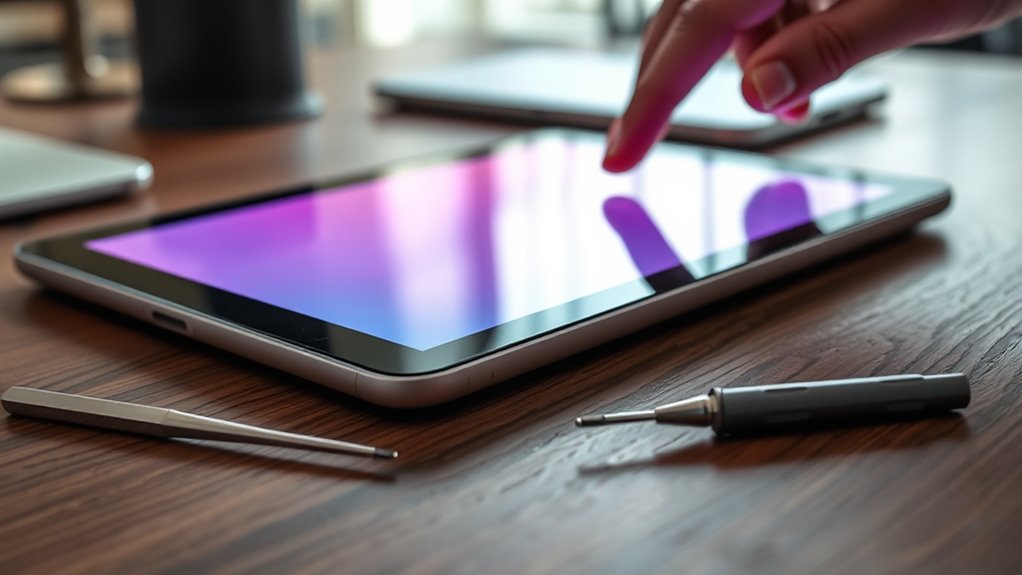

To fix tablet touch lag, start by recalibrating the display through accessibility or display settings. Make sure your software is up to date, as updates often fix responsiveness issues. Clear app caches and close background apps to boost performance. Check that your screen protector isn’t causing interference, and clean your screen regularly. If these tips don’t help, exploring more advanced options can provide additional solutions to restore smooth touch response.
Key Takeaways
- Recalibrate the tablet’s display through built-in calibration tools to realign touch sensitivity.
- Update device firmware and clear cache to fix software-related lag issues.
- Disable unnecessary accessibility features and gestures that may interfere with touch response.
- Remove or replace faulty screen protectors that could be disrupting digitizer detection.
- Close background apps and perform a factory reset if trouble persists for optimal performance.

If your tablet responds slowly or feels unresponsive when you touch the screen, it can be frustrating and hinder your experience. Often, the root of this issue lies in the tablet’s calibration or problems with the screen protector. Over time, your device’s touch sensitivity can drift out of sync, making it seem like the screen isn’t registering your taps accurately. This is where tablet calibration becomes essential. Most tablets have built-in calibration tools or settings that you can access through the display or accessibility options. By recalibrating your screen, you realign the touch input with the display, improving responsiveness and reducing lag. It’s a straightforward process, but many users overlook it, thinking hardware issues are to blame. If you’re using a screen protector, it could also be causing touch lag. Cheap or poorly fitted protectors can interfere with the digitizer’s ability to detect touch inputs properly, especially if they have bubbles or dust trapped underneath. Removing or replacing the screen protector with a high-quality, compatible one can often resolve this problem. Before doing so, check if the protector is properly installed and free of debris. Sometimes, simply cleaning the surface or repositioning the protector can restore proper touch sensitivity. Additionally, some screen protectors are designed to dull touch sensitivity intentionally, so selecting a protector optimized for your device can make a noticeable difference. Beyond hardware considerations, software settings play an important role. Make sure your tablet’s firmware is updated to the latest version, as updates often include bug fixes that address touch responsiveness. Clearing your cache or resetting app preferences can also help if lag occurs after installing new apps or updates. If your device still lags, consider performing a factory reset, but make sure you back up your data first. Sometimes, background apps or processes can slow down your tablet, impacting touch response. Reviewing which apps are running and closing unnecessary ones can help improve performance. Also, disable any accessibility features or gestures you don’t use, as they can sometimes interfere with normal touch inputs. Regularly cleaning your screen and using high-quality screen protectors can prevent interference and maintain responsiveness. Ultimately, addressing screen protector issues and recalibrating your tablet should greatly improve its touch responsiveness. Remember, maintaining your device by updating software, managing background processes, and verifying hardware components like the screen protector are correctly installed will keep your tablet responsive and enjoyable to use. By paying attention to these details, you can fix touch lag effectively and restore smooth interaction with your device.
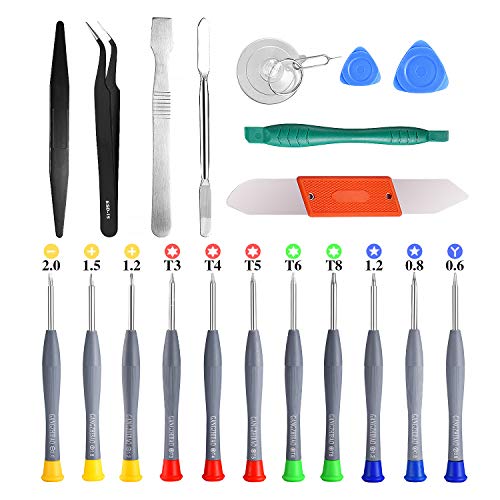
21pcs Precision Screwdriver Set Magnetic,GangZhiBao Repair Tools Kit for Fix Phone/iphone,Computer/PC,Tablet/Pad,Watch,PS4 – Replace Screen Battery Camera Small Electronics Open Pry Tool Kits Sets DIY
PentalobeScrewdriver Set: p5 Pentalobe screwdriver,PH000 Phillips Screwdriver, Pentalobe T5 Pentalobe T6 Screwdrivers Repair Tool Kit for Apple MacBook…
As an affiliate, we earn on qualifying purchases.
As an affiliate, we earn on qualifying purchases.
Frequently Asked Questions
How Do I Identify if My Tablet’s Touch Lag Is Hardware or Software Related?
To identify if your tablet’s touch lag is hardware or software related, start with diagnostic tools available in your device settings or from third-party apps. Perform hardware testing to check for physical issues like unresponsive screens or damaged components. If the tests pass but lag persists, it’s likely a software problem. Updating your OS, resetting settings, or reinstalling apps can help resolve software-related lag.
Can Installing Custom ROMS Improve My Tablet’s Touch Responsiveness?
Did you know that 60% of users report improved device performance after installing custom ROMs? Yes, custom ROM benefits can notably boost your tablet’s touch responsiveness by removing bloatware and optimizing system processes. Installing a custom ROM can make your touchscreen more responsive, smoother, and faster. Just ensure you follow proper installation steps to avoid potential issues. This tweak might be the upgrade your device needs for a better user experience.
What Third-Party Apps Can Help Reduce Touch Lag Effectively?
You can try third-party apps like TouchController or TouchPal to reduce touch lag effectively. These apps improve gesture controls and help with screen calibration, making your tablet more responsive. They optimize touch sensitivity and reduce delays, giving you a smoother experience. Always make certain you follow the setup instructions carefully, and consider adjusting gesture controls within these apps for the best results.
Is There a Way to Back up Settings Before Performing a Factory Reset?
Think of backing up your data like Pandora’s box—safe and secure. You can use built-in options or third-party apps to backup data and guarantee your settings are preserved. Before performing a factory reset, back up your data to a cloud service or an external drive. After resetting, restore settings from your backup, saving you time and hassle. This way, you keep your preferences intact and avoid losing important information.
How Often Should I Perform Maintenance to Prevent Touch Lag Issues?
You should perform maintenance every few months to prevent touch lag. Keep your tablet running smoothly by installing regular software updates, which fix bugs and improve performance. Additionally, practice good battery maintenance by avoiding complete discharges and not overcharging, as this can slow down your device. Regularly clearing cache and closing unused apps also helps maintain responsiveness. These simple steps keep your tablet running efficiently and minimize touch lag issues.
high-quality screen protector for tablets
As an affiliate, we earn on qualifying purchases.
As an affiliate, we earn on qualifying purchases.
Conclusion
By tweaking these settings, you’re taking control and giving your tablet a fresh lease on life. Don’t let touch lag hold you back—sometimes, a simple change can turn things around. Remember, a stitch in time saves nine; addressing issues early keeps frustration at bay. Stay proactive, and your device will serve you smoothly for longer. Keep these tips in mind, and soon enough, you’ll be back to browsing and gaming without a hitch.

Performance Optimization Specialist PopSockets Adhesive PopGrip
Perfect for specialists enhancing AI system performance, reducing latency, and improving efficiency.
As an affiliate, we earn on qualifying purchases.
As an affiliate, we earn on qualifying purchases.

iO CLEAN Screen Cleaner Spray (16oz – 473ml) – Best Large Cleaning Kit
Screen cleaner spray and cloth. Screen cleaner spray and cloth are designed for high-end devices and work flawlessly…
As an affiliate, we earn on qualifying purchases.
As an affiliate, we earn on qualifying purchases.