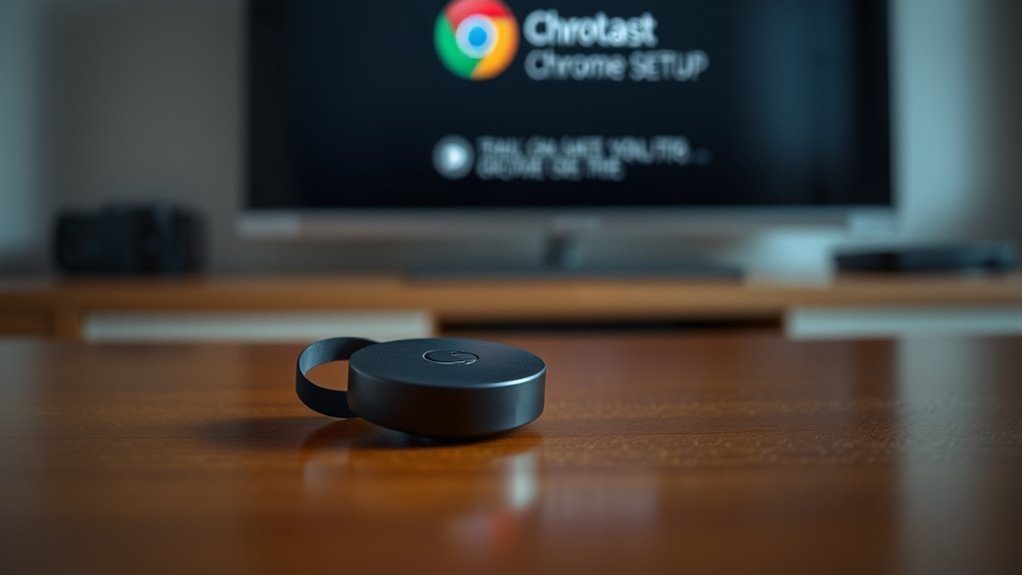
To fix Chromecast discovery issues, guarantee your device and casting device are on the same, stable Wi-Fi network. Restart your Wi-Fi router to fix glitches and improve connection. Make sure both your Chromecast and casting app are up to date. Check that your network supports protocols like multicast and SSDP. If your Chromecast still doesn’t show up, resetting it or trying different network settings can often resolve the problem. Discover essential tips to get your Chromecast visible again.
Key Takeaways
- Ensure both your casting device and Chromecast are connected to the same stable Wi-Fi network.
- Restart your Wi-Fi router and reconnect devices to resolve connectivity or discovery issues.
- Check that your Chromecast appears in the Google Home app and update its firmware if needed.
- Use the latest versions of casting apps and clear app cache or reinstall if necessary.
- Confirm your network supports multicast and SSDP protocols to improve device discovery.
Have you ever tried to cast content to your Chromecast only to find it’s not being discovered? Frustrating, right? Before you start panicking or resetting everything, it’s helpful to understand that many discovery issues stem from network troubleshooting problems or device compatibility concerns. These are common hurdles that can often be resolved with a few simple steps.
First, check your Wi-Fi network. Chromecast relies heavily on your network to communicate with your device. If your Wi-Fi is unstable, slow, or experiencing interference, your device may not appear as an available option. Make sure your phone or computer is connected to the same Wi-Fi network as your Chromecast. Sometimes, multiple networks or guest networks can cause confusion. Consider temporarily disconnecting from other networks or switching to a more stable one if you’re using a dual-band router. Restarting your Wi-Fi router can also clear up minor glitches, boosting network performance and improving device discovery.
Next, verify your device and Chromecast are compatible. Device compatibility is essential because not all smartphones, tablets, or computers support casting features equally. Check that your device’s operating system and casting app are up to date. Older devices or outdated apps might not recognize or communicate with your Chromecast properly. For example, some Android devices require specific updates or settings enabled to enable casting. Similarly, iOS devices need the latest version of the Google Home app. If your device isn’t compatible, it might not find the Chromecast even if everything else is set up correctly.
Another important step involves checking your Chromecast’s settings. Open the Google Home app and verify that your Chromecast appears in the device list. If it doesn’t, try removing and re-adding it. Sometimes, the device needs to be reset or reconfigured to re-establish a proper connection. Also, confirm that your Chromecast firmware is up to date; outdated firmware can cause discovery issues. Updating it is simple via the Google Home app. Additionally, ensuring your network configuration supports multicast and SSDP protocols can improve device discovery and casting reliability.
Sometimes, the problem is with the casting app itself. Make sure you’re using the latest version of the app you’re casting from, whether that’s YouTube, Netflix, or another streaming service. Clearing app cache or reinstalling the app can also resolve conflicts that prevent your device from recognizing the Chromecast.

TP-Link AC1200 WiFi Extender, 2023 Engadget Best Budget Pick, 1.2Gbps Signal Booster for Home, Dual Band 5GHz/2.4GHz, Covers Up to 1500 Sq.ft and 30 Devices,Support Onemesh, One Ethernet Port (RE315)
𝐒𝐭𝐫𝐨𝐧𝐠𝐞𝐫 𝐖𝐢-𝐅𝐢 𝐢𝐧 𝐄𝐯𝐞𝐫𝐲 𝐂𝐨𝐫𝐧𝐞𝐫 – Enjoy extended coverage with strong performance powered by Adaptive Path Selection and…
As an affiliate, we earn on qualifying purchases.
As an affiliate, we earn on qualifying purchases.
Frequently Asked Questions
Can Chromecast Work With Any Wi-Fi Network?
Yes, your Chromecast can work with any Wi-Fi network, but Wi-Fi compatibility and network restrictions matter. Confirm your network supports 2.4 GHz or 5 GHz bands, as Chromecast needs compatible frequency bands. Some networks with strict security or restrictions might block Chromecast discovery or casting. Check your Wi-Fi settings and restrictions to make sure Chromecast can connect seamlessly. If issues persist, adjust your network or consult your router’s documentation.
How Do I Reset My Chromecast Device?
To reset your Chromecast, start with a factory reset by holding down the button on the device for about 25 seconds until the LED flashes. Alternatively, you can do a device restart by unplugging it from power, waiting a few seconds, then plugging it back in. This process helps fix discovery issues, ensuring your Chromecast reconnects smoothly with your Wi-Fi network and shows up properly.
Does Disabling VPN Affect Chromecast Discovery?
Disabling your VPN can definitely affect Chromecast discovery because VPN conflicts often block device communication on your network. When you turn off your VPN, your Chromecast might connect more easily, as network restrictions caused by the VPN are lifted. Keep in mind, some network restrictions may still hinder discovery. For the best results, disable the VPN temporarily, verify your device and Chromecast are on the same network, and try reconnecting.
Why Is My Chromecast Not Showing up on Mobile Devices?
Your Chromecast might not show up on your mobile device due to device compatibility issues or network interference. Make certain your device meets the Chromecast requirements and runs the latest software. Also, check for Wi-Fi interference from other devices or signals that could disrupt discovery. Restart your router, move your Chromecast closer to your Wi-Fi source, and reconnect both devices to the same network to improve visibility.
Can Multiple Devices Connect to the Same Chromecast Simultaneously?
Imagine your Chromecast as a magical portal, capable of connecting multiple devices simultaneously. Yes, several devices can connect at once, allowing seamless device pairing and shared content. However, app compatibility is essential—only compatible apps support multi-device connections. Keep in mind, some features may be limited depending on the app and device types. So, enjoy the flexibility while ensuring your apps are up-to-date for the best experience.

Upgrade Voice Remote for Google Chromecast 4k Snow TV, G9N9N Replacement Remote Control for Google TV, GA01920-US, GA01409-US, GA01923-US, GA01919-US
【WITH VOICE FUNCTION】Our google chromecast remote with voice function,you can quickly find your favorite programs by the microphone…
As an affiliate, we earn on qualifying purchases.
As an affiliate, we earn on qualifying purchases.
Conclusion
Just like finding a star in a clear night sky, resolving your Chromecast discovery issues can feel elusive at first. But with patience and a few simple steps, you’ll reconnect effortlessly, illuminating your streaming experience once again. Think of this as rediscovering a hidden gem—bright, reliable, and ready to cast your favorite moments. So, stay persistent, and soon you’ll be basking in the glow of seamless streaming, as if the device was always meant to be part of your digital constellation.

Google Chromecast – Streaming Device with HDMI Cable – Stream Shows, Music, Photos, and Sports from Your Phone to Your TV with Extra Cable- Charcoal
Google Chromecast Streaming Device with HDMI Cable
As an affiliate, we earn on qualifying purchases.
As an affiliate, we earn on qualifying purchases.

AIMIBO Wireless HDMI Transmitter and Receiver Kit 4K, Casting 2.4/5GHz Stable Video/Audio to Monitor, Projector, HDTV, Wireless HDMI Extender 165FT/50M Long Range for Laptop, PC, Camera, Blu-ray, PS5
【MAKE LIFE EASIER】- AIMIBO Wireless HDMI Transmitter and Receiver can wirelessly cast audio & 4K video from laptop,…
As an affiliate, we earn on qualifying purchases.
As an affiliate, we earn on qualifying purchases.