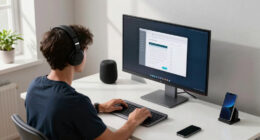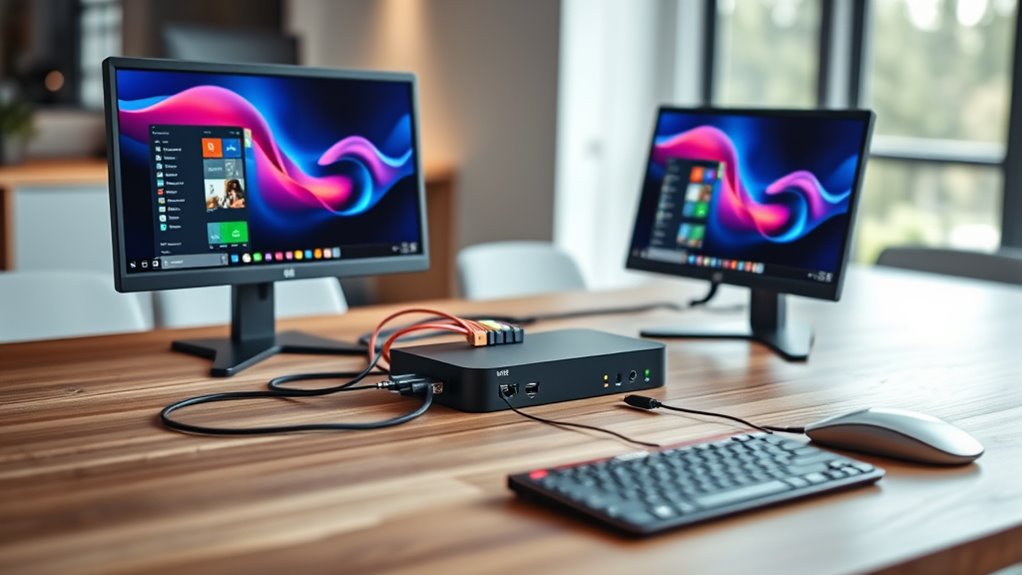

A KVM switch lets you control two or more computers with just one keyboard, mouse, and monitor, saving desk space and improving workflow. It’s designed to quickly switch between devices without unplugging cables or changing setups. Modern KVM switches support high resolutions, USB peripherals, and different connection types like HDMI or DisplayPort, making integration simple. If you want to learn more about how these devices work and find the right one for your needs, keep exploring further.
Key Takeaways
- KVM switches allow you to control multiple computers using one keyboard, mouse, and monitor, simplifying workspace setup.
- They connect via video and USB cables, enabling seamless switching between connected PCs without reconnecting hardware.
- Compatibility includes support for various video outputs (HDMI, DisplayPort, VGA) and peripheral sharing, ensuring versatile integration.
- Modern KVM switches may include features like audio sharing, USB hub ports, and support for high-resolution displays, including 4K.
- Proper selection depends on OS support, video input matching, and future expansion needs to ensure smooth multi-PC management.

A KVM switch allows you to control multiple computers with a single keyboard, monitor, and mouse, making your workspace more efficient. When you’re considering adding one to your setup, it’s vital to evaluate setup considerations carefully. First, determine how many computers you want to connect. Most switches support two or four, but some can handle more. Think about your workflow to decide what’s best. Next, consider the physical space available on your desk. Some KVM switches are compact, while others may require more room for cables and connections. Also, check how many USB ports or audio jacks you’ll need if you plan to share peripherals beyond just a keyboard and mouse. The goal is to find a switch that fits seamlessly into your workspace without causing clutter.
Compatibility issues are another critical aspect. Not all KVM switches work with every computer, especially when it comes to different operating systems like Windows, macOS, or Linux. You should verify that the switch supports your particular OS to avoid connectivity problems. Additionally, some switches are designed for specific video outputs, such as HDMI, DisplayPort, DVI, or VGA. Matching the switch’s video output with your monitor’s input ensures smooth operation without needing adapters or additional hardware. If you have high-resolution displays or require 4K support, check that the switch explicitly supports those resolutions, or you might experience reduced image quality or flickering.
Verify your KVM switch’s OS and video output compatibility to ensure seamless multi-device control.
Furthermore, consider whether your computers have USB-C or Thunderbolt ports. Many modern systems feature these, and you’ll want a switch compatible with these connections for faster data transfer and simplified cabling. Some switches require software drivers for operation, so verify if your system can run the necessary software without issues or if the switch is plug-and-play. This will save you setup time and prevent frustration down the line.
Finally, it’s wise to think about future upgrades. If you might add more computers later, look for a switch that can expand or support more inputs. Also, read reviews to identify any common compatibility issues users face, so you’re aware of potential hiccups before making a purchase. By thoroughly considering setup requirements and compatibility issues, you ensure your KVM switch integrates smoothly into your workspace, providing a reliable solution for controlling multiple PCs with ease.
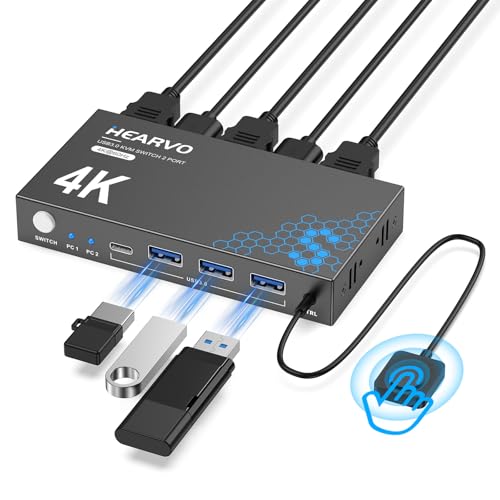
Hearvo USB 3.0 HDMI KVM Switch 1 Monitors 2 Computers, 4K@60Hz KVM Switches for 2 Computers Sharing Monitor Keyboard Mouse Hard Drives Printer, with EDID Adaptive, 2USB Cable and Controller -S7232H
【KVM Switch 1 Monitors 2 Computers】This HDMI KVM Switch with two HDMI ports allows control of two computers,…
As an affiliate, we earn on qualifying purchases.
As an affiliate, we earn on qualifying purchases.
Frequently Asked Questions
Can a KVM Switch Support Multiple Monitors Simultaneously?
Yes, a KVM switch can support multiple monitors simultaneously, but you need to choose one designed for multi monitor support. Confirm it handles your desired video resolution, as higher resolutions require more bandwidth. Check that the switch supports your monitor configurations, such as dual or triple setups. Keep in mind that not all KVM switches are compatible with multi monitor setups, so verify specifications before purchasing to ensure seamless video performance.
What Is the Maximum Distance a KVM Switch Can Reliably Operate Over?
Like a telegraph from the 1800s, the maximum reliable distance for a KVM switch depends on cable length and signal quality. Typically, you can expect around 50 to 150 feet before signal degradation affects performance. Using high-quality cables and signal boosters helps extend that range. Keep in mind, longer distances increase the risk of lag or flickering, so choose your setup wisely to maintain smooth control over your devices.
Are There Compatibility Issues With Different Operating Systems?
You might encounter compatibility issues with different operating systems, but many KVM switches support cross-platform compatibility and have broad driver support. To guarantee smooth operation, check that the switch explicitly states compatibility with your OS, like Windows, Mac, or Linux. Keep in mind that some features or peripherals might require additional drivers or software. Always verify the product specifications before purchasing to avoid potential compatibility issues.
How Do I Troubleshoot Audio and USB Issues With a KVM Switch?
To troubleshoot audio and USB issues with your KVM switch, start by checking all cable connections for tightness and correctness. For audio troubleshooting, verify your speakers or headphones are properly connected and selected as the default device. For USB connectivity, try reconnecting the devices or switching USB ports. Restart your computers if needed, and update drivers to resolve any compatibility conflicts. These steps help restore smooth audio and USB functionality.
Is It Possible to Expand to Control More Than Two PCS?
Think of expanding your KVM setup like adding more lanes to a highway; it’s definitely possible. You can use multi-monitor configurations and multi-port KVM switches to control more than two PCs. Just guarantee your cable management strategies keep everything organized and accessible. Check the switch’s specifications to confirm it supports multiple devices, and plan your workspace to handle the extra cables neatly, making switching seamless and efficient.

UGREEN 8K@60Hz HDMI Displayport KVM Switch 3 Monitors 2 Computers, Aluminum 4K@240Hz with 4 USB 3.0 Ports for 2 Computers Share Triple Monitors with 4 DP+2 HDMI+2 USB Cables/Power Adapter/Controller
KVM Switch 3 Monitors 2 Computers: This 2*Displayport + 1*HDMI KVM Switches allows you to switch effortlessly between…
As an affiliate, we earn on qualifying purchases.
As an affiliate, we earn on qualifying purchases.
Conclusion
A KVM switch makes managing multiple computers simple and efficient. Imagine you’re a graphic designer working on both a desktop and a laptop—without a KVM, you’d constantly swap cables. But with one, you just press a button to switch screens instantly. It saves space, time, and hassle, giving you seamless control. Whether for work or gaming, a KVM switch helps you stay organized and productive with minimal effort.

Lemorele USB-C KVM Switch for 2 DP Alt Mode USB-C Devices
【Ideal for 2 Type-C Devices + 1 HDMI Display!】 The Lemorele USB-C to HDMI KVM Switch enables seamless…
As an affiliate, we earn on qualifying purchases.
As an affiliate, we earn on qualifying purchases.
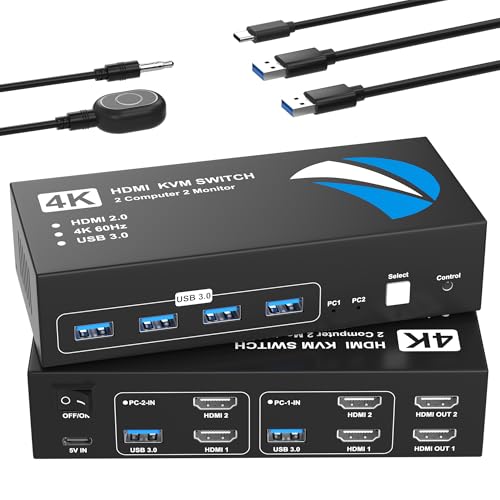
HDMI KVM Switch 2 Monitors 2 Computers, 4K@60Hz USB KVM Switches Dual Monitor with 4 USB 3.0 Ports Sharing Keyboard Mouse Printer, Monitors Switch for 2 Computers, HDMI Switcher 2 in 2 Out
【HDMI KVM Switch 2 Monitors 2 Computers】This HDMI KVM switch allows two computers to share two HDMI monitors…
As an affiliate, we earn on qualifying purchases.
As an affiliate, we earn on qualifying purchases.