
To guarantee bigger text everywhere on your device, you can adjust the accessibility settings for a persistent solution. Most devices let you increase font size or enable font scaling that stays active across all apps and screens. These options are usually found in your device’s display or accessibility menu, and once set, they automatically apply everywhere. If you keep exploring these settings, you’ll discover how to make your device more comfortable and easier to use consistently.

Get the latest gadgets delivered free with Prime
- Fast, free delivery on millions of items
- Prime Video, Amazon Music and more included
- Member-only deals all year
Key Takeaways
- Enable system-wide font scaling through accessibility or display settings for consistent larger text across all apps.
- Use built-in options to adjust font size or scaling levels that automatically apply and stick across device usage.
- Lock or save your preferred font size in device settings to ensure it remains persistent after restarts or updates.
- Many devices offer accessibility features like “Font Size” or “Display Size” that maintain your customization universally.
- Regularly check for system updates or accessibility apps that enhance or preserve your preferred text size settings.
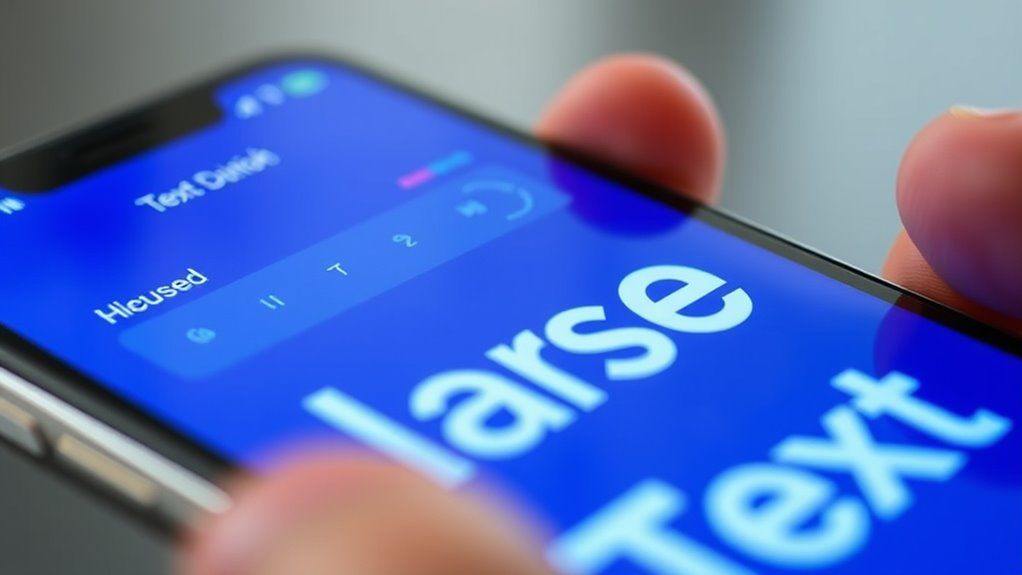
If you find small text difficult to read, adjusting your device’s accessibility settings for bigger text can make a significant difference. One of the most effective ways to do this is by using font scaling. Font scaling allows you to increase the size of text across your device, ensuring that everything from messages to menus is easier to see. When you enable larger text, it directly enhances visual clarity, making reading less straining and more comfortable. This simple adjustment can transform your experience, especially if you often find yourself squinting or struggling to decipher tiny fonts. Whether you’re browsing the web, using apps, or reading emails, font scaling helps you see more clearly without sacrificing functionality. Additionally, visual accessibility features like font scaling are designed to improve overall usability for all users. Most devices have built-in options to adjust font size or scaling. On smartphones and tablets, you can typically find these options in accessibility settings or display settings. Once you adjust the font scaling, your device automatically applies the change system-wide, so all compatible apps will display larger text. This ensures consistency and reduces the need for individual app adjustments. The key is to find a balance where the text is large enough to read comfortably but not so big that it disrupts the layout or causes text to be cut off. Experimenting with different sizes allows you to tailor the display to your visual needs. Enhancing visual clarity through font scaling isn’t just about making text bigger; it’s about making your device more accessible and user-friendly. Clearer text reduces eye strain and fatigue, especially during prolonged use. It also helps improve comprehension, as you don’t have to squint or lean in close to see the words. For those with visual impairments or age-related vision changes, font scaling can be a game-changer. It empowers you to customize your device to suit your eyesight, making everyday tasks more manageable and less frustrating. Furthermore, many accessibility features are designed to work seamlessly across various apps and websites, providing a consistent reading experience.
system-wide font size booster for Android
As an affiliate, we earn on qualifying purchases.
As an affiliate, we earn on qualifying purchases.
Frequently Asked Questions
How Do I Enable Accessibility Settings on My Device?
To enable accessibility settings on your device, go to the Settings menu and look for Accessibility. Turn on features like font scaling to make text bigger and adjust color contrast for better visibility. You can often customize these settings to suit your needs, ensuring they stick across apps and screens. Just save your preferences, and you’ll enjoy a more accessible experience every time you use your device.
Can I Customize Text Size for Specific Apps?
Yes, you can customize text size for specific apps with font customization and app-specific adjustments. Many devices let you tweak settings individually, so you can enlarge text in one app without affecting others. Explore your device’s accessibility menu for options to set different text sizes for different apps. This way, you enjoy tailored text tweaks, ensuring clarity and comfort whenever you use your favorite apps.
Are Accessibility Settings Available on All Operating Systems?
Yes, accessibility settings like screen readers and color contrast options are available on most operating systems. You can customize these features to better suit your needs, whether you’re using Windows, macOS, Android, or iOS. These settings help make content more accessible, allowing you to adjust text size, enable screen readers, or improve color contrast for better visibility, ensuring a more inclusive digital experience across devices.
Will Changing Text Size Affect App Functionality?
Changing text size generally won’t affect app functionality, but it may impact font consistency and how gesture controls work. Larger text can sometimes cause layout issues or overlap, especially in apps with fixed designs. You should test your preferred size across different apps to guarantee smooth navigation. Keep in mind that some apps might need updates to fully support larger fonts, so stay updated for the best experience.
How Do I Revert to Default Text Size Settings?
To revert to default text size settings, you need to reset your font scaling and text zoom options. Go to your device’s accessibility or display settings, find the font size or text zoom controls, and set them back to 100% or default. This will restore your text to its original size, ensuring apps display correctly without the larger text. Always check your changes to confirm they’ve taken effect.
large text accessibility app for iPhone
As an affiliate, we earn on qualifying purchases.
As an affiliate, we earn on qualifying purchases.
Conclusion
By customizing your accessibility settings for bigger text, you create a smoother, more comfortable digital experience. Think of it as turning on a lighthouse’s beam — guiding you safely through the sea of information with clarity and ease. These small adjustments make a big difference, ensuring you stay connected and empowered. So, don’t hesitate to set your preferences; it’s your personal lighthouse, illuminating your path in the digital world.
As an affiliate, we earn on qualifying purchases.
persistent text size adjustment for tablets
As an affiliate, we earn on qualifying purchases.
As an affiliate, we earn on qualifying purchases.
Halloween Picks
halloween
As an affiliate, we earn on qualifying purchases.