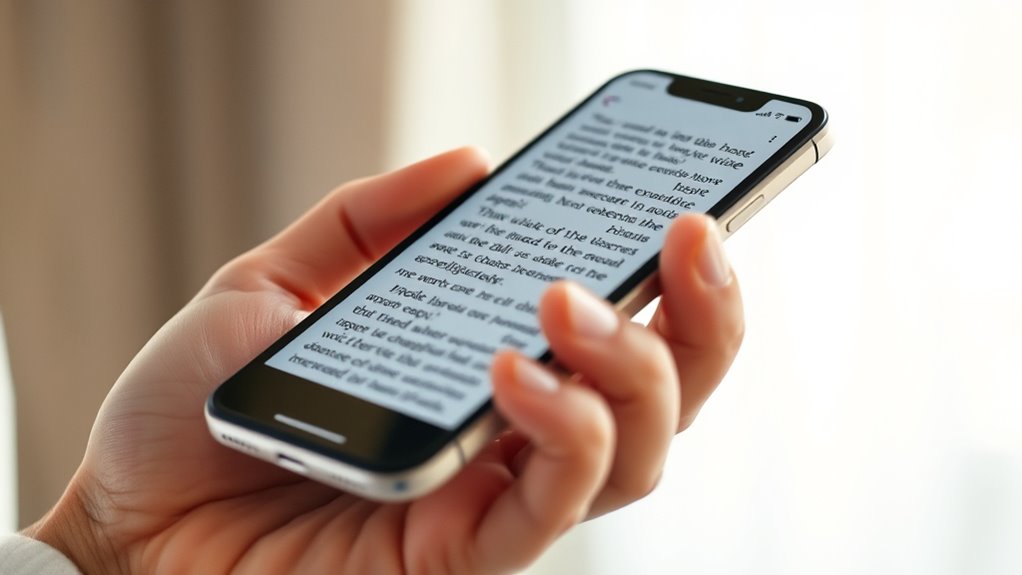

You can turn your iPhone or Android device into a handy magnifier to easily see tiny text and small details. On iPhones, enable the Magnifier in Settings and activate it with a triple-click of the side button, then use the camera for real-world magnification. On Android, activate Magnification through Accessibility settings and use triple-tap or pinch gestures to zoom in. Keep exploring to discover how these tools can help you with everyday tasks effortlessly.

Get the latest gadgets delivered free with Prime
- Fast, free delivery on millions of items
- Prime Video, Amazon Music and more included
- Member-only deals all year
Key Takeaways
- Both iPhone and Android have built-in magnifier features for reading small text and details.
- iPhone’s Magnifier uses the camera and can be quickly activated via triple-click in Settings.
- Android offers magnification through triple-tap or overlay windows, adjustable with pinch gestures.
- Filters like color inversion and grayscale enhance contrast for easier reading on both devices.
- These tools allow you to read tiny text and inspect objects directly with your phone.
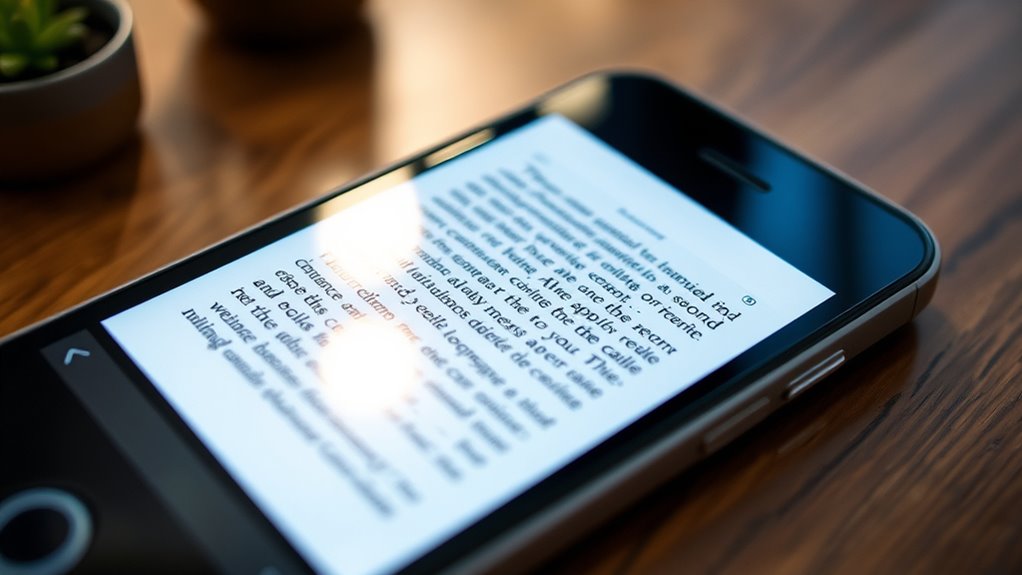
If you need a quick way to see small text or details more clearly, both iPhone and Android devices offer built-in magnifier features that can help. These accessibility features are designed to make everyday tasks easier, especially for those with visual impairments or anyone struggling to read tiny print. Screen magnification allows you to zoom in on whatever’s on your screen, providing a clearer view without needing additional tools. Activating this feature can be a game-changer, letting you read labels, check instructions, or view images with ease.
On an iPhone, the magnifier is part of the Accessibility settings. You can enable it by going to Settings, then Accessibility, and selecting Magnifier. Once activated, a triple-click of the side button quickly turns the magnifier on or off, giving you instant access. When in use, it functions as a digital magnifying glass, allowing you to zoom in on objects viewed through your device’s camera. You can adjust the zoom level smoothly, and even switch between different filters like color inversion or grayscale to improve contrast and visibility. The iPhone’s screen magnification feature makes it simple to magnify real-world objects or text directly through the camera, making reading menus, packaging, or small print much easier. Additionally, these features are part of the broader accessibility suite, ensuring they integrate seamlessly with other helpful tools.
Android devices also come equipped with similar accessibility features, often labeled as “Magnification” or “Magnify with triple-tap.” To enable it, you typically navigate to Settings, Accessibility, then Magnification. Once activated, you can triple-tap the screen to zoom in or out. Some Android phones allow you to magnify just a specific part of the screen by enabling a magnification window or overlay. This feature is especially useful when you want to enlarge text or details temporarily without fully zooming the entire display. Many Android devices also support pinch-to-zoom gestures for quick adjustments, making the process intuitive and fast.
Both platforms use screen magnification as part of their accessibility suite, aiming to improve usability for everyone. They’re especially helpful if you frequently need to read tiny text or inspect small details. These features are customizable, letting you control zoom levels and filters to suit your needs. Whether you’re reading a receipt, examining a tiny map, or viewing intricate images, the built-in magnifier provides a convenient solution that’s always handy. With just a few taps, you can turn your smartphone into a powerful magnifying tool, ensuring you never miss important details.
As an affiliate, we earn on qualifying purchases.
Frequently Asked Questions
Can Magnifier Be Used Without Internet Access?
Yes, you can use the magnifier without internet access. Both iPhone and Android devices include offline accessibility features, like the built-in magnifier, which work without needing a network connection. These features enhance your ability to read small text or see details clearly anytime, anywhere. Just activate the magnifier in your device’s accessibility settings, and you’ll have instant, offline help with visual clarity whenever you need it.
How to Customize Magnification Settings on Iphone and Android?
You can customize magnification settings on both iPhone and Android through accessibility features. On your iPhone, go to Settings > Accessibility > Magnifier to adjust zoom levels and enable options. On Android, access Settings > Accessibility > Magnification to set your preferences. These user customization options let you tailor the magnification experience, making it easier to read and see details according to your needs.
Is the Magnifier App Compatible With All Android Devices?
The magnifier app isn’t compatible with all Android devices because device compatibility varies. You should check your device’s specifications to see if it supports the app. Keep in mind, app updates can improve compatibility and fix bugs, so regularly updating the app is essential. If your device isn’t compatible, consider alternative magnification apps that work with your specific Android model for better accessibility.
Are There Any Privacy Concerns When Using Magnifier Apps?
You might think using magnifier apps is totally safe, but beware—privacy risks and data security threats are real! These apps often require access to your camera, photos, or even location, which can expose sensitive info. Always read permissions carefully, stick to trusted developers, and avoid sharing personal details. Protecting your privacy isn’t exaggerated; it’s essential to keep your data secure while enjoying the convenience.
Can Magnifier Be Used to Read QR Codes?
Yes, your magnifier can be used for QR code scanning, which is a great feature for accessibility improvements. You simply open the magnifier, position your camera over the QR code, and it will automatically recognize and scan it. This makes reading QR codes easier, especially for those with visual impairments or difficulty focusing. Just guarantee your device’s camera is clear and steady for the best results.
As an affiliate, we earn on qualifying purchases.
Conclusion
By exploring the magnifier features on your iPhone and Android, you unlock a subtle world of clarity and detail. It’s like having a gentle helper that whispers secrets of what’s nearby, making everyday moments a little easier to appreciate. Embrace these tools, and you’ll find that seeing clearly isn’t just about vision—it’s about opening your eyes to new perspectives. Sometimes, the smallest enhancements can lead to the most unexpected insights.
digital magnifying glass for smartphones
As an affiliate, we earn on qualifying purchases.
As an affiliate, we earn on qualifying purchases.
accessibility magnifier for iPhone and Android
As an affiliate, we earn on qualifying purchases.
As an affiliate, we earn on qualifying purchases.
Halloween Picks
halloween
As an affiliate, we earn on qualifying purchases.