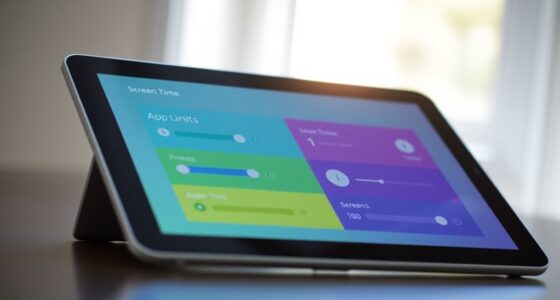

Reducing motion and animations on your device helps create a calmer, more comfortable environment that can ease dizziness and nausea. You can turn on accessibility features in your device settings or browser to minimize or stop unnecessary animations. Doing this stabilizes your view, reduces sensory overload, and prevents feelings of disorientation. By adjusting these settings, you’ll enjoy a safer, more accessible experience—something that’s worth exploring further.

Get the latest gadgets delivered free with Prime
- Fast, free delivery on millions of items
- Prime Video, Amazon Music and more included
- Member-only deals all year
Key Takeaways
- Enable device or browser settings to limit or disable animations and motion effects for a calmer visual experience.
- Use accessibility options to reduce or turn off movement, helping prevent dizziness and nausea.
- Customize animation preferences in operating systems like Windows and macOS to suit individual sensory needs.
- Limit unnecessary visual effects in apps and websites to minimize sensory overload and improve comfort.
- Thoughtfully incorporate animations with user controls to enhance usability while reducing adverse effects.
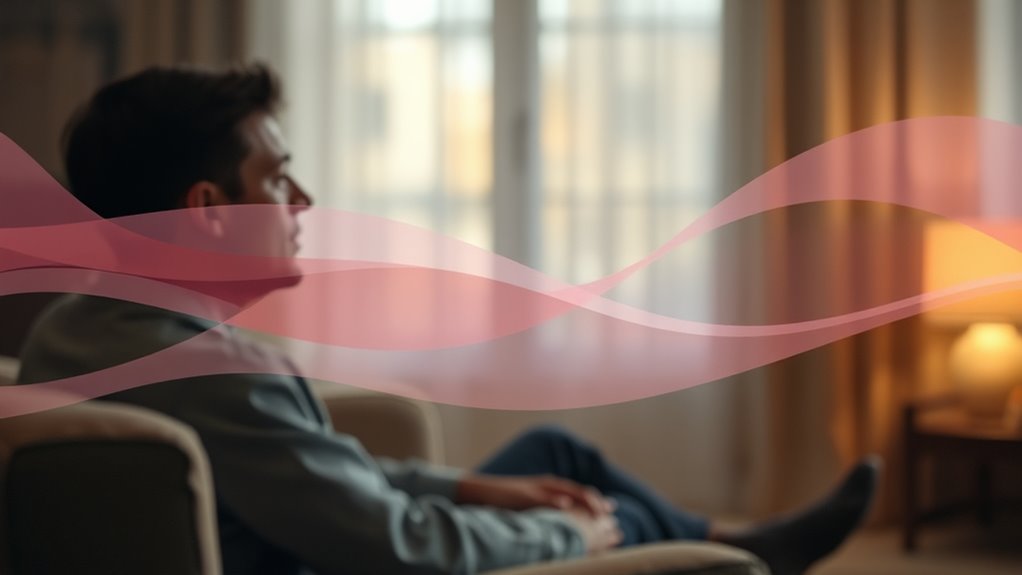
Many people find that excessive motion and animations can be overwhelming or distracting, especially for users with sensory sensitivities or vestibular disorders. These visual effects, while often intended to enhance user experience, can instead cause dizziness, nausea, or disorientation. To improve visual comfort and make digital content more accessible, it’s important to understand how reducing motion benefits everyone, especially those sensitive to rapid movements or flashing visuals. Accessibility features, such as options to disable or minimize animations, empower you to tailor your browsing experience according to your needs. Many websites and applications now include these options, recognizing the importance of inclusive design.
Reducing motion makes digital content more comfortable and accessible for everyone, especially those with sensory sensitivities or vestibular disorders.
When you activate reduce motion settings, you eliminate or lessen the movement of elements like automatic image carousels, background animations, or changes that can trigger discomfort. This simple adjustment helps stabilize your visual environment, making it easier to focus without feeling overwhelmed. For users with vestibular disorders, reducing motion can prevent symptoms like vertigo or imbalance, which are often worsened by dynamic visuals. Furthermore, for people with sensory sensitivities, minimizing motion creates a calmer, more predictable digital space, reducing cognitive load and sensory overload. Reducing motion can also contribute to better accessibility for a wider range of users.
Incorporating accessibility features that allow you to control motion is key to fostering a more inclusive online experience. These features are typically available in device settings, operating systems, or within specific apps and websites. For instance, many modern browsers include a toggle to reduce motion, which automatically stops or simplifies animations across supported sites. Likewise, operating systems like Windows and macOS provide options to limit animated effects globally, giving you more control over your visual environment. By leveraging these features, you can create a more comfortable, accessible digital space that respects your sensory boundaries.
Understanding the importance of visual comfort also means recognizing that animations and motion aren’t inherently bad—they just need to be used thoughtfully. When designing or customizing your digital experience, look for ways to enable these accessibility features. Doing so not only reduces dizziness and nausea but also enhances your overall usability. Whether you’re browsing social media, working on a project, or simply navigating your device, taking steps to minimize unnecessary motion can make your online experience safer and more enjoyable. Ultimately, prioritizing accessibility features benefits everyone, helping you stay focused and comfortable while engaging with digital content.
Frequently Asked Questions
Are There Any Medical Conditions That Worsen With Motion?
Yes, certain medical conditions like vestibular disorders and inner ear issues can worsen with motion. If you have conditions such as Meniere’s disease or vestibular neuritis, moving too much might intensify dizziness, nausea, or imbalance. It’s important to be cautious with activities that involve sudden movements or lots of motion. Consulting with a healthcare professional can help you develop strategies to manage symptoms and avoid triggers.
How Can I Identify Triggers for Motion Sickness?
You might notice triggers for motion sickness when visual triggers like flickering screens or moving scenery coincide with environmental factors such as strong smells or stuffy rooms. Pay attention to how your body reacts during activities like riding in a car or watching videos. Keep a journal to track these moments, noting what you saw, felt, and experienced. This way, you can identify specific visual triggers and environmental factors that set off your symptoms.
Do Certain Types of Animations Cause More Dizziness?
Certain animation styles, like fast-moving or flashing visuals, can cause more dizziness, especially if they include screen flickering or rapid motion. You might notice that overly complex or highly dynamic animations trigger nausea or dizziness more than smoother, minimal animations. To minimize discomfort, look for animations with gentle shifts, avoid flickering screens, and choose options with reduced motion settings when available. This helps prevent dizziness and makes your viewing experience more comfortable.
Can Reducing Motion Improve Overall Visual Comfort?
Reducing motion can substantially improve your visual comfort, especially since studies show that 60% of users experience less eye strain with fewer animations. By adjusting settings for better visual ergonomics, you create a smoother user interface that minimizes dizziness and nausea. When you limit unnecessary motion, your eyes don’t have to work as hard, making your overall experience more comfortable and less taxing on your visual system.
Are There Specific Settings on Devices for Motion Sensitivity?
Yes, your device has specific settings for motion sensitivity. You can access accessibility options to find features like “Reduce Motion” or “Animation Settings.” Turning these on minimizes unnecessary animations and shifts, helping ease dizziness and nausea. These adjustments are designed to improve visual comfort, especially if you’re sensitive to motion. Check your device’s settings menu under accessibility or display options to customize these features for a smoother, more comfortable experience.
Conclusion
By reducing motion and animations, you can make digital experiences more comfortable, especially if you’re prone to dizziness or nausea. Think of it as bringing calm to a chaotic world—like a quiet corner in a noisy tavern. Don’t forget, even in the age of flying cars, simplicity and comfort still matter. Adjust your settings today to create a more pleasant, dizziness-free environment—because sometimes, less really is more.
Halloween Picks
halloween
As an affiliate, we earn on qualifying purchases.