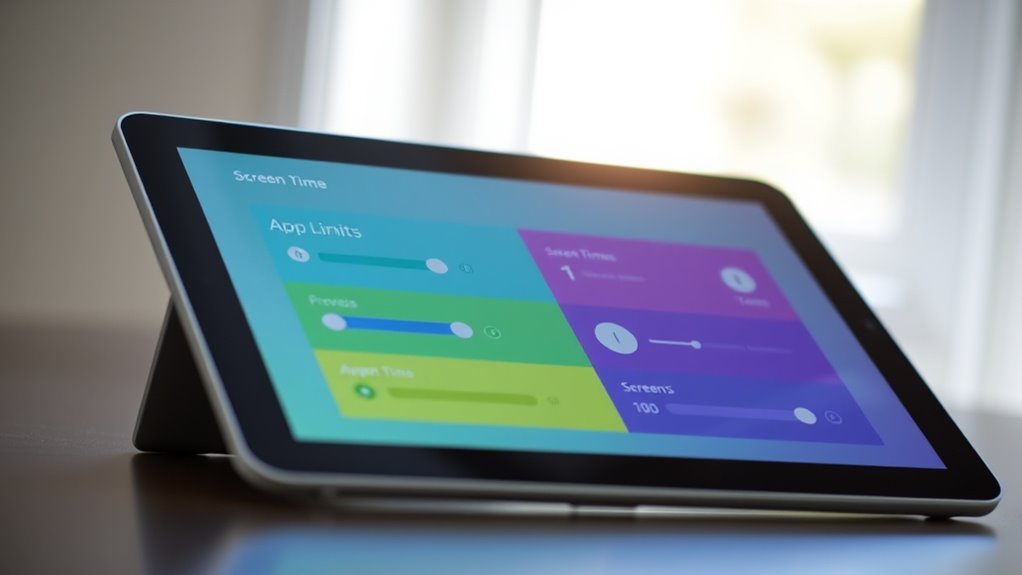

To set up screen time and app limits that really work, start by being clear and consistent about your boundaries. Use device features to set daily usage caps and schedule downtime for important routines like homework and bedtime. Explain the reasons behind these limits to foster understanding and cooperation. Track your progress to adjust limits as needed. Keep experimenting with these methods, and you’ll find the right balance to promote healthier habits and responsible device use.
Key Takeaways
- Clearly define and communicate limits to foster understanding and compliance.
- Use device reports to monitor usage patterns and adjust limits accordingly.
- Set realistic, gradual reductions to help users adapt comfortably.
- Combine app limits with scheduled offline periods and physical activity.
- Regularly review and modify restrictions based on changing needs and habits.
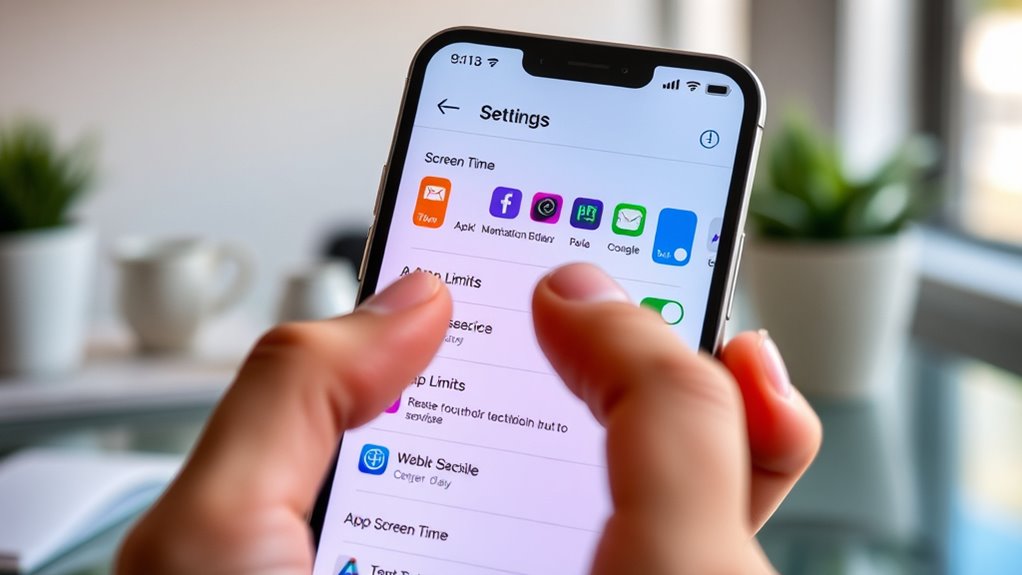
Managing your device use is essential in today’s digital world, and setting up Screen Time and App Limits makes it easy to stay balanced. Whether you’re aiming for a digital detox or trying to help your family develop healthier habits, these tools give you the control you need. With parental controls built into most devices, you can set boundaries that encourage responsible use without constant supervision. This way, you’re not just restricting access—you’re fostering a healthier relationship with technology.
Setting boundaries with Screen Time and parental controls promotes healthier digital habits for the whole family.
Start by exploring the Screen Time settings on your device. These controls let you specify how long certain apps or categories of apps can be used each day. For example, you might set limits on social media or gaming to prevent excessive screen time. When those limits are reached, the app is locked until the next day, prompting you to take breaks or switch to other activities. This helps you enforce a digital detox, giving yourself the necessary space to disconnect and focus on offline experiences. For parents, these controls can be tailored for kids, ensuring they aren’t exposed to too much screen time or inappropriate content.
Parental controls go beyond just setting time limits. They allow you to manage what your children can access, monitor their activity, and even restrict certain websites or app downloads. This ensures a safer digital environment, giving you peace of mind as your kids navigate their devices. Setting these controls might seem restrictive at first, but they’re actually empowering, teaching responsible usage habits. You can also schedule device downtime, during which only essential functions are available—perfect for homework, family meals, or bedtime routines. These scheduled breaks promote a digital detox, helping everyone in your household develop healthier tech habits. Additionally, understanding the importance of spinal alignment can motivate families to balance screen time with physical well-being activities.
To make your limits effective, be consistent and transparent with your family. Explain why you’re setting these boundaries and how they can benefit everyone’s well-being. Use the device’s reporting features to track usage patterns and adjust limits as needed. If your goal is a digital detox, gradually decrease screen time rather than imposing sudden restrictions. This encourages compliance and helps you and your family adapt more smoothly to healthier routines. Remember, the goal isn’t just restriction but fostering a balanced, mindful relationship with technology.

Teracube Thrive Kids Smart Phone – Safe Android Phone for Kids & Teens with Parental Controls, Block/Limit Social Media and Internet, GPS, Talk & Text, Spam Blocker (Monthly Plan Required)
📱 All-in-One Smartphone for Kids & Teens: Kids phone for 7–16, the Teracube Thrive is the perfect first…
As an affiliate, we earn on qualifying purchases.
As an affiliate, we earn on qualifying purchases.
Frequently Asked Questions
Can I Customize Limits for Specific Days of the Week?
Yes, you can customize limits for specific days of the week. You just need to create a weekly schedule and adjust the settings for each day individually. This way, you control when limits are active, depending on your needs. By tailoring days, you guarantee that screen time rules fit your routine, giving you flexibility and better management of app usage throughout the week.
How Do I Override App Limits Temporarily?
Overriding app limits is as simple as flipping a switch. You just need to request an app limit exemption through your device’s settings or ask for override permissions. When you reach your limit, tap “Ask to Continue,” and if approved, your device grants temporary access. This quick process helps you stay flexible without permanently changing your restrictions, giving you control whenever you need it most.
Are There Different Settings for Children and Adults?
Yes, there are different settings for children and adults. You can customize age-appropriate controls and privacy settings based on the user’s age. For children, limits are stricter, and you can restrict access to certain apps or content. As an adult, you have more flexibility, with fewer restrictions. Adjust these settings in your device’s Screen Time menu to guarantee appropriate usage and privacy for each user.
How Do I Monitor Device Usage Over Time?
To monitor device usage over time, review device usage statistics regularly, set reminders to check app usage tracking, and analyze patterns to identify areas for adjustment. Keep an eye on how much time you spend on different apps, notice trends in your usage, and use these insights to set healthier limits. Tracking consistently helps you stay aware of your habits and make informed decisions for better digital well-being.
Can I Set Different Limits for Multiple Devices?
Yes, you can set different limits for multiple devices by leveraging device synchronization and limit flexibility. When you update Screen Time settings on one device, the changes sync across all your Apple devices. This allows you to customize limits for each device based on your needs. Keep in mind, some limits may have restrictions, but overall, device synchronization and limit flexibility give you control over usage on multiple devices simultaneously.

The Brick Phone Access Blocker Device – Subscription-Free Phone Lock, Limits Smartphone Access, Reduces Screen Time & Improves Focus – High-Grade Magnet & Anti-Slip Silicone
Take Back Control of Your Screen Time: Brick is a physical device that temporarily removes distracting apps and…
As an affiliate, we earn on qualifying purchases.
As an affiliate, we earn on qualifying purchases.
Conclusion
By setting thoughtful screen time and app limits, you’re creating a digital sanctuary—like the wise owl guarding its nest. Remember, it’s about balance, not restriction. When you take control, you’re steering your own story, much like a captain charting a course through calm and storm. So, start today; your future self will thank you for the harmony you’re building. Embrace these limits, and watch your digital life flourish.

TV Time : Usage and Digital Wellbeing monitor
Keep tabs on the time you spent watching your TV.
As an affiliate, we earn on qualifying purchases.
As an affiliate, we earn on qualifying purchases.

GPS Tracker for Vehicles – Hidden Tracking Devices for Cars, GPS Tracker for Vehicle No Monthly Fee, Car Tracker Device with Real-Time Location, No Subscription, Compact Tracker Device
Global Real-Time Tracking via Apple Find My Network – Track your valuables anywhere in the world using the…
As an affiliate, we earn on qualifying purchases.
As an affiliate, we earn on qualifying purchases.