To calibrate your laptop screen for the best picture quality, start by adjusting the hardware settings like brightness and contrast using your laptop’s controls, ensuring you see details clearly without straining your eyes. Then, use built-in calibration tools like Windows’ Display Color Calibration or Mac’s Display Calibrator Assistant to fine-tune gamma, color balance, and contrast. For even better accuracy, consider using professional calibration devices, which can help you achieve truly precise colors. Keep going to discover how to perfect your display even further.
Key Takeaways
- Use built-in calibration tools like Windows Display Color Calibration or Mac Display Calibrator Assistant for guided adjustments.
- Adjust hardware brightness and contrast controls to set a clear, comfortable baseline before software calibration.
- Install custom color profiles to ensure accurate color reproduction tailored to your display.
- Utilize calibration devices such as colorimeters for precise measurement and profile creation, ideal for professional work.
- Regularly recalibrate your screen to maintain optimal picture quality and prevent color drift over time.
Calibrating your laptop screen makes certain that colors, brightness, and contrast are displayed accurately, which is essential for tasks like photo editing, graphic design, or simply enjoying your media. To achieve this, you need to understand how to fine-tune your display settings effectively. The process begins with ensuring your hardware adjustments are correct. Start by adjusting the brightness and contrast controls directly on your laptop. These physical controls help set a baseline; your screen should be bright enough to see details clearly without causing eye strain, and contrast should be set so that blacks are deep and whites are crisp.
Adjust your laptop’s brightness and contrast for accurate, comfortable viewing.
Once you’ve made basic hardware adjustments, the next step involves working with color profiles. Color profiles are data files that tell your operating system how to interpret color information for your display. Using the correct color profile ensures that what you see on your screen matches standards used by digital media professionals. Many operating systems come with default profiles, but for precise calibration, you might need to install custom profiles or use calibration tools that generate profiles tailored to your specific device. These tools analyze your screen’s color output and create profiles that correct any deviations, guaranteeing your display shows accurate colors.
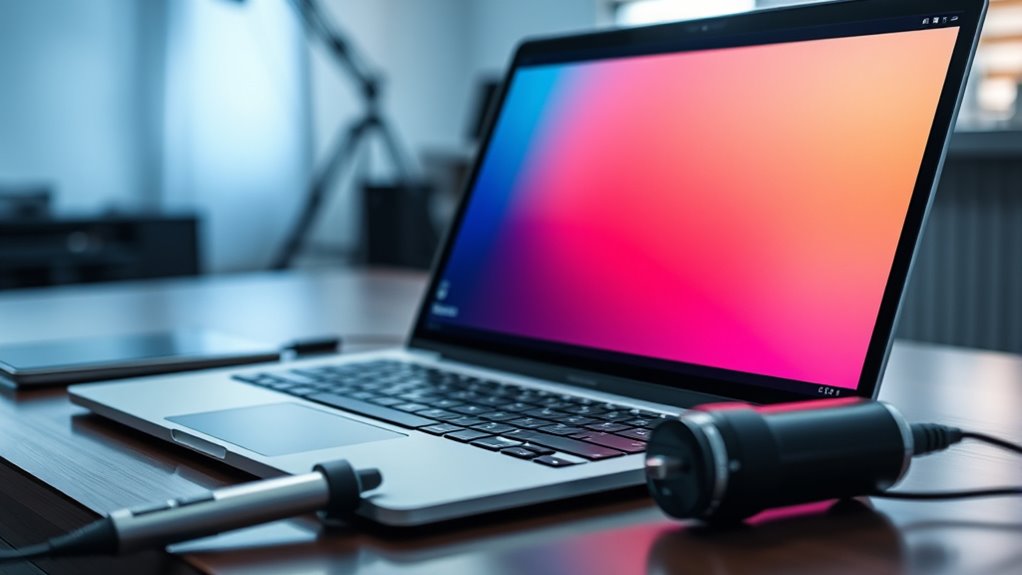
To further refine your calibration, you can use built-in calibration tools available in your operating system. For example, Windows offers a Display Color Calibration wizard, guiding you through adjusting gamma, brightness, contrast, and color balance step-by-step. Mac users can access similar tools through the Display Calibrator Assistant. These utilities walk you through adjusting sliders and settings until your screen displays colors accurately, based on standardized test patterns. Follow their instructions carefully, making small adjustments and comparing the test images until you achieve a balanced, natural look. Additionally, display calibration for professional-grade accuracy can be achieved with specialized hardware calibration devices, such as colorimeters or spectrophotometers, which connect to your laptop and accurately measure the display’s output, automatically generating a custom color profile tailored to your screen’s characteristics. While these tools involve an investment, they provide the highest level of accuracy, especially important for professional photo editing or color-sensitive work.
Top picks for "calibrate laptop screen"
Open Amazon search results for this keyword.
As an affiliate, we earn on qualifying purchases.
Frequently Asked Questions
How Often Should I Recalibrate My Laptop Screen?
You should recalibrate your laptop screen every 4 to 6 weeks to maintain ideal color temperature and picture quality. Regular calibration ensures colors stay accurate, especially if you use your laptop for design or photo editing. Factors like changing ambient lighting and screen aging can affect calibration, so keeping a routine helps. If you notice color inconsistencies or dull images, it’s time to recalibrate sooner.
Can Calibration Fix All Display Color Issues?
Calibration can substantially improve color accuracy and visual consistency, but it won’t fix all display color issues. If your screen has hardware problems, dead pixels, or persistent color banding, calibration alone won’t resolve those. Instead, it helps fine-tune settings for the best possible picture quality. For persistent issues, you might need professional repairs or a display replacement. Calibration enhances what’s already working but isn’t a cure-all for every color problem.
Is Calibration Necessary for Gaming or Only for Professional Work?
Think of calibration as tuning a musical instrument—you’ll notice the difference, whether gaming or casual viewing. For gaming accuracy, calibration sharpens colors and contrast, giving you that competitive edge. For casual viewing, it enhances overall picture quality and reduces eye strain. While it’s more critical for professional work, calibration can still elevate your gaming experience and make everyday visuals more vibrant, turning your screen into a window of wonder.
What Tools or Software Are Best for Calibration?
You should use tools like CalMAN, DisplayCAL, or SpyderX for color calibration and display profiling. These software options help you achieve accurate color reproduction by adjusting your screen’s settings precisely. Hardware calibration devices, such as colorimeters or spectrophotometers, enhance accuracy even further. Regular calibration ensures consistent picture quality, whether for professional work or gaming, giving you reliable colors and ideal display performance every time.
Does Calibration Affect Battery Life or Performance?
Calibration can slightly impact your battery life and performance because adjusting display brightness and fine-tuning color accuracy may demand extra processing power. When you optimize your screen, it could cause your laptop to use more resources, which might drain the battery faster or make your system work harder. However, these effects are usually minimal if you keep calibration settings balanced, ensuring you enjoy improved display quality without sacrificing too much performance.
Conclusion
Calibrating your laptop screen enhances your viewing experience and reduces eye strain. Did you know that improper display settings can cause up to 20% more eye fatigue? Taking a few minutes to calibrate guarantees you see colors accurately and enjoy clearer visuals. Don’t overlook this simple step—your eyes will thank you, and you’ll get the most out of your screen every time you use your laptop.