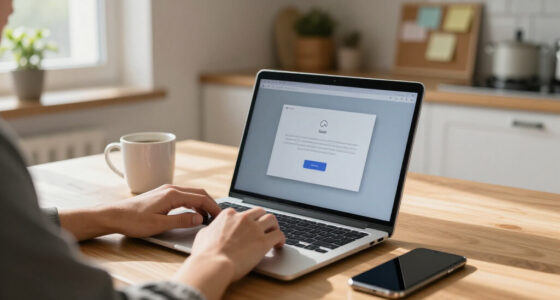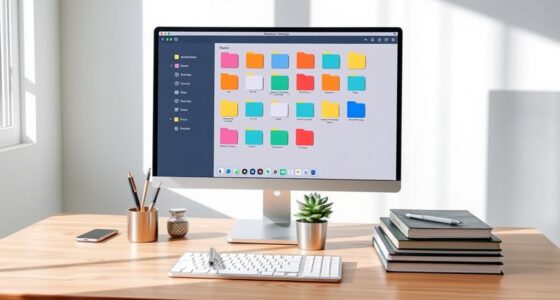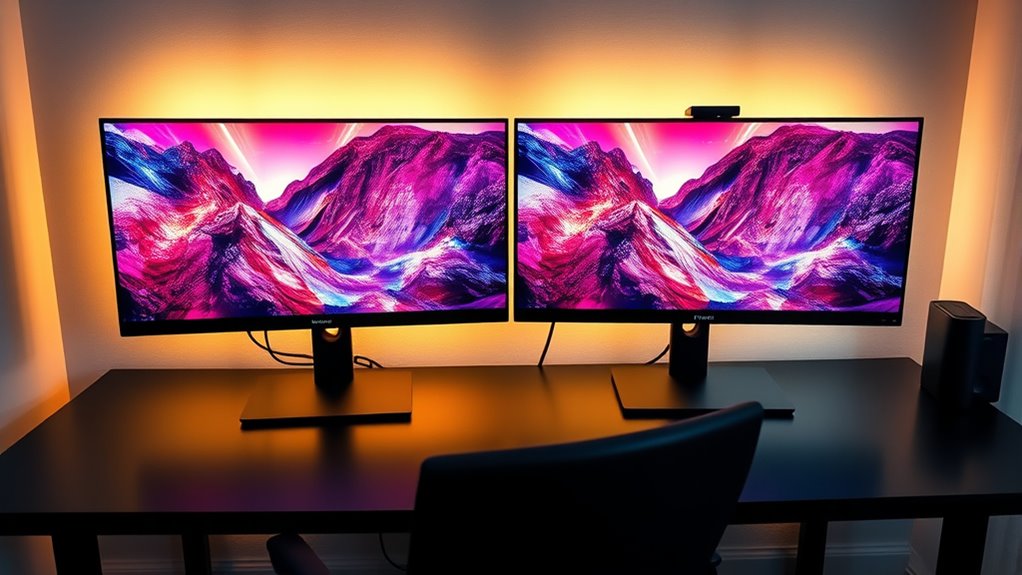

To set up and optimize a second monitor, start by physically positioning it at eye level and aligning it with your primary screen for comfort. Connect the monitor, then adjust display settings like resolution and scaling for clarity. Use OS features or window management tools to organize your workspace efficiently. Calibrate the displays for color accuracy if needed. Keep exploring to discover tips that will help you get the most out of your dual monitor setup.

Get the latest gadgets delivered free with Prime
- Fast, free delivery on millions of items
- Prime Video, Amazon Music and more included
- Member-only deals all year
Key Takeaways
- Connect the second monitor via HDMI, DisplayPort, or VGA, ensuring proper hardware compatibility.
- Adjust display resolution, scaling, and color calibration for clarity and color accuracy.
- Use OS window management features like snapping or split view to organize workspace efficiently.
- Position monitors at eye level and align physical setup with digital layout for ergonomic comfort.
- Save preferred window arrangements and display settings for quick setup and workflow consistency.
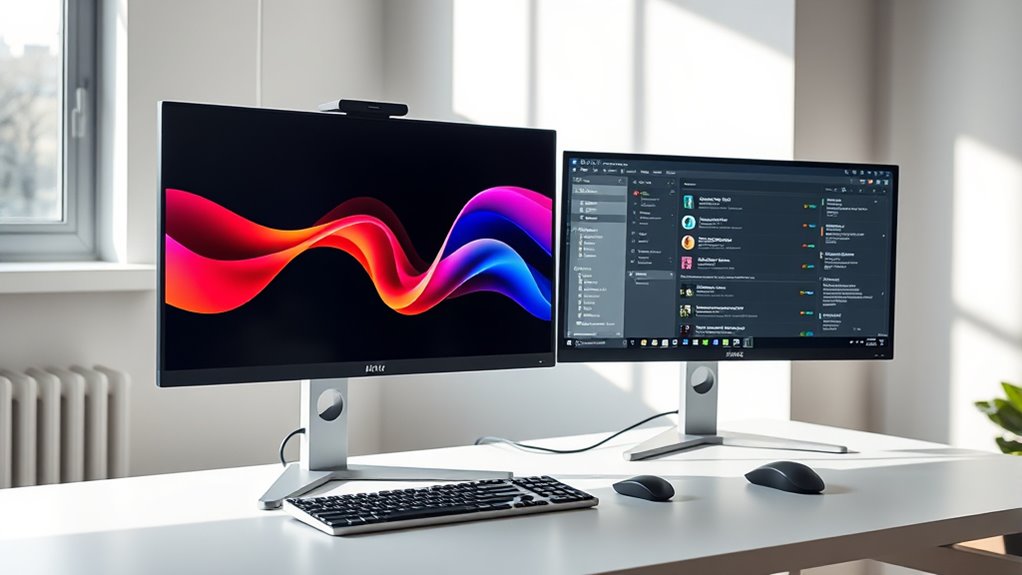
Setting up dual monitors can considerably boost your productivity and streamline your workflow. When you add a second screen, you create more space for your tasks, making it easier to multitask and stay organized. To get the most out of your setup, it’s crucial to focus on monitor calibration and window management. Proper monitor calibration ensures your displays are color-accurate and consistent, which is especially important if you work with design, photography, or any color-sensitive applications. Take the time to use calibration tools or built-in software to adjust brightness, contrast, and color balance, so the screens match seamlessly. This not only improves visual comfort but also prevents eye strain over long periods.
Once your monitors are calibrated, you’ll want to optimize how you manage your open windows. Effective window management is key to leveraging the full potential of dual screens. Start by arranging your applications so that frequently used tools or reference materials are on one screen, while your primary work or creative tasks occupy the other. Many operating systems allow you to snap windows into predefined zones, making it easy to organize your workspace quickly. Learning keyboard shortcuts for window snapping or using built-in features like Windows Snap Assist or macOS Split View can save you time and keep your workspace tidy. With well-managed windows, you minimize the need to constantly resize or shuffle around applications, which keeps your focus sharp and your workflow fluid. Additionally, mastering window management extends to customizing your display settings to ensure a comfortable viewing experience.
Furthermore, adjusting your display resolution and scaling options so that text and icons are clear and comfortable to view across both monitors can significantly enhance your dual monitor experience. If your monitors have different sizes or resolutions, explore setting different scaling levels or resolutions for each display to create a balanced visual experience. This prevents eye fatigue and helps you work more efficiently. When setting up your dual monitors, ensure that the physical arrangement matches your digital layout. Position the monitors at eye level and align them on your desk to match their virtual arrangement, reducing neck strain and making navigation between screens more natural. And remember, leveraging innovative European cloud servers can help securely back up your configurations and workflows for seamless access across devices.
As an affiliate, we earn on qualifying purchases.
Frequently Asked Questions
Can I Use Different Brands of Monitors Together?
Yes, you can use different brands of monitors together. Just verify monitor brand compatibility by checking that both screens support the same connection types. You might need to adjust display calibration settings to match color, brightness, and contrast for a seamless look. Keep in mind, differences in brand quality can affect uniformity, but with proper calibration, you can create a cohesive dual-monitor setup that works well for your needs.
How Do I Troubleshoot Display Detection Issues?
If your monitors aren’t detected, start by checking your cable connections to make sure they’re secure and correctly plugged in. Then, update your display drivers to fix compatibility issues. Don’t worry—sometimes a simple restart or reconnecting the cables can solve the problem. Visualize your screens coming to life, knowing these quick steps will help you troubleshoot display detection issues efficiently and get your dual monitors working seamlessly.
Is It Possible to Rotate Only One Monitor?
Yes, you can rotate only one monitor by adjusting its display orientation settings. Right-click on your desktop and select Display Settings. Choose the monitor you want to rotate, then find the display orientation options. You can set it to landscape, portrait, or flipped modes. This allows you to customize monitor rotation individually, giving you better control over your dual monitor setup without affecting the other screen.
What Settings Optimize Performance for Gaming?
For ideal gaming performance, you should calibrate your monitor to guarantee accurate colors and sharp visuals, while adjusting the refresh rate for smoother gameplay. Set your display to the highest supported refresh rate, enable G-SYNC or FreeSync if available, and optimize graphics settings for your system. Keep your drivers updated, tweak in-game resolution, and disable unnecessary background processes to maximize responsiveness and reduce lag.
How Do I Set Different Wallpapers for Each Screen?
To set different wallpapers for each screen, right-click on your desktop and select “Personalize” or “Display Settings.” Choose “Wallpaper customization” and then select your preferred images for each monitor. This enhances your multi monitor aesthetics by giving each screen a unique look. Make sure to assign the wallpapers to the correct display, and your dual monitors will look personalized and visually appealing.
As an affiliate, we earn on qualifying purchases.
Conclusion
Think of your dual monitors as a well-choreographed dance duet, each screen moving in harmony to create a seamless performance. When you set up and optimize your second screen, you’re conducting a symphony of productivity and efficiency. With a little practice, your workspace transforms into a dynamic stage where ideas flow effortlessly across both monitors. Mastering this dance not only elevates your workflow but makes every task feel like a graceful, synchronized performance.
As an affiliate, we earn on qualifying purchases.
As an affiliate, we earn on qualifying purchases.
Halloween Picks
halloween
As an affiliate, we earn on qualifying purchases.