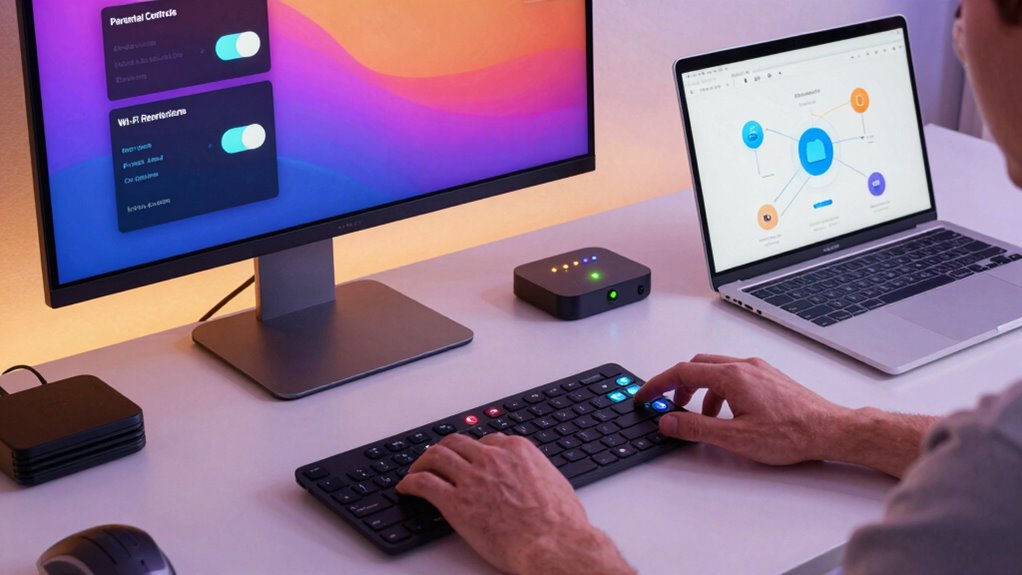

To set up parental controls on your computer and Wi-Fi, start by accessing control settings on your device—like “Family & other users” on Windows or “Screen Time” on Mac—and create child-specific accounts. Use built-in options to restrict content, set screen time, and monitor activity. For your Wi-Fi, log into your router’s settings to block sites or limit access. For more detailed steps, keep exploring how to customize controls for your family’s needs.
Key Takeaways
- Access parental control settings via Control Panel (Windows) or System Preferences (Mac) to restrict content and manage user accounts.
- Set up child profiles with appropriate permissions and content filters to block inappropriate websites and apps.
- Configure screen time limits and schedules to control device usage and promote healthy habits.
- Adjust your Wi-Fi router settings to set internet access schedules, block specific sites, and change passwords regularly.
- Consider third-party parental control software for advanced monitoring, detailed activity logs, and additional filtering options.

2Pcs Type-C USB CH32V003 Development Board Minimum System core Board for Nano RISC-V
CH32V003 Development Minimum System Board for Nano RISC-V CH32V003F4U6 Chip TYPE-C USB 22Pin
As an affiliate, we earn on qualifying purchases.
Understanding Parental Controls and Why They Matter

Understanding parental controls is essential because they help you manage your child’s online activities and protect them from potential dangers. When you set up parental controls, you’re not just blocking inappropriate content; you’re also fostering digital literacy. This involves guiding your child to understand how to navigate the internet safely and responsibly. Parental controls play a key role in ensuring online safety by filtering harmful sites, limiting screen time, and monitoring activity. By actively engaging with these tools, you empower your child to develop healthy online habits while minimizing risks. Remember, the goal isn’t just restriction but teaching your child to make smart choices online. Properly used, parental controls become an important part of your overall strategy to keep your child safe and informed in the digital world. Incorporating wellness tech principles can further support a balanced approach to digital use, such as setting up screen time limits or encouraging offline activities. Being aware of potential online dangers can help you tailor your parental controls more effectively and promote safer internet use. Additionally, understanding wave and wind patterns can contribute to creating a safer online environment by recognizing and mitigating digital hazards. Recognizing cyber threats and how they operate can help you implement more effective security measures.
Amazon Product B0C947BHK5
As an affiliate, we earn on qualifying purchases.
Accessing Parental Control Settings on Your Computer

To effectively manage your child’s online activities, you need to know how to access the parental control settings on your computer. First, verify your digital literacy skills are up to date, as this helps you navigate system menus confidently. On Windows, you can find these settings in the Control Panel under “User Accounts” or “Family & other users,” where you can set restrictions. On a Mac, go to System Preferences and select “Screen Time.” For both systems, you may need administrator access. Knowing how to reach these controls quickly enhances online safety, allowing you to monitor and limit your child’s screen time and access to inappropriate content. Familiarity with these steps empowers you to create a safer online environment for your family. Additionally, understanding the specific parental control options available can help tailor restrictions to your child’s age and needs. Being aware of water safety can also inform safer online content choices related to aquatic activities and water safety tips. Developing a comprehensive approach to online safety includes regularly updating parental controls to adapt to your child’s maturity level. Moreover, understanding the types of restrictions offered by various systems can help you customize settings effectively. Building your knowledge of creative storytelling for branding can also help you communicate with your child about online content and digital safety in a more engaging way.

Waveshare ESP32-C6 1.47inch LCD Display Development Board, 160MHz RISC-V Processor, Wi-Fi 6, Bluetooth 5, 4MB Flash, 1.47inch 262K Color Display, RGB LED, TF Card Slot, USB Port
ESP32-C6 1.47inch LCD Display Development Board supports 2.4GHz Wi-Fi 6 and Bluetooth BLE 5, integrates 4MB Flash. Onboard...
As an affiliate, we earn on qualifying purchases.
Creating User Accounts for Your Children

Creating separate user accounts for your children is a crucial step in managing their online activity effectively. It allows you to customize settings that promote internet safety and support their digital literacy. When creating accounts, consider the following:
- Set up a child-specific profile with appropriate permissions
- Enable parental controls to restrict access to certain websites
- Limit screen time to encourage balanced device use
- Regularly review activity logs for safety and learning opportunities
- Be aware of emerging trends like family photoshoot fails that highlight the importance of supervision and communication in digital activities.

waveshare ESP32-C6 RISC-V Microcontroller Development Board Integrated WiFi 6, Bluetooth 5 and IEEE 802.15.4 (Zigbee 3.0&Thread), Adopts ESP32-C6-WROOM-1-N8 Module, Support USB and UART Development
ESP32-C6 WiFi 6 microcontroller development board adopts ESP32-C6-WROOM-1-N8 module, which is equipped with RISC-V 32-bit single-core processor, up...
As an affiliate, we earn on qualifying purchases.
Setting Content Restrictions and Time Limits on Your PC

You can manage your child’s online experience by setting content filters and screen time limits on your PC. These controls help restrict inappropriate websites and make sure they don’t spend too much time on the device. Adjusting these settings keeps their digital activity safe and balanced. User privacy is also an important consideration when implementing these controls to ensure their online data remains protected. Additionally, understanding content filtering techniques can enhance your ability to create a safer browsing environment. Incorporating holistic SEO principles can also help you stay informed about best practices in content management and digital safety. Employing sustainable practices when configuring parental controls can further support a healthier digital environment for your family. Being aware of digital well-being strategies can help promote healthier device habits and reduce screen overuse.
Managing Content Filters
Managing content filters is essential for ensuring your child accesses appropriate online material and stays within designated screen time. Proper content filtering promotes digital literacy and online safety, helping your child navigate the internet responsibly. To do this effectively, you can:
- Block explicit websites and inappropriate content
- Set age-appropriate filters for different sites
- Limit access to certain apps or categories
- Monitor browsing history regularly
- Use reliable filtering tools that are easy to configure and keep up with evolving online threats. Implementing color accuracy in filtering tools can enhance the detection of inappropriate images and content, ensuring a safer browsing experience. Additionally, selecting advanced filtering solutions that utilize artificial intelligence can improve the identification of new or disguised inappropriate material. Incorporating real-time updates ensures that filtering systems stay current with emerging online risks and malicious content.
Setting Screen Time
Setting screen time limits on your PC helps guarantee your child balances online activities with offline experiences. By establishing gaming restrictions, you prevent excessive gaming that could interfere with other responsibilities. You can also set specific time frames for social media monitoring, ensuring your child isn’t spending too long scrolling through apps. Many parental control tools allow you to schedule daily or weekly limits, making it easy to enforce healthy routines. When you implement these restrictions, your child learns to manage their digital time responsibly. Regularly review and adjust the limits as needed, especially during school vacations or special occasions. This balance encourages healthier habits and helps your child develop self-control while keeping online activities safe and appropriate.
Configuring Parental Controls on Windows Devices

To start configuring parental controls on your Windows device, you need to access the Family Settings. From there, you can set content restrictions to block inappropriate websites and apps. You can also manage screen time to make certain your child isn’t spending too much time on the device. Additionally, consider implementing security measures to protect your child’s online activities from potential risks. Using evidence-informed guidance can help ensure your settings effectively promote safe and healthy device use for your child. For example, selecting age-appropriate content filters can further tailor the restrictions to your child’s developmental needs, especially when considering the Know Your Child’s Online Behavior approach to create more personalized controls. Incorporating technological tools that monitor and report online activity can also enhance your oversight.
Access Family Settings
Accessing family settings on Windows devices is straightforward and essential for implementing parental controls. Once inside, you can manage family safety features that promote digital literacy and help protect your child online. To get started, follow these steps:
- Open the Settings app and navigate to “Accounts”
- Select “Family & other users”
- Click “Add a family member” to set up new accounts
- Choose “Manage family settings online” for detailed controls
- Understanding content filtering options helps you customize restrictions and ensure a safer browsing environment for your children.
Set Content Restrictions
How can you guarantee your child views appropriate content? By setting content restrictions on your Windows device, you enhance internet safety and promote digital literacy. Start by opening the parental controls and selecting your child’s account. From there, you can block adult websites, restrict access to specific apps or games, and filter inappropriate content based on age ratings. These settings help ensure your child encounters safe online environments and reduces exposure to harmful material. Regularly review and update restrictions to match their growing digital literacy skills and changing needs. Implementing these controls not only guards against unsuitable content but also teaches responsible internet use. Establishing clear boundaries now encourages healthier online habits and builds their understanding of safe digital behavior. Incorporating Free Floating concepts into your monitoring approach can further support a balanced digital experience for your child.
Manage Screen Time
Once you’ve set content restrictions to keep your child’s online experience safe, managing their screen time becomes the next step in promoting healthy digital habits. Limiting screen time helps improve focus, encourages other activities, and supports digital literacy. To manage screen time on Windows devices, you can set daily limits, schedule specific hours for device use, or pause access altogether. Consider these strategies:
- Set daily time limits for specific apps or overall device use
- Schedule device access during certain hours (e.g., homework or bedtime)
- Enable alerts when limits are reached
- Use break reminders to promote regular offline periods
These controls foster online safety and help your child develop responsible device habits, ensuring a balanced digital lifestyle while supporting their growth and learning.
Setting Up Parental Controls on Mac Computers
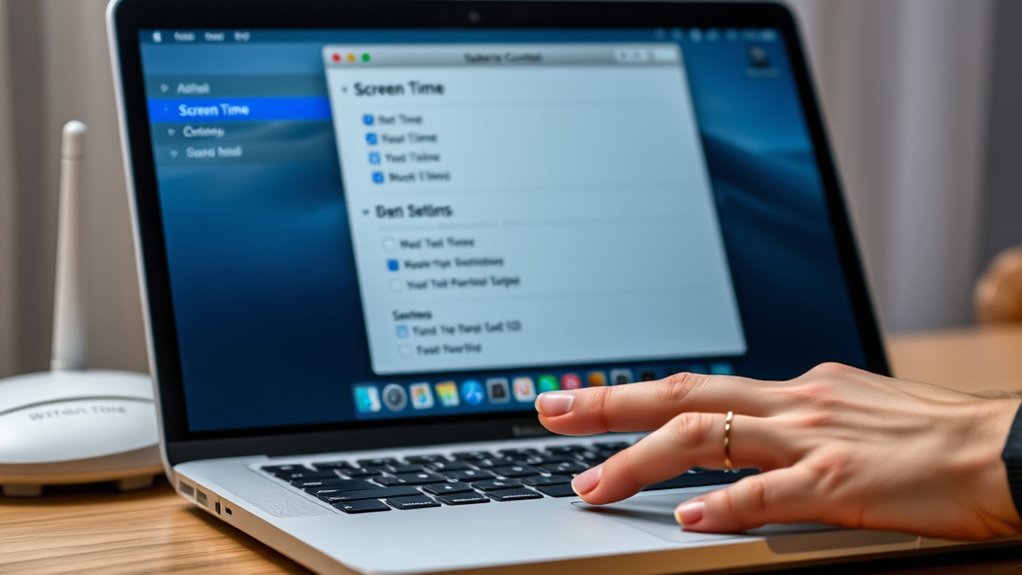
Are you ready to take control of your child’s online activity on a Mac? Setting up parental controls helps you promote digital literacy and ensure online safety. To begin, click the Apple menu and select System Preferences. Then, click Screen Time and turn it on if it’s not already active. From here, you can create a dedicated account for your child or manage their existing one. Set app limits, restrict explicit content, and control web usage to prevent access to inappropriate sites. You can also schedule downtime to encourage healthy routines. Regularly review activity reports to monitor your child’s online habits. These steps empower you to foster responsible digital behavior, keeping your child safe while they explore and learn online.
Securing Your Wi-Fi Network With Parental Controls

To keep your kids safe online, start by changing your Wi-Fi password regularly so unauthorized users can’t access your network. Enable a guest network to give visitors internet access without exposing your main devices. These simple steps help you better control your home Wi-Fi and protect your family.
Change Wi-Fi Passwords Regularly
Regularly changing your Wi-Fi password is a simple but effective way to strengthen your network security and guarantee that only authorized users can access it. This practice helps maintain internet safety and supports device monitoring by preventing unauthorized connections. When you update your password, consider these tips:
- Use complex, unique passwords that are hard to guess
- Update passwords every few months for added security
- Avoid sharing passwords widely
- Keep a record of your new password securely
Enable Guest Network Access
Enabling a guest network provides a safe way to share your internet connection without giving access to your main devices. This feature helps protect your primary network from potential threats and keeps your child’s safety a priority. By setting up a separate guest network, you can control access and apply device restrictions to ensure your child only uses appropriate content. It limits their ability to reach sensitive devices, reducing risks like data breaches or unwanted activity. Additionally, guest networks often have limited bandwidth, which prevents them from slowing down your main connection. This setup allows visitors or family members to connect freely without compromising your network’s security or your parental controls. Overall, enabling a guest network is a simple step toward maintaining a secure, controlled online environment for everyone.
Using Router Settings to Manage Internet Access

Using router settings to manage internet access allows you to take direct control over your child’s online activities. By adjusting these settings, you can enhance internet safety and enforce device restrictions effectively. You can set time limits for internet use, block specific websites, or restrict access during certain hours. This helps prevent overuse and keeps your child focused on homework or family time. Additionally, configuring device restrictions ensures only approved devices connect, reducing exposure to risky content.
Using router settings to control internet access enhances safety and enforces device restrictions effectively.
Some key features to consider include:
- Setting time schedules for internet access
- Blocking inappropriate websites
- Filtering content by categories
- Limiting device connectivity
These options help you stay proactive in managing your child’s online environment and maintaining a safe browsing experience.
Installing Third-Party Parental Control Software

Have you considered installing third-party parental control software to better monitor and manage your child’s online activity? These programs enhance digital monitoring by providing detailed reports of browsing history, app usage, and screen time. They also allow you to set device restrictions, such as limiting access during certain hours or blocking inappropriate content. Unlike basic router controls, third-party software often offers more granular controls and user-friendly interfaces, making it easier to customize settings for each child. With these tools, you can actively oversee online behavior and ensure safe internet usage. Installing trusted parental control software is a proactive step toward creating a safer digital environment, giving you peace of mind while your child explores online.
Monitoring and Adjusting Settings Over Time

Once you’ve installed parental control software, it’s important to regularly review and modify the settings as your child grows and their online habits change. This helps ensure they develop digital literacy and stay safe online. Periodic monitoring allows you to identify new risks or inappropriate content they might encounter. Adjust settings to increase restrictions if needed or loosen controls as they demonstrate responsible online behavior. Keep open communication to understand their online experiences. Regularly reviewing activity logs can reveal patterns or concerns. Consider updating filters to block emerging threats or websites. Staying proactive ensures your child’s online safety while promoting healthy digital habits. Remember, ongoing adjustments are key to maintaining effective parental controls tailored to your child’s development.
Frequently Asked Questions
Can Parental Controls Block Specific Websites or Apps?
Yes, parental controls can block specific websites or apps. You can use website filtering features to restrict access to certain sites, ensuring your kids only see age-appropriate content. Additionally, app restrictions allow you to prevent access to specific applications on devices. By customizing these settings, you gain better control over your child’s online activity, helping create a safer digital environment tailored to your family’s needs.
How Do I Override Parental Restrictions Temporarily?
Overriding parental restrictions temporarily might seem tempting, but it’s often limited by parental control features designed to protect. You can try entering a passcode or contacting the device owner for permission. Keep in mind, device compatibility affects how easily restrictions are lifted. While it’s possible to bypass them in some cases, the best approach is to discuss your needs with the person who set the controls, respecting their intent to keep you safe.
Are Parental Controls Effective Across All Devices?
Parental controls are generally effective across multiple devices if you set them up correctly, but their effectiveness varies depending on the device and software. They help you manage screen time and implement content filtering, giving you control over what your kids access. However, tech-savvy children might find ways to bypass restrictions, so it’s crucial to combine controls with ongoing conversations about safe online habits for better overall protection.
What Should I Do if a Child Bypasses Controls?
If your child bypasses controls, act quickly to protect their safety and boost digital literacy. Studies show 75% of kids find ways around restrictions, so you should reevaluate and tighten security settings, discuss responsible online behavior, and encourage open communication. Use monitoring tools and set clear boundaries to prevent future bypasses. Educating your child about online risks ensures they develop healthy habits and understand the importance of child safety in the digital world.
Can Parental Controls Monitor Online Activity Remotely?
Yes, parental controls can monitor online activity remotely through features like screen time tracking and content filtering. You can access these controls from anywhere, allowing you to see what your child is doing online, set limits, and block inappropriate content. This gives you peace of mind, knowing you can oversee their online interactions and ensure they stay safe, even when you’re not physically nearby.
Conclusion
Now that you’ve set up parental controls on your computer and Wi-Fi, you’re armed with a fortress that’s almost impenetrable. Your kids will be safer online, and you’ll have peace of mind like never before—it’s practically a superpower! Keep monitoring and adjusting these settings regularly to stay one step ahead of online surprises. With these tools, you’re not just managing internet use—you’re creating a safe digital world where your children can thrive and explore confidently.