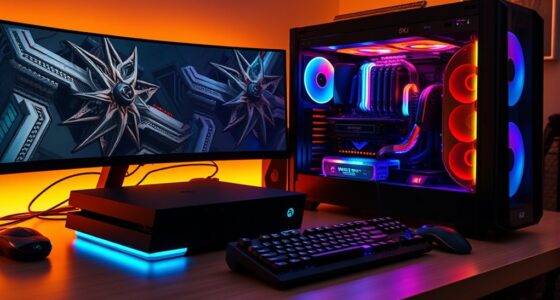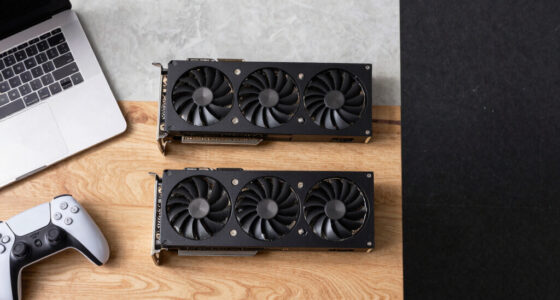
Overclocking your PC can boost performance, making gaming and tasks smoother, but it comes with risks like overheating and hardware damage. If your hardware is reliable and you’re prepared to manage extra heat and stability testing, overclocking might be worth it. Start with proper cooling and gradual adjustments. Want to learn how to do it safely and whether it’s right for you? Keep going to find out more.

Get the latest gadgets delivered free with Prime
- Fast, free delivery on millions of items
- Prime Video, Amazon Music and more included
- Member-only deals all year
Key Takeaways
- Overclocking can boost performance for demanding tasks but carries risks like overheating, hardware damage, and voided warranties.
- Proper cooling solutions and temperature monitoring are essential for safe overclocking.
- Gradually increase clock speeds and voltages, testing stability at each step to minimize system crashes.
- Assess hardware quality and compatibility before overclocking to avoid damaging components.
- Consider the trade-offs, including potential system instability and reduced hardware lifespan, before deciding if overclocking is worthwhile.
Understanding Overclocking and Its Benefits
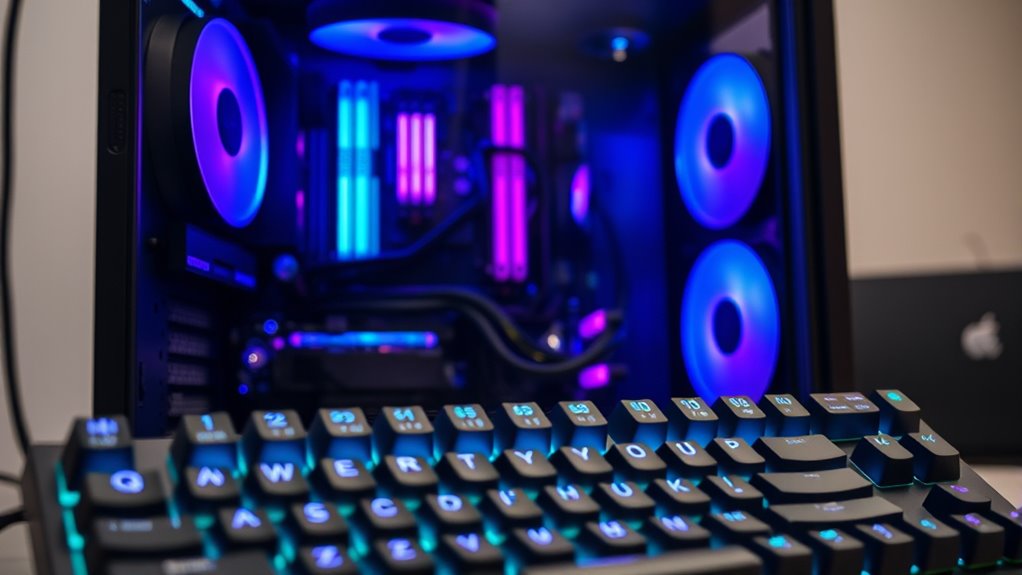
Understanding overclocking means knowing how to push your PC components beyond their default speeds to achieve better performance. When done correctly, it can lead to noticeable performance gains, making your gaming, editing, or multitasking smoother. However, before overclocking, you need to check hardware compatibility; not all components are designed to handle higher speeds safely. Upgrading your CPU, GPU, or RAM with overclocking in mind can maximize your system’s potential. Keep in mind, overclocking isn’t just about speed—it’s about optimizing your hardware to get more out of it. The benefits include faster processing, improved frame rates, and quicker data transfers. When approached carefully, overclocking can be a cost-effective way to boost your PC’s performance without new hardware. Additionally, utilizing energy-efficient components and cooling solutions can help maintain system stability and sustainability.
Potential Risks and Downsides of Overclocking

While overclocking can boost your PC’s performance, it also introduces significant risks that you need to contemplate carefully. First, pushing hardware beyond its limits increases the chance of hardware failure, potentially damaging components permanently. Second, overclocking often voids your warranty, leaving you responsible for repairs or replacements. Third, increased heat output can cause overheating if cooling solutions aren’t upgraded, risking instability or damage. Fourth, unstable overclocks may lead to system crashes, data corruption, or loss. These downsides highlight that overclocking isn’t risk-free. If not done properly, you could face costly repairs or data loss. Additionally, hardware stress from overclocking can accelerate wear and tear on your components. Proper thermal management is crucial to mitigate these issues and ensure safe overclocking practices. Implementing effective cooling solutions can significantly reduce the risks associated with overclocking and help maintain system stability. Always weigh these risks against the performance gains before deciding to overclock your system.
When Is Overclocking Suitable for Your System?
Determining if overclocking is right for your system depends on your specific needs and hardware setup. If you have a budget-conscious build, overclocking might offer a cost-effective way to boost performance without upgrading components. However, consider the brand reputation of your hardware; reputable brands typically produce more reliable and stable parts, making overclocking safer and more predictable. If your system is primarily used for everyday tasks or light gaming, overclocking may not be necessary. Conversely, if you’re seeking higher performance for demanding applications, overclocking can provide notable improvements. Just remember, the suitability of overclocking hinges on your hardware quality, your goals, and your willingness to manage potential risks. Properly evaluating these factors will help you decide if it’s a viable option.
Preparing Your Hardware for Safe Overclocking
Before overclocking, you need to check your hardware’s compatibility and limits to avoid instability. Upgrading your cooling system is essential to manage increased heat and maintain performance. Taking these steps guarantees your system stays safe and stable during overclocking. Additionally, understanding modern kitchen technology concepts can help you optimize your setup for better results. Considering reliable backup power options can also ensure your system remains protected during unexpected outages. Being aware of nanotechnology advancements can provide insights into future hardware improvements that may benefit overclocking performance, especially as semiconductor materials evolve.
Assess Compatibility and Limits
To safely overclock your PC, you first need to assess whether your hardware can handle the increased loads. Check hardware compatibility by verifying your CPU, motherboard, and RAM support overclocking features. Recognize system limitations such as power delivery and stability constraints. Consider these factors:
- CPU specifications — Ensure it’s rated for overclocking.
- Motherboard features — Confirm BIOS options for tweaking settings.
- Power supply capacity — Verify it can support higher power demands.
- System stability — Understand that some components may not reach desired overclock levels without risking damage.
Upgrade Cooling Solutions
Since overclocking increases the heat generated by your CPU and GPU, upgrading your cooling solutions is essential to keep temperatures safe. Consider switching to liquid cooling, which offers superior heat dissipation compared to air coolers, especially under heavy loads. Before installing, clean the old thermal paste from your CPU and GPU surfaces using a high-quality thermal paste remover and apply fresh, high-performance thermal paste to guarantee ideal heat transfer. This step improves thermal conductivity and prevents overheating. Proper cooling not only stabilizes your overclocked system but also extends hardware lifespan. Invest in a reliable cooling system and ensure proper airflow within your case. These upgrades provide the necessary thermal headroom for safe, effective overclocking without risking hardware damage.
Step-by-Step Guide to Overclocking Your PC
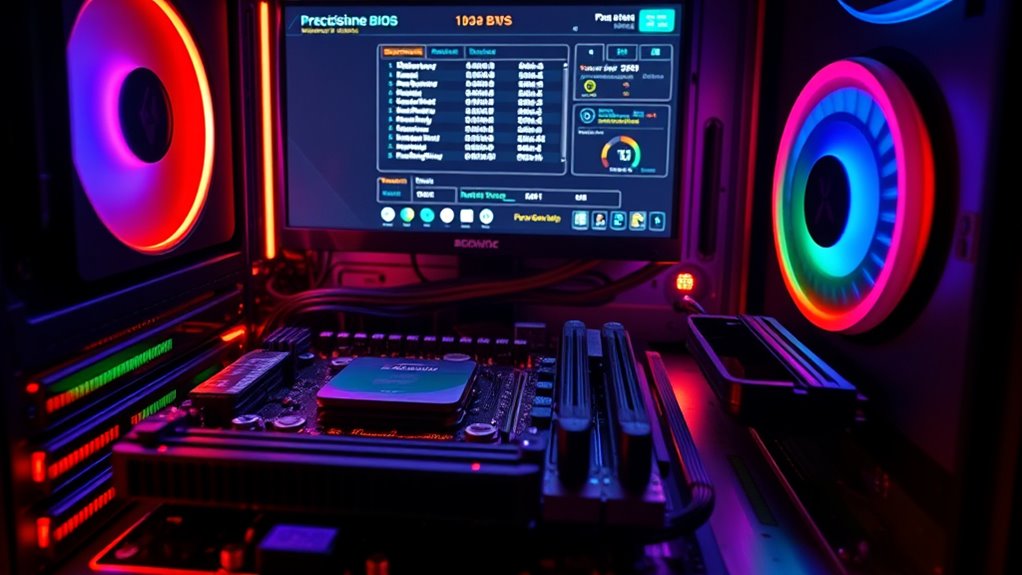
Overclocking your PC can greatly boost performance, but it requires careful steps to guarantee stability and safety. First, restart your computer and enter BIOS settings. Then, follow these steps:
- Increase the CPU clock speed gradually, testing stability after each change.
- Adjust voltage settings carefully—small increments in voltage can improve stability but also increase heat.
- Monitor temperatures closely to prevent overheating.
- Save your BIOS settings once you find a stable overclock, ensuring all changes, including voltage adjustments, are properly applied.
Monitoring and Maintaining System Stability
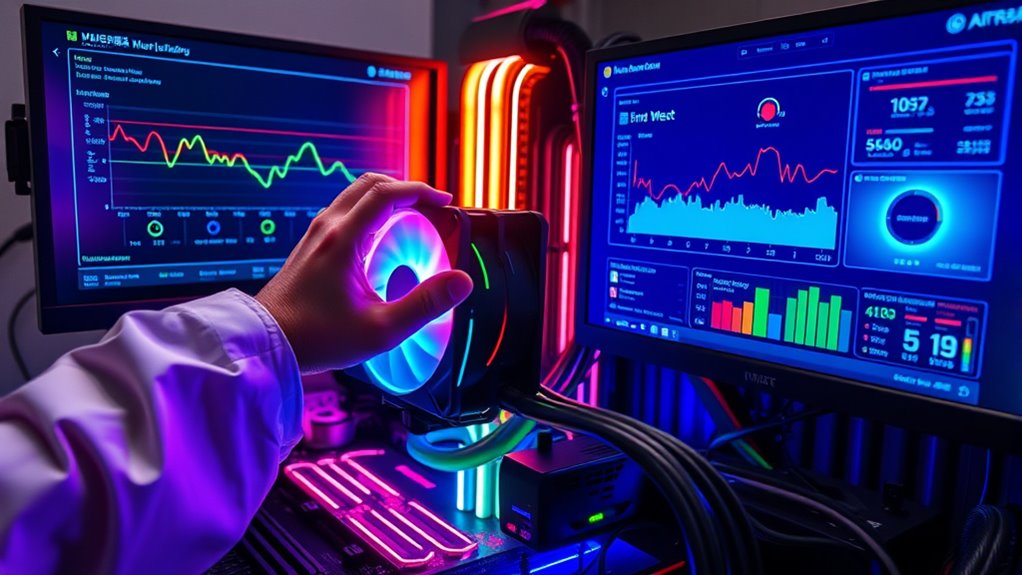
After adjusting your settings in BIOS, it’s important to keep a close eye on your system’s stability. Use hardware diagnostics tools to check for overheating, voltage fluctuations, and potential hardware failures. Regular stress testing helps identify issues early, preventing damage and data loss. Keep an eye on system temperatures and clock speeds to ensure they stay within safe limits. Software optimization tools can help monitor real-time performance and tweak settings for better stability. If you notice crashes or errors, revert to previous stable settings or fine-tune your overclock gradually. Monitoring and maintaining system stability is also essential for protecting your hardware and ensuring long-term performance. Additionally, understanding hardware stress testing techniques can help you gauge the robustness of your overclocked system under various conditions. Consistent monitoring allows you to catch problems before they escalate, ensuring your overclocked system remains reliable and efficient. Incorporating system diagnostics tools can further enhance your ability to detect potential issues early. Staying vigilant with diagnostics and optimization is key to safe, successful overclocking. Moreover, staying informed about system temperature management can help prevent overheating and hardware damage over time.
Making the Decision: Is Overclocking Right for You?

Deciding whether to overclock your PC depends on your specific needs and comfort level with hardware adjustments. Consider these factors:
Overclocking depends on your needs, comfort, and willingness to manage potential risks and benefits.
- Budget considerations: Overclocking can save money by extending your hardware’s lifespan, but it may also require investing in better cooling solutions.
- Performance goals: If you need higher speeds for gaming or intensive tasks, overclocking might be worth it.
- Warranty impacts: Overclocking can void manufacturer warranties, so check your hardware’s policy before proceeding.
- Risk tolerance: If you’re uncomfortable with potential system instability or hardware damage, overclocking may not suit you.
Ultimately, if you’re willing to accept the trade-offs and invest in safe practices, overclocking can boost performance. Otherwise, sticking to default settings might be the smarter choice.
Frequently Asked Questions
How Does Overclocking Affect Warranty Coverage?
Overclocking typically voids your manufacturer warranties because it introduces hardware risks that aren’t covered. When you push your components beyond stock settings, manufacturers see it as misuse, which can lead to denied repairs or replacements. If you decide to overclock, be aware that any hardware failure caused by this process might not be covered, so consider the risks carefully before modifying your system.
What Are the Best Tools for Safe Overclocking?
You should use tools like MSI Afterburner or ASUS GPU Tweak II for safe overclocking, as they let you monitor thermal management and power consumption in real time. These tools help you adjust clock speeds gradually, ensuring your system stays cool and stable. Keep an eye on temperatures and power use during overclocking to prevent overheating and excessive power drain, making your overclocking experience safer and more effective.
Can Overclocking Improve Gaming Performance Significantly?
You bet overclocking can give your gaming a boost, but it’s not a magic bullet. It often improves performance, especially with better thermal management, helping your CPU and GPU run cooler and more efficiently. Keep an eye on power consumption, as overclocking can increase it markedly. While you’ll see gains, don’t expect a leap to the moon—sometimes, it’s a case of trying to squeeze more juice from your hardware.
How Do I Revert to Stock Settings if Needed?
To revert to stock settings, start by accessing your BIOS or UEFI firmware during startup. Look for an option like “Load Optimized Defaults” or “Factory Reset” and select it. This restores your BIOS to its original factory state. Afterward, save your changes and restart your PC. This process effectively performs a BIOS restore, undoing any overclocking tweaks and returning your system to its default settings.
Is Overclocking Suitable for Laptops or Only Desktops?
Think of overclocking a laptop like pushing a race car beyond its limits — it’s risky. Laptops aren’t designed for heavy overclocking because they have limited cooling and increased power consumption. Overclocking suits desktops better, where you can improve cooling and stability easily. On a laptop, it can cause overheating, throttling, or damage, so it’s usually not recommended unless you have advanced cooling solutions and know what you’re doing.
Conclusion
Deciding to overclock your PC means weighing the potential gains against the risks, understanding your hardware’s limits, and committing to proper preparation. It’s about pushing your system’s performance while maintaining stability, balancing excitement with caution, and embracing the challenge with knowledge and care. If you’re willing to learn, monitor, and adjust, overclocking can boost your experience. But if safety and longevity matter most, it’s okay to step back and enjoy your system as it is.
Halloween Picks
halloween
As an affiliate, we earn on qualifying purchases.