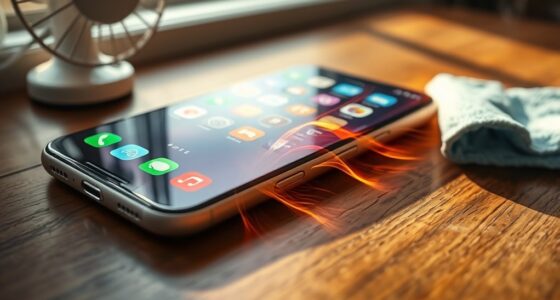

To prevent screen burn-in, you should enable pixel shifting features if your device offers them, and use dynamic, animated screensavers during inactivity. Lowering the screen brightness and taking regular breaks also help reduce static image exposure. Avoid leaving static images on screen for long periods, and consider turning off your device when not in use. Keeping your software up to date guarantees you have the latest display protection measures—continue to explore these simple habits for better screen health.
Key Takeaways
- Enable device pixel shifting features or manually slightly move on-screen elements regularly.
- Use dynamic or animated screen savers and avoid static images during inactivity.
- Lower display brightness and activate automatic brightness to reduce burn-in risk.
- Take frequent breaks, change content regularly, and turn off devices when not in use.
- Keep firmware updated to benefit from improved display management and burn-in prevention tools.
Screen burn-in can be a persistent problem that damages your display over time, but the good news is that you can take steps to prevent it. One effective method is to utilize pixel shifting, a technique that subtly moves the image on your screen at regular intervals. This movement prevents any one pixel from constantly displaying the same static content, reducing the risk of burn-in. Many modern displays have built-in pixel shifting features, so you should explore your device’s settings to enable this function. If your screen doesn’t have this feature, you can manually implement it by periodically adjusting the position of on-screen elements or using specialized software that shifts pixels slightly at set intervals. Incorporating preventive measures such as pixel shifting can significantly extend your screen’s lifespan.
Another simple habit that can help protect your screen is the use of screen savers. While some think of screen savers as outdated, they still serve a valuable purpose in preventing burn-in. When you’re not actively using your device, set a screen saver to activate after a short period of inactivity. Choose a moving or dynamic screen saver, such as those with animated patterns or changing images, rather than static images. This movement ensures the display doesn’t remain fixed on a single static image for too long, which is often what causes burn-in. Remember to keep your screen saver running long enough to safeguard your display, especially during long periods of inactivity.
Beyond enabling pixel shifting and using screen savers, you should also be mindful of your screen’s brightness. High brightness levels can accelerate burn-in, so lowering your display’s brightness or enabling automatic brightness adjustment can further reduce the risk. Additionally, avoid leaving static images on your screen for extended periods. If you’re working on a static webpage or app, take regular breaks or change the content periodically to avoid prolonged static display.
It’s also wise to turn off your device when you’re not using it for an extended period. This prevents static images from lingering on the screen unnecessarily. Regularly updating your device’s firmware can sometimes include improvements to display management and burn-in prevention features, so keep your software up to date.
Frequently Asked Questions
Can Screen Burn-In Affect All Types of Screens Equally?
Screen burn-in can affect different screens differently, depending on factors like screen brightness and resolution. You’re more likely to see burn-in on OLED screens because pixels can degrade unevenly, especially with high brightness settings or static images. LCD screens are less prone, but prolonged static images at high brightness can still cause issues. Adjusting screen brightness and avoiding static content can help prevent burn-in across all screen types.
How Long Does It Take for Burn-In to Become Visible?
A picture is worth a thousand words, but it can also leave a lasting mark. Usually, you’ll notice image retention or pixel aging in just a few hours of displaying static images, making burn-in visible sooner than you might think. The time varies depending on brightness and contrast, but typically, the longer static images stay, the quicker burn-in becomes visible. Stay vigilant and switch up your display habits to prevent it.
Is Screen Burn-In Reversible or Permanent?
Screen burn-in is usually permanent, but some screen repair techniques can reduce its appearance. You might try pixel-shifting or using specialized software to improve display longevity, though results vary. Preventing burn-in is better than fixing it, so adopting habits like reducing static images and enabling screen savers helps maintain your screen’s health. Remember, once burn-in sets in, reversing it completely is often impossible, making prevention essential.
Are There Specific Apps or Activities That Cause More Burn-In?
Think of static images as a spotlight on a stage, holding your attention longer than necessary. High contrast apps and activities like gaming, reading, or watching videos with static elements can cause more burn-in. These static images stay on screen, similar to a spotlight lingering on one actor. To prevent this, avoid leaving static images for extended periods, especially on OLED screens, and take regular breaks to minimize risks.
What Are the Best Settings to Prevent Burn-In on OLED Screens?
To prevent burn-in on OLED screens, you should enable a screen saver that activates when you’re not using your device, and avoid static images. Adjust your brightness to a lower but comfortable level, since high brightness accelerates burn-in. Regularly change content on your screen and use auto-dimming features. These habits protect your display and extend its lifespan, ensuring your OLED stays vibrant for longer.
Conclusion
By adopting simple habits like lowering screen brightness and using screen savers, you can prevent burn-in and extend your device’s lifespan. For example, imagine someone who consistently leaves static images on their phone for hours; they might notice ghostly marks after a few months. But if you follow these easy tips, you’ll avoid that hassle and keep your screen looking fresh. Small changes now save you trouble—and money—later.