
To set up a guest Wi-Fi network, access your router’s settings through its IP address and log in. Create a new, easily recognizable SSID separate from your main network, and secure it with a strong password using WPA3 or WPA2. Disable SSID broadcasting if you want extra privacy, and configure permissions to limit device access. Managing these settings properly keeps your smart home devices safe and your network secure—continue to explore how to optimize your setup.
Key Takeaways
- Access your router’s admin settings via a web browser and locate the guest network setup options.
- Create a separate, easily identifiable SSID for the guest network, avoiding main network names.
- Enable encryption protocols like WPA3 or WPA2 and set a strong, regularly updated password for security.
- Disable SSID broadcasting if desired to hide the guest network from nearby devices.
- Regularly update router firmware, monitor connected devices, and keep guest permissions restricted for optimal security.
Understanding the Benefits of a Guest Network for Smart Homes
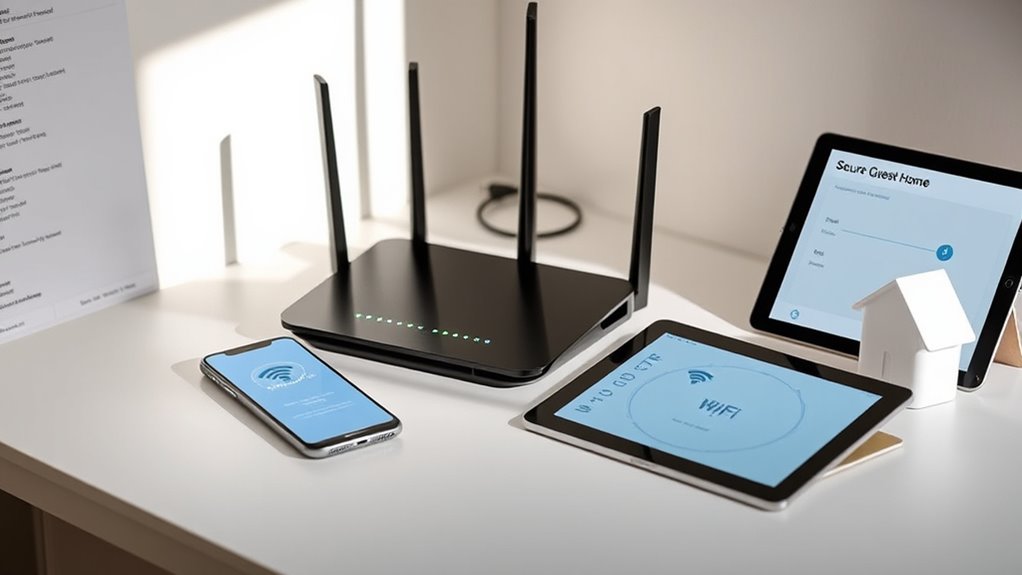
Have you ever considered how a guest network can enhance your smart home’s security? By setting one up, you address privacy concerns and protect your main devices. A guest network creates network segmentation, isolating visitors from your primary devices like smart locks, cameras, and thermostats. This separation minimizes the risk of unauthorized access or malware spreading from guest devices. Even if a guest’s device is compromised, it won’t affect your core smart home system. Additionally, a dedicated guest network allows visitors to access the internet without exposing your private data or risking security breaches. Implementing network segmentation is a key step in safeguarding your devices and maintaining privacy. This approach leverages modern networking techniques to enhance your overall smart home security. For example, utilizing local automation can help manage device access and monitor network activity more effectively. Overall, it’s a simple yet effective way to safeguard your smart home while offering convenient Wi-Fi access to guests. Incorporating secure Wi-Fi protocols further strengthens your network defenses against potential cyber threats. Establishing a dedicated guest network also makes it easier to monitor and control guest activity on your network, adding an extra layer of security.
Accessing Your Router’s Settings
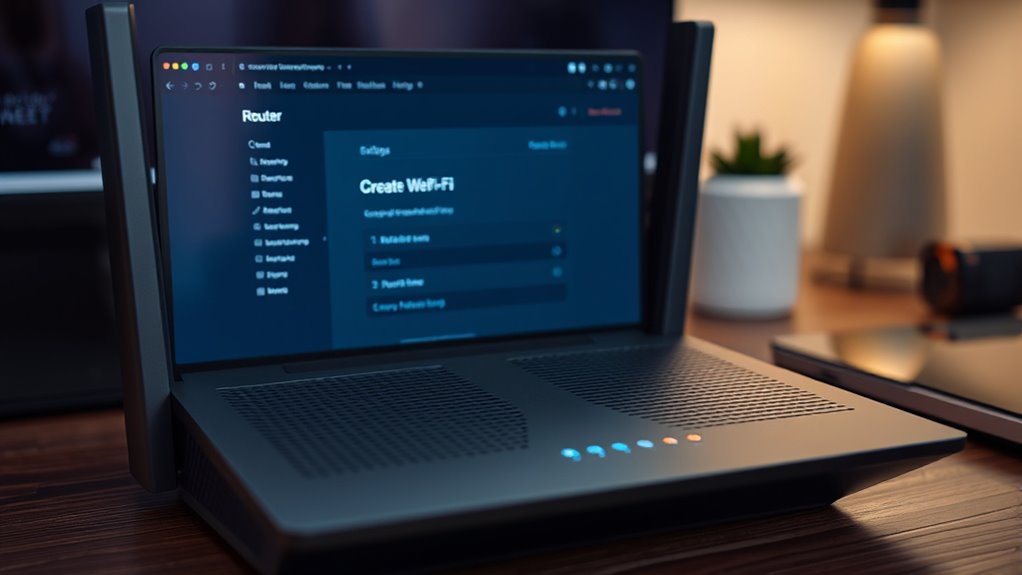
Wondering how to start setting up your guest Wi-Fi network? First, you need to access your router’s settings. Open a browser and type your router’s IP address, usually something like 192.168.1.1. Log in with your admin credentials. Once inside, you’ll see options like firmware updates and DNS settings that control your network’s behavior. Keep your router firmware up to date to ensure security. Use the DNS settings to customize how your devices resolve addresses.
Here’s a visual of what you might see:
| Router Menu Options | Description |
|---|---|
| Firmware Update | Keeps your router protected with latest features |
| DNS Settings | Customize domain name resolution |
| Wireless Settings | Manage your Wi-Fi network |
| Guest Network | Set up a separate guest Wi-Fi |
| Security Settings | Configure your network’s security features |
Creating a New SSID for Your Guest Network
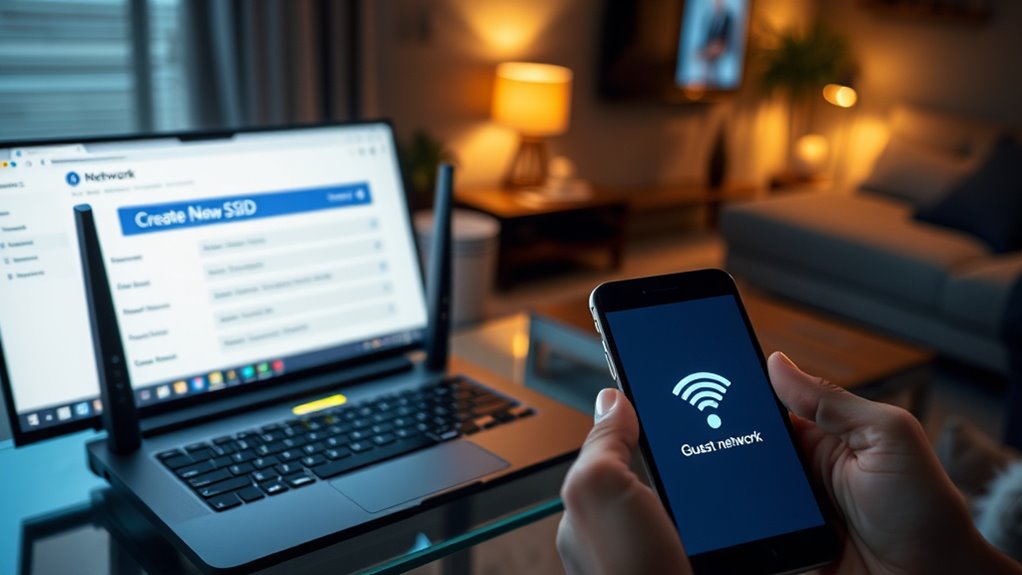
When creating a new SSID for your guest network, choose a clear and recognizable name so visitors can easily identify it. Make sure to secure the network with a strong password to keep unauthorized users out. Properly naming and securing your SSID helps you provide a safe and convenient guest experience.
Naming Your Network
Choosing a clear and descriptive name for your guest Wi-Fi network helps guests easily identify and connect without confusion. Avoid generic names like “Network” or “Guest”; instead, use something specific, like “Johnson Guest Wi-Fi.” When naming your network, consider your router placement—if your router is near the front door, name the network accordingly. This helps guests find your network quickly. Additionally, a well-chosen name can prevent device confusion, which can impact network speed if multiple devices attempt to connect to the wrong network. Keep the name simple, memorable, and distinct from your main network to avoid accidental connections. A thoughtful name improves guest experience and ensures they connect smoothly without compromising your primary network’s security. Incorporating network naming conventions can also enhance both security and aesthetics, making your backyard or outdoor space more inviting and functional.
Securing the SSID
To keep your main network secure while offering internet access to guests, creating a separate SSID for your guest Wi-Fi is essential. When setting up this network, make sure you disable ssid broadcasting if you want to hide it from casual scans, adding an extra layer of obscurity. Use strong encryption protocols like WPA3 or WPA2 to protect data transmitted over the guest network. Avoid using weak or outdated encryption, as it leaves your network vulnerable. Choose a secure password for the guest SSID, and change it periodically. Properly network security measures, such as segmenting your guest network, further enhance your smart home’s protection. Implementing wireless network segmentation can help isolate guest traffic from your main devices, increasing overall security. Additionally, regularly updating your router’s firmware can patch known vulnerabilities and improve network resilience. This approach keeps your main network safe while offering convenient, secure internet access for your guests. Vetted
Securing Your Guest Wi-Fi With a Strong Password
Have you considered how easily a weak password can compromise your guest Wi-Fi network? A simple or reused password makes it vulnerable to attackers who can access your smart devices or sensitive data. To improve security, focus on creating a password with high strength—using a mix of uppercase and lowercase letters, numbers, and symbols. Make sure your router employs strong encryption protocols like WPA3 or WPA2. Here are some tips to enhance password security:
- Avoid common words or easily guessable info
- Use a passphrase instead of a single word
- Change the password regularly
- Don’t share it unnecessarily
- Enable two-factor authentication if available
- Regularly update your wireless encryption protocols to stay protected, ensuring your network adheres to current security standards. Strengthening your network security can significantly reduce the risk of unauthorized access. Additionally, consider testing your network’s security vulnerabilities periodically to identify and address potential weaknesses. A strong password is your first line of defense, ensuring your guest network remains a safe, isolated environment.
Furthermore, staying informed about emerging cybersecurity threats can help you adapt your defenses proactively.
Configuring Network Restrictions and Permissions
Once your guest Wi-Fi network is set up, configuring network restrictions and permissions is essential to keep your main devices safe. Start by setting device permissions to control what your guests can access, such as limiting their ability to see or interact with your primary network devices. Implement bandwidth controls to prevent guest usage from slowing down your main network, ensuring smooth performance for your personal devices. Many routers allow you to assign specific permissions or set time limits for guest access. By customizing these restrictions, you reduce security risks and maintain control over your network traffic. Regularly review and update permissions to adapt to new devices or changing needs, keeping your home network secure and efficient.
Testing Your Guest Network for Proper Functionality
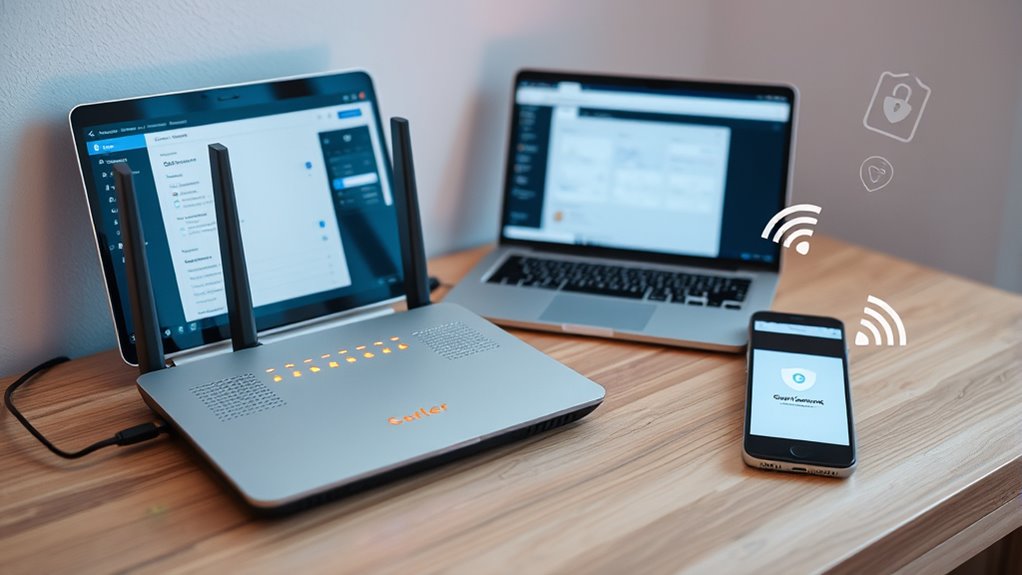
Now that you’ve set up your guest network, it’s important to test its functionality. Make sure devices can access the internet smoothly, and verify that they are compatible with the network. Also, confirm that your guest devices can’t communicate with your main network to protect your privacy. Consider security protocols to ensure your network remains safe from unauthorized access. Additionally, performing performance testing helps identify any connectivity issues and ensures the network operates efficiently. For optimal safety, review Vetted – Soaring Skyways guidelines to stay updated on best practices for network security. Regularly updating your router firmware and employing network segmentation techniques can further enhance your security measures. Understanding network management is essential for maintaining a safe and reliable guest Wi-Fi setup.
Verify Internet Access
To guarantee your guest Wi-Fi network is functioning correctly, you should test its internet access. This step ensures your network segmentation is effective and bandwidth management is optimized for guest use. Start by connecting a device to the guest network and browsing a few websites. Check streaming quality or download speeds to verify performance. You can also run a speed test to confirm the connection’s stability. Consider testing from multiple devices to ensure consistency. If issues arise, revisit your router settings to optimize bandwidth allocation and confirm the guest network is properly isolated. Proper testing helps prevent potential security breaches and ensures your guests enjoy a seamless experience. Additionally, monitoring network performance can help identify and address any ongoing issues proactively. Conducting periodic network tests can further maintain the security and efficiency of your guest network over time.
Check Device Compatibility
After verifying that your guest network has internet access, it’s important to make certain it works smoothly across all your guests’ devices. Start by testing device compatibility—try connecting smartphones, tablets, laptops, and smart home gadgets to ensure they function correctly. If any device struggles to connect or experience slow speeds, check for firmware updates on your router. Keeping firmware current improves device compatibility and stability, fixing bugs that could hinder performance. Ensure each device recognizes the guest network and operates without issues. If problems persist, consult your router’s support resources or consider resetting the network settings. Properly testing device compatibility guarantees your guests enjoy seamless, secure access while maintaining your network’s reliability. Additionally, network diagnostics can help identify and resolve connectivity issues quickly.
Ensure Network Isolation
Ensuring your guest network is properly isolated from your main network is essential for security and privacy. Proper network segmentation prevents guests from accessing your personal devices or sensitive data. To test this, connect to your guest Wi-Fi and try to reach shared resources like printers or file servers on your main network. Verify that guest access is limited and that there’s no cross-communication. You should also attempt to access devices on your primary network from the guest network; if you can’t, segmentation is working. Regular testing ensures your security measures remain effective. Remember, a well-isolated guest network protects your smart home devices and personal information, making it a critical step in your setup.
- Attempt to access main network devices from the guest network
- Check for any shared folders or printers accessible publicly
- Use network scanning tools to identify connected devices
- Disconnect and reconnect devices to confirm segregation
- Review router settings to verify isolation configurations
Best Practices for Managing and Monitoring Guest Access
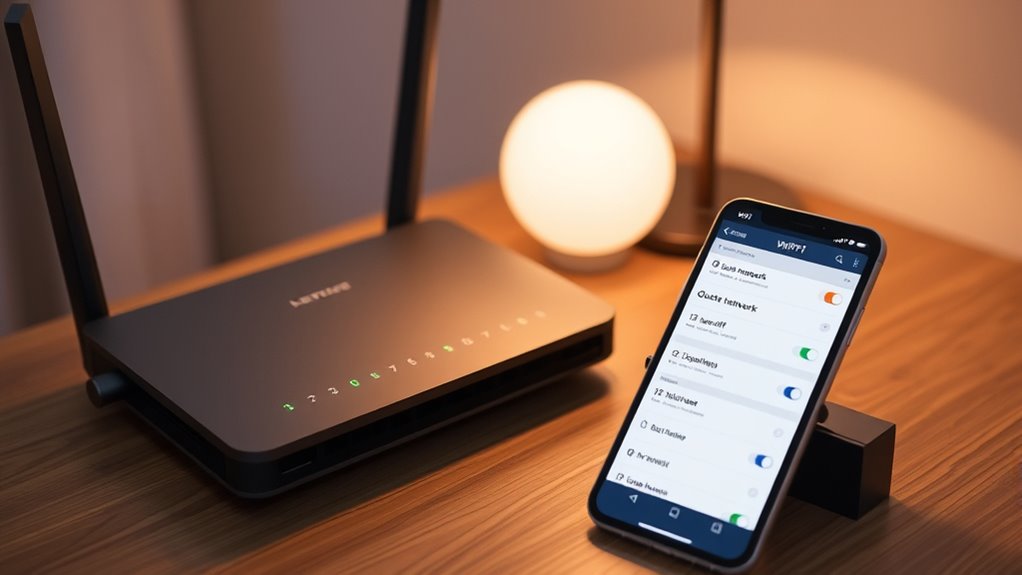
Managing and monitoring your guest Wi-Fi access effectively is essential to maintaining network security and performance. Implement access control by setting up strong, unique passwords and limiting guest permissions to essential activities only. Use your router’s settings to create a separate network for guests, isolating their devices from your main network and smart home systems. Regular usage monitoring helps you track connected devices and detect unusual activity or potential security threats early. Enable alerts for new device connections and review logs periodically to ensure no unauthorized access occurs. Establish clear time limits for guest access and change passwords regularly to prevent lingering access. Additionally, understanding vetted wave and wind patterns can help you optimize your network placement and reduce interference, ensuring a more reliable connection. Proper placement of your router can significantly improve network stability, especially when considering environmental factors like interference. These best practices help maintain a secure, efficient network while providing your guests the connectivity they need without risking your smart home security.
Troubleshooting Common Issues During Setup

Setting up a guest Wi-Fi network can sometimes present common issues that disrupt the process. You might encounter problems like incompatible devices or outdated router firmware that prevent a smooth setup. To troubleshoot, start by ensuring your router firmware is up to date, as outdated firmware can cause connectivity issues. Check device compatibility to confirm your devices support the network settings you’re configuring. If devices aren’t connecting, try restarting both the router and the devices. Verify that your network settings, such as SSID and password, are correctly entered. Finally, consult your router’s manual or support site for specific troubleshooting tips related to your model. Keeping firmware current and understanding device compatibility are key to resolving setup hiccups quickly.
Frequently Asked Questions
Can I Customize Bandwidth Limits for Guest Users?
Yes, you can customize bandwidth limits for guest users through bandwidth management features on your router. Most modern routers offer user customization options, allowing you to allocate specific bandwidth amounts or prioritize certain users. This helps guarantee your main devices stay fast while controlling your guest network’s performance. By adjusting these settings, you can prevent guest users from hogging your internet, maintaining a smooth experience for everyone.
How Do I Update My Router’s Firmware for Security?
Your router’s security is like a fortress, and updating its firmware is your key to keeping it strong. To do this, log into your router’s admin panel, find the firmware update section, and follow the prompts. Regular firmware updates enhance router encryption, patch vulnerabilities, and defend against cyber threats. Don’t let your network be an open door—stay vigilant by keeping your router’s firmware current and secure.
Is It Possible to Set Time Restrictions for Guest Access?
Yes, you can set time restrictions for guest access through guest access scheduling. Most routers let you establish guest network restrictions, including specific times when guests can connect. Check your router’s settings under guest network options and look for scheduling or time limit features. By doing this, you guarantee your guests only access your network during designated hours, enhancing your smart home security and managing network traffic effectively.
Can I Disable Guest Network Remotely?
Yes, you can disable your guest network remotely. Over 80% of routers now support remote management, improving router security and allowing network segmentation control from anywhere. Check your router’s app or web interface, where you’ll find options to turn off the guest network quickly. This helps protect your main network and keeps your smart home devices secure, even if you’re away.
How Do I Prioritize My Main Network Traffic Over Guest Access?
You can prioritize your main network traffic over guest access by enabling Quality of Service (QoS) settings on your router. This helps manage network congestion, ensuring your essential devices get bandwidth first. Access your router’s admin panel, locate the QoS section, and assign higher priority to your main devices or applications. Save your settings, and your primary network will perform smoothly, even when guest devices are connected.
Conclusion
Setting up a guest Wi-Fi keeps your smart home secure while letting visitors enjoy internet access. For example, if a friend streams on your guest network, your main devices stay protected from potential threats. Regularly monitoring and updating your settings guarantees continued safety. By taking these simple steps, you create a safer, more flexible smart home environment where both you and your guests can connect confidently without risking your personal devices.