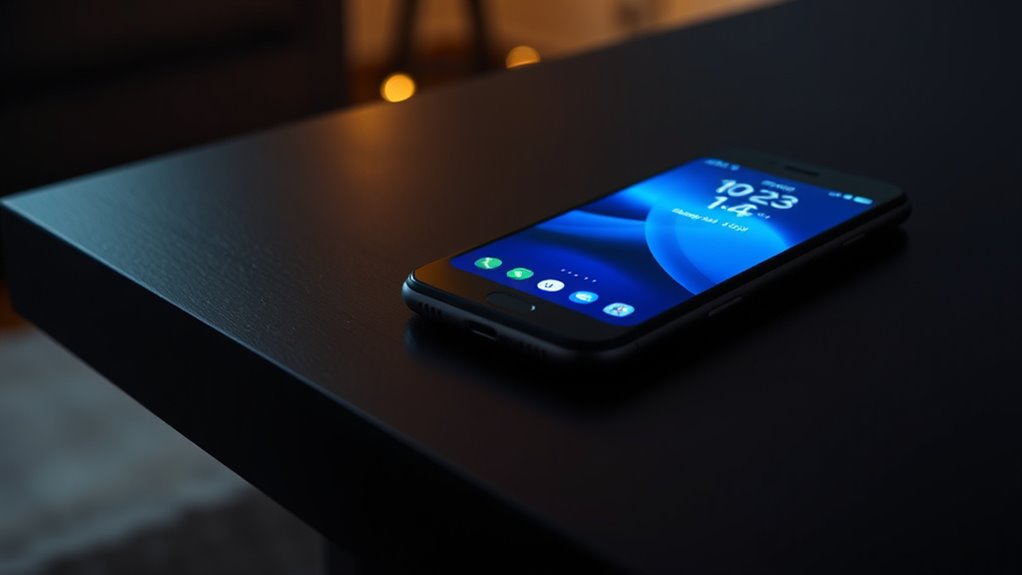

An Always-On Display can be a cool feature, giving you instant access to time, notifications, and more without uncovering your phone. It’s convenient and highly customizable, but it can also slightly drain your battery over time, especially if not managed well. The good news is, with proper settings, you can enjoy its benefits while minimizing power use. Curious how to optimize this feature for your device? Keep going for helpful tips.
Key Takeaways
- AOD offers quick access to time and notifications, enhancing convenience but can increase battery consumption over time.
- OLED screens save power by turning off unused pixels, mitigating some battery drain caused by AOD.
- Customization options allow users to balance aesthetics and battery life by adjusting display settings and schedules.
- Continuous use of AOD may accelerate battery depletion, especially on devices with smaller batteries or poor power management.
- Proper management and mindful usage make AOD a useful feature without significantly impacting overall device longevity.
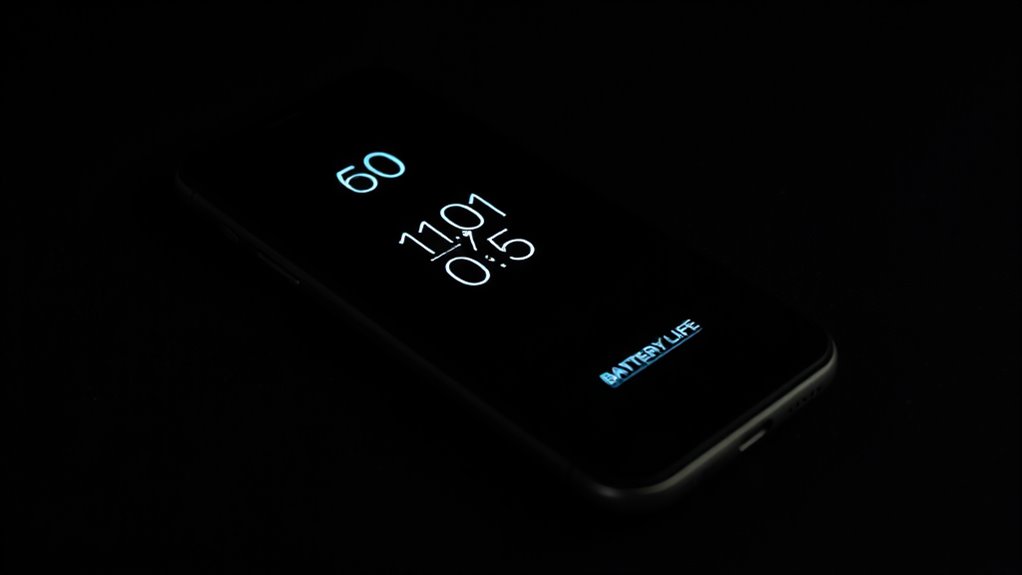
Have you ever wished your smartphone could show you key information without waking up? That’s exactly what an Always-On Display (AOD) offers. With this feature, your lock screen stays visible in a low-power mode, letting you glance at the time, notifications, or calendar events instantly. It’s a sleek way to stay updated without unlocking your phone repeatedly. But before you get excited about this convenience, it’s worth considering how it impacts your device’s battery efficiency. While AOD is designed to consume minimal power, it still draws some energy because the screen remains partially active. If you’re someone who relies heavily on your phone throughout the day, this slight drain can add up, especially on models with smaller batteries. That said, many newer smartphones optimize this feature to minimize battery loss, employing OLED screens that turn off pixels when not in use, saving precious power. Additionally, understanding the thermal behavior of your device can help you better manage its power consumption when using AOD, especially during intensive tasks or hot weather.
One of the standout benefits of AOD is its high level of customization options. You can tailor what information appears, choosing from a variety of clock styles, fonts, colors, and even calendar or fitness data. This means you’re not stuck with a generic display; you can personalize it to match your style or needs. Want a minimalistic clock, a detailed weather forecast, or your upcoming appointments? With just a few taps, you can set it up exactly how you want. Some phones even allow you to schedule AOD to turn on only during specific times, like daytime or when you’re at home, helping conserve battery when it’s not needed. Additionally, certain models let you disable the feature for particular apps or notifications, preventing unnecessary screen activity and further saving power.
Despite its convenience, AOD isn’t perfect. For heavy users, the constant display can contribute to faster battery depletion, especially if your device isn’t equipped with efficient power management. This means you might find yourself charging your phone more often, which can be inconvenient. However, if you’re mindful of your customization options and adjust settings accordingly—such as dimming the display or limiting what shows on AOD—you can strike a good balance. Many users appreciate how this feature offers quick access to essential information without unlocking the device fully, saving time and effort. Ultimately, whether AOD is a cool feature or a potential battery drain depends on how you use it and how well your phone manages power consumption.
Frequently Asked Questions
Can Always-On Display Cause Screen Burn-In Over Time?
Yes, an always-on display can cause screen burn-in over time, affecting screen longevity. When static elements stay on the screen for extended periods, they may leave ghost images, reducing display longevity. To prevent this, you should use features like screen timeout, reduce brightness, or enable screen refresh options if available. Properly managing these settings helps maintain your display’s quality and prolongs its lifespan.
Is There a Way to Customize What Appears on Always-On Display?
Yes, you can customize what appears on your always-on display. Most devices offer a variety of customization options, allowing you to choose clock styles, calendar info, or notifications. These options help you personalize your display aesthetics, making it more functional and visually appealing. Simply explore your device’s settings under the always-on display section to select your preferred styles and information, tailoring your experience to suit your preferences.
How Does Always-On Display Impact Phone Performance?
Always-on display can subtly impact your phone’s performance by increasing power consumption, which may lead to faster battery drain. It might also cause minor delays in system responsiveness if your device struggles to manage background processes. However, many phones optimize this feature to minimize effects. You might notice some slowdown during intensive tasks, but overall, it shouldn’t markedly hinder your device’s performance if used judiciously.
Are There Specific Models That Have Better Always-On Display Features?
Yes, some models excel in always-on display features. Phones with advanced screen technology, like OLED or AMOLED, offer better display customization and vibrant visuals. For example, high-end Samsung and Google Pixel models provide customizable always-on display options, allowing you to choose what info shows and how it looks. These models optimize battery life while enhancing your experience, making them ideal if you want a sleek, personalized always-on display.
Can I Turn off Always-On Display Automatically at Night?
Think of your phone’s screen like a lighthouse—brightening only when needed. You can set it to automatically turn off the Always-On Display at night through your notification settings or display options. Adjusting screen brightness and scheduling night mode helps conserve battery and reduces distraction. This way, your device stays efficient, giving you a peaceful night’s sleep without missing important notifications.
Conclusion
Overall, an Always-On Display can be a handy feature, but it’s not without its drawbacks. Did you know that it can consume up to 10% of your battery daily? While it keeps you informed at a glance, you might find yourself charging more often. Weigh the convenience against the battery drain, and decide if the cool factor outweighs the extra power use. Ultimately, it’s a personal choice that depends on how much you value quick access versus longer battery life.