
To turn your phone into a productivity powerhouse, start by organizing your apps into folders or categories for quick access and a clutter-free home screen. Manage notifications wisely by turning off or delaying alerts for less important apps and using Do Not Disturb mode during focus sessions. Customize your app icons and set shortcuts to streamline tasks. Combining these steps with productivity apps and smart settings will maximize efficiency. Keep going, and you’ll discover even more ways to boost your device’s potential.
Key Takeaways
- Organize apps into folders and prioritize frequently used ones for quick access.
- Manage notifications by turning off non-urgent alerts and scheduling quiet times.
- Use Do Not Disturb mode to minimize distractions during focused work sessions.
- Customize app icons, themes, and shortcuts to streamline workflows and enhance usability.
- Leverage productivity apps and reminders to stay on track with tasks and goals.

Your smartphone is more than just a device for calls and social media; it can be a powerful tool to boost your productivity. The key lies in how you set it up and manage its features. One of the most effective ways to do this is through app customization. Instead of using a cluttered home screen filled with apps you rarely open, take time to organize your apps into folders or categories based on their purpose—work, communication, entertainment, and utilities. This way, you can quickly access the tools you need without wasting time scrolling through pages. Customize your app icons if your device allows it, giving your home screen a clean, personalized look that minimizes distractions. You can also prioritize the placement of essential apps so they’re always within reach, helping you switch seamlessly between tasks.
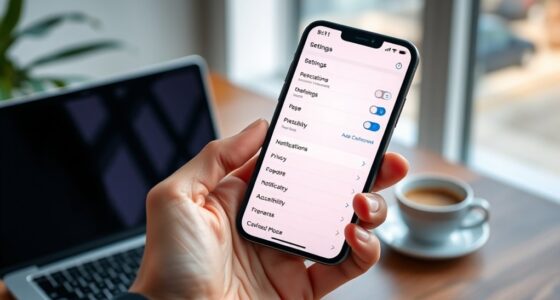
Another vital aspect is notification management. Notifications are designed to alert you to new messages, updates, or reminders, but when unchecked, they can become overwhelming and distract you from your work. Start by turning off notifications for apps that aren’t urgent or relevant to your productivity goals. For example, social media alerts or game notifications can wait until your scheduled breaks. Use your device’s notification settings to set specific times when you’ll receive alerts, or opt for silent or Do Not Disturb modes during focused work periods. This way, you retain control over when you’re interrupted and when you stay undisturbed. Managing notifications effectively minimizes distractions, helping you stay concentrated on your tasks and making your phone a tool that works for you rather than against you.
Additionally, understanding home theatre projectors and their features can further optimize your workspace environment by creating immersive visual settings that enhance focus and comfort. Combining app customization with smart notification management creates a streamlined, distraction-free environment that promotes efficiency. When your apps are organized logically, and your alerts are controlled, your phone becomes a well-oiled productivity machine. You’ll find it easier to jump into tasks without hunting for the right app or being sidetracked by constant interruptions. Additionally, many productivity apps offer customization options—such as setting specific reminders, themes, or shortcuts—that can further enhance your workflow. Take advantage of these features to tailor your device in a way that supports your habits and goals.
In short, the way you customize your apps and manage notifications directly impacts how productive you can be with your phone. By taking control of both, you turn your device into a powerful ally that keeps you focused, organized, and efficient throughout your day.
Top picks for "turn phone productivity"
Open Amazon search results for this keyword.
As an affiliate, we earn on qualifying purchases.
Frequently Asked Questions
How Can I Customize My Phone for Maximum Productivity?
To customize your phone for maximum productivity, start with digital decluttering by deleting unnecessary apps and organizing your home screen. Set up an ergonomic layout by adjusting font size and screen brightness for comfort. Use productivity apps, enable notifications selectively, and create shortcuts for frequent tasks. Regularly review and tweak your setup to stay focused, ensuring your device works seamlessly for your needs and helps you stay on track effortlessly.
What Apps Are Best for Managing My Time?
You should try apps like Todoist, Forest, or RescueTime to manage your time effectively. These apps help you track your app usage habits and set focused work sessions. Make sure to manage notifications wisely—turn off unnecessary alerts to minimize distractions. By using these tools and controlling notifications, you’ll stay organized, boost productivity, and make better use of your time throughout the day.
How Do I Prevent Phone Distractions During Work?
Like Odysseus steering past sirens, you can avoid phone distractions by mastering notification management and activating focus mode. Turn off non-essential alerts, set your phone to silent or do not disturb, and schedule dedicated work periods. These steps help you resist temptations and maintain focus, ensuring your attention stays on your tasks rather than notifications vying for your distraction. With discipline, your phone becomes a tool for productivity, not chaos.
Can I Automate Tasks on My Phone?
Yes, you can automate tasks on your phone using automation shortcuts and voice commands. With built-in features like Siri or Google Assistant, you can create shortcuts that perform multiple actions with a simple voice command or tap. Set up automation shortcuts for routine tasks like sending messages, setting reminders, or adjusting settings, and save time. This way, your phone becomes a true productivity powerhouse, helping you stay organized and efficient.
What Security Measures Protect My Productivity Data?
Your productivity data is protected by strong encryption protocols that keep your information secure from unauthorized access. Additionally, biometric security features like fingerprint or facial recognition add an extra layer of protection, ensuring only you can unseal your device and access sensitive data. These measures work together to safeguard your productivity data, giving you peace of mind while you focus on your tasks.
Conclusion
By embracing these tips, you transform your phone from a distraction into a dedicated device that drives your goals. Stay focused, streamline your schedule, and seize every second with savvy shortcuts and smart settings. Remember, consistent effort creates clarity, confidence, and control. So, start small, stay steadfast, and watch your productivity soar. With a little effort, your phone becomes your faithful partner in progress, turning everyday distractions into opportunities for achievement.