To properly clean your laptop without ruining it, turn off and unplug the device first. Use a microfiber cloth lightly dampened with distilled water or a screen-safe cleaner to gently wipe the screen in circular motions, avoiding sprays directly on it. For the keyboard, use compressed air to remove debris and a soft cloth with isopropyl alcohol for stubborn grime, carefully cleaning between keys. Regular, gentle cleaning helps protect your device’s performance and appearance, and more tips are just ahead.
Key Takeaways
- Always turn off and unplug your laptop before cleaning to prevent damage.
- Use a microfiber cloth lightly dampened with distilled water or screen-safe cleaner for screens.
- Employ compressed air to remove debris from keyboards, avoiding direct liquid contact with ports.
- Wipe surfaces with a soft, damp cloth using gentle motions; never spray liquids directly onto the device.
- Perform regular cleaning and avoid harsh chemicals to maintain appearance and prevent internal damage.
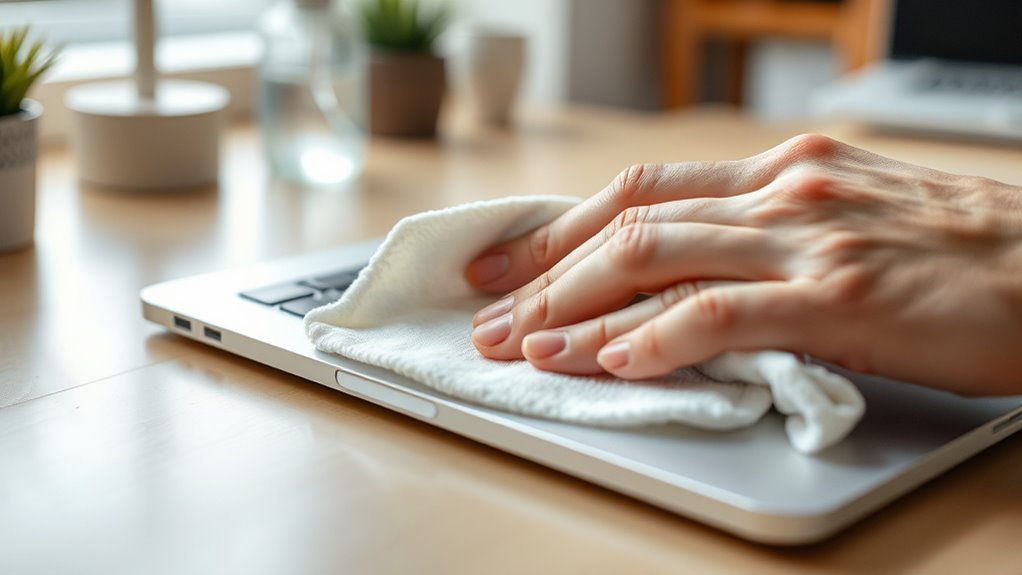
Have you ever wondered how to keep your laptop looking and functioning like new? Proper cleaning is essential to maintain its appearance and performance, but it’s easy to damage delicate components if you’re not careful. When it comes to screen cleaning, you want to be gentle and use the right materials. Avoid harsh chemicals or abrasive cloths, which can scratch or discolor your display. Instead, turn off your laptop and unplug it. Lightly dampen a microfiber cloth with distilled water or a screen-safe cleaner designed specifically for electronics. Gently wipe the screen in a circular motion, applying minimal pressure. Never spray liquid directly onto the screen, as excess moisture can seep into the device and cause damage. Proper projector setup can also prevent the need for frequent cleaning by reducing dust accumulation.
Keyboard maintenance is equally important, especially since it’s a magnet for dust, crumbs, and oils from your fingers. Start by turning off and unplugging your laptop to prevent accidental key presses or electrical issues. Use compressed air to blow out debris from between the keys. Hold your laptop at a slight angle and spray the compressed air in short bursts to dislodge particles. After clearing out loose debris, dampen a soft cloth with a small amount of isopropyl alcohol or a mild soap solution. Wring it out thoroughly so it’s just slightly damp, not wet. Wipe the keys gently, making sure to clean around the edges and in between the keys without pressing too hard. For stubborn grime or sticky keys, you can use a cotton swab dipped in the cleaning solution to reach tight spots.
Regularly maintaining your keyboard not only keeps it looking good but also prolongs its lifespan. Remember, never use excessive liquid or harsh cleaners, as these can seep underneath the keys and damage the internal components. When cleaning the exterior of your laptop, use a slightly damp cloth to wipe down the surface, avoiding ports and openings. For stubborn smudges, a gentle cleaner can help, but always apply it to a cloth first rather than directly onto the device. Consistency is key—perform these cleaning routines weekly or biweekly to prevent dirt buildup and maintain a pristine appearance. With careful screen cleaning and diligent keyboard maintenance, your laptop remains in top shape, ensuring it looks sharp and functions smoothly for years to come.

EVEO Screen Cleaner Spray - Large Screen Cleaner Bottle - TV Screen Cleaner, Computer Screen Cleaner, for Laptop, Phone, Ipad - Computer Cleaning kit Electronic Cleaner (1 Pack)
Screen Cleaner is Your Screen’s New Bestfriend! - EVEO is proud to present a screen cleaner that’s perfectly...
As an affiliate, we earn on qualifying purchases.
Frequently Asked Questions
Can I Use Household Cleaners on My Laptop?
You shouldn’t use household cleaners on your laptop because of the risks they pose to delicate components. These cleaners often contain harsh chemicals that can damage screens, keyboards, or internal parts. Instead, opt for alternative cleaning methods like a soft, slightly damp microfiber cloth and gently wipe surfaces. Avoid spraying liquids directly on your laptop, and never use abrasive or alcohol-based cleaners to keep your device safe and functioning properly.
How Often Should I Clean My Laptop?
You should clean your laptop weekly if you’re serious about keeping it pristine. Regular screen cleaning removes smudges, while dust removal keeps your vents from becoming mini volcanoes. Skip this routine, and you’ll soon find your device as dusty as a forgotten attic. Think of it as giving your laptop a spa day—less dirt, better performance. Trust us, your laptop will thank you with fewer hiccups and brighter screens.
Is It Safe to Remove the Keyboard Keys?
Yes, keyboard removal can be safe if you follow proper key cleaning techniques. Carefully pry off the keys using a small tool, like a screwdriver or a keycap puller, to avoid damage. Once removed, clean the keys with a soft brush or cloth dipped in isopropyl alcohol. Make sure the keyboard is completely dry before reattaching the keys. This method helps thoroughly clean your keyboard without risking harm.
What Tools Are Best for Cleaning Laptop Vents?
Think of your laptop vents as the lungs of your device, craving fresh air. Use an air compressor on a low, controlled setting to blow out dust and debris. Pair it with a soft brush to gently sweep away stubborn particles. This combo guarantees you clear vents without risking damage, letting your laptop breathe freely again. Just stay cautious and avoid excessive pressure for safe, effective cleaning.
Can Cleaning Damage My Laptop’s Warranty?
Cleaning your laptop can risk warranty voiding if you damage internal components, but simple surface cleaning usually doesn’t affect it. If you’re unsure or concerned, consider professional cleaning, which minimizes the risk of voiding your warranty. Avoid using harsh chemicals or aggressive methods that could cause damage. Always check your warranty terms before attempting any deep cleaning, and when in doubt, opt for professional cleaning services to protect your device.

iO CLEAN Screen Cleaner Spray (16oz - 473ml) – Best Large Cleaning Kit
Screen cleaner spray and cloth. Screen cleaner spray and cloth are designed for high-end devices and work flawlessly...
As an affiliate, we earn on qualifying purchases.
Conclusion
Cleaning your laptop doesn’t have to be intimidating or risky. With gentle tools and a careful touch, you can keep your device spotless without damaging it. Some worry about causing harm, but if you follow these steps, you’ll preserve your laptop’s lifespan and performance. Think of it like giving your tech a quick, revitalizing spa day—simple, safe, and totally worth it. Regular cleaning keeps your laptop looking new and working smoothly for years to come.

Screen Cleaner Spray 16oz (4oz x 4 Pack) - TV & Computer Screen Cleaner with 2 Microfiber Cloths for Multiple Devices
Quality Screen Care Kit: The kit includes 4 bottles of tv screen cleaner for smart tv and 2...
As an affiliate, we earn on qualifying purchases.
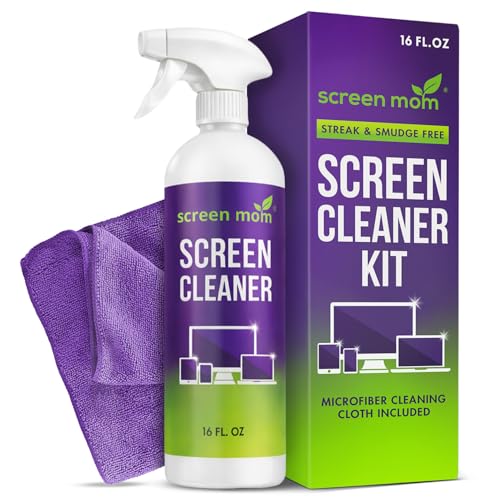
Screen Mom Screen Cleaner Spray 16oz Bottle for TV, Car, Laptop & Computer
STREAK FREE FORMULA FOR CRYSTAL CLEAR SCREENS: Screen Mom tv cleaner spray and cloth advanced streak-free screen cleaner...
As an affiliate, we earn on qualifying purchases.