TL;DR

Get the latest gadgets delivered free with Prime
- Fast, free delivery on millions of items
- Prime Video, Amazon Music and more included
- Member-only deals all year
Lifehacker has published a practical guide to 10 lesser-known features in Apple’s Contacts app for iPhone, iPad and Mac. The tips cover duplicate cleanup, bulk actions, sharing controls, app-based calls and messages, Mac smart lists, and offline exports; they are feature instructions, not a new Apple product announcement.
Lifehacker has published a guide to 10 features in Apple’s Contacts app for iPhone, iPad and Mac, including tools for merging duplicates, selecting multiple entries, sharing contact cards and exporting an address book. The tips describe existing app functions rather than a newly announced Apple update, and may help users manage contact information with fewer manual steps.
The guide points to several ways to handle common housekeeping tasks. On iPhone, iOS can display a prompt to identify duplicate contacts; on Mac, users can choose Card > Look for Duplicates to find entries that can be merged or deleted. On iPhone and iPad, a two-finger swipe up or down through the contact list can select multiple entries for bulk actions. Lifehacker says users can then delete a selected group by long-pressing one of the selected names and choosing the delete option.
Other tips focus on communication and data control. The guide says users can copy a contact’s name from Contacts and paste it into Messages to send the contact through Apple’s messaging service. Holding the message or call button on a contact card can offer compatible third-party apps, such as WhatsApp or Signal, when those apps are installed and the contact has a relevant destination. The article also describes removing unused fields from the Mac app’s new-contact template and using File > Export > Export vCard to save contacts in a .vcf file. Mac users can also export a PDF.
Apple Contacts · Practical guide
10 Contacts App Tips Every Apple User Should Know
Lifehacker’s guide highlights existing features for organizing, sharing and backing up contacts across iPhone, iPad and Mac. These are practical app instructions, not a new Apple product announcement.
Clear clutter with fewer steps
These tools help tackle duplicates and repeated selections. Review what you have selected before applying a bulk change.
Review duplicate prompts
iOS can surface a prompt to identify duplicate contacts, helping you merge entries that refer to the same person.
Find matches from Card
In Contacts, choose Card → Look for Duplicates to find entries that may be merged or deleted.
Select a group at once
Use a two-finger swipe up or down through the contact list to select multiple entries for a bulk action.
Delete selected contacts
Lifehacker describes long-pressing one selected name, then choosing the delete option. Check the selected group first.
Simplify the template
Remove unused fields from the new-contact template so new entries begin with the details you actually use.
Narrow a large address book
Create a Smart List from File → New Smart List. Filters can help narrow contacts, such as recently added entries.
Share only what you mean to
A contact card can hold far more than a phone number. Choose the channel and the details with care.
Use the right route
- Copy a contact’s name from Contacts and paste it into Messages to send the contact through Apple’s messaging service.
- Press and hold the message or call button on a contact card to see compatible apps such as WhatsApp or Signal, when installed and supported by available contact details.
- The guide says copying a contact into Messages does not work with third-party messaging apps such as WhatsApp.
Check the fields first
Before sharing a card, review the sharing prompt and remove details you do not want to send. That may include a home address, birthdate, anniversary, nickname or other personal information.
Privacy is part of the send action
Export contacts from Mac
The guide describes two ways to save contact information locally. Confirm the file was saved, then store it somewhere secure.
Make an offline copy
In Contacts, choose File → Export → Export vCard to save a .vcf file. The guide also describes exporting a PDF through File → Export as PDF. A saved export may become outdated as contacts change, so refresh it when needed.
Three checks before you act
Menus, gestures and app choices can vary with software versions and installed apps.
Check your device
Try the relevant step in Contacts on your installed iOS, iPadOS or macOS version.
Review the selection
Before deleting a group, confirm that every selected contact should be removed.
Review shared details
Check which contact fields are included before sending a card to someone.
Secure the export
Confirm the vCard or PDF saved successfully and keep it in a secure location.
One address book, several useful moves
The guide connects everyday contact management with communication and data control.
Find & tidy
Spot duplicates and remove obsolete entries.
Select & organize
Use bulk selection or a filtered Smart List.
Share thoughtfully
Choose a compatible app and check card fields.
Save a copy
Export a vCard or PDF and store it securely.
What the source does not confirm
The supplied excerpt introduces 10 tips but cuts off during Smart List instructions. It does not provide the complete list or exact filter setup, identify the operating system versions tested, or confirm universal availability. Check Apple’s current support information if a menu or gesture is missing.
Faster Contact Cleanup and Sharing
Contacts can accumulate duplicates, outdated entries and personal details that users do not want to share every time they send a card. The features highlighted by Lifehacker address those everyday tasks: bulk selection can reduce repeated taps, while the sharing prompt lets people choose which contact fields to include. That distinction matters because a contact card can contain more than a phone number or email address.
The Mac export option also offers a way to keep an offline copy of an address book or move contact data to another service. A vCard export is a data file, not a guarantee that a backup is current or protected from loss; users still need to store it somewhere secure and update it when their contacts change.
Products Worth Considering

Apple iPad Air (2025) 13‑inch Wi‑Fi 256 GB – Space Gray (M3 chip)

Bose QuietComfort Wireless Bluetooth Headphones with Active Noise Cancellation, Mic, USB‑C Charging, Deep Bass, 24‑Hour Battery – White Smok
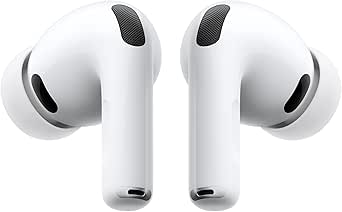
Apple AirPods Pro 3 Wireless Earbuds with Active Noise Cancellation
As an affiliate, we earn on qualifying purchases.
Features Across Apple Devices
Apple’s Contacts app is available on iPhone, iPad and Mac, but the steps described in the guide differ by device. Some of the tips rely on Mac menus, including duplicate detection, smart lists, template editing and exports. Others use iPhone gestures or controls on an individual contact card.
The supplied Lifehacker material presents these as existing capabilities and does not tie them to a particular software release. It describes creating a Mac Smart List from File > New Smart List, with filters that can help narrow a large address book—for example, by recently added contacts. The source excerpt ends before giving the complete setup instructions for that feature, so its exact filter steps are not available here.
“The Contacts app is the bedrock of all my communication on my iPhone, and to a large extent, also on my MacBook.”
— Lifehacker
Device and App Compatibility
The source does not identify the iOS, iPadOS or macOS versions used to verify each instruction. Menus and gestures can vary by software version, and third-party calling or messaging options depend on compatible apps and contact details being available. The guide also says copying a contact into Messages does not work with third-party messaging apps such as WhatsApp.
The supplied text introduces 10 tips but cuts off during the Smart List instructions, so it does not provide the full list or complete setup details. It also does not report testing results, explain whether every feature is available in every region, or say how exported files should be secured. These points should not be read as confirmation of universal availability.
Check Settings Before Applying Tips
Readers can try the relevant steps in the Contacts app on their own device and check Apple’s current support documentation if a menu or gesture is missing. Before deleting a batch of entries, review the selection; before sharing a card, check which fields are included. Users who export a vCard or PDF should confirm the file was saved and keep it in a secure location.
No Apple announcement or upcoming software change is described in the source material. The next practical step is for users to verify which features work on their installed operating systems and apps, particularly for third-party calling, messaging and Mac Smart Lists.
Key Questions
Is Apple announcing a new Contacts app update?
No. The source is a Lifehacker guide to existing features; it does not describe a new Apple announcement or release.
How can I find duplicate contacts on a Mac?
In Contacts, open the Card menu and select “Look for Duplicates.” The app can identify entries for merging or deletion, according to the guide.
Can I select several contacts at once on iPhone?
Lifehacker describes using a two-finger swipe up or down through the list to select multiple contacts, then using the selection for a bulk action.
How do I export contacts from a Mac?
In Contacts, choose File > Export > Export vCard to save contacts in a .vcf file. The guide also describes exporting a PDF through File > Export as PDF.
Source: Lifehacker