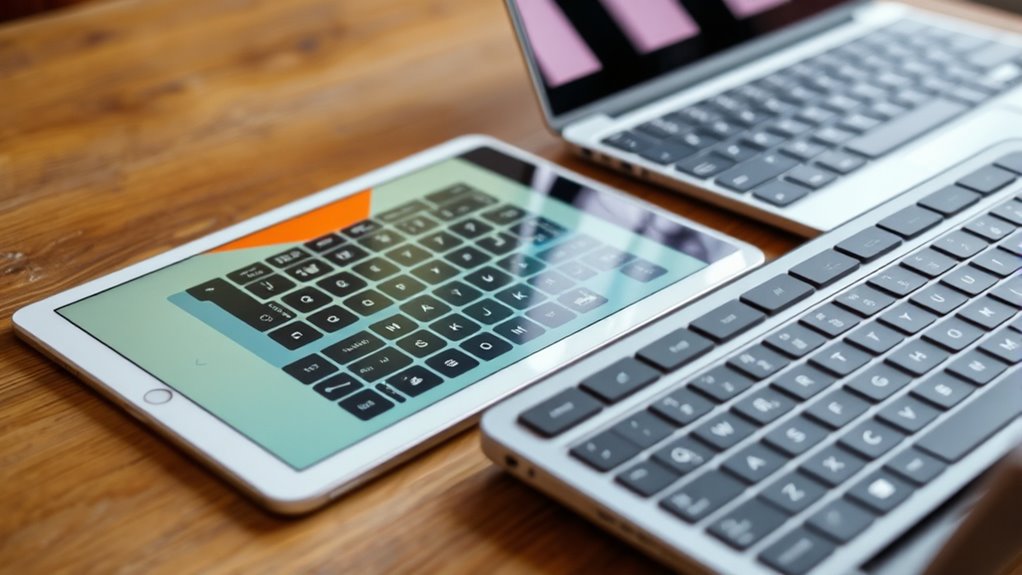

Using keyboard shortcuts on your iPad and Chromebook can speed up your daily tasks and make multitasking easier. On your iPad, shortcuts like Command + Tab switch between apps, while Command + Shift + H quickly returns you to the Home Screen. Chromebooks use Alt + Tab to cycle through open windows and Alt + (number) to open pinned apps. Mastering these shortcuts helps you stay efficient—keep exploring to discover more tips that will boost your workflow.
Key Takeaways
- Command + Tab on iPads switches between open apps quickly.
- Alt + Tab on Chromebooks cycles through open windows efficiently.
- Command + Shift + H on iPads instantly returns to the Home Screen.
- Alt + (number key) on Chromebooks opens specific pinned apps.
- Combining shortcuts with gestures enhances multitasking productivity on both devices.
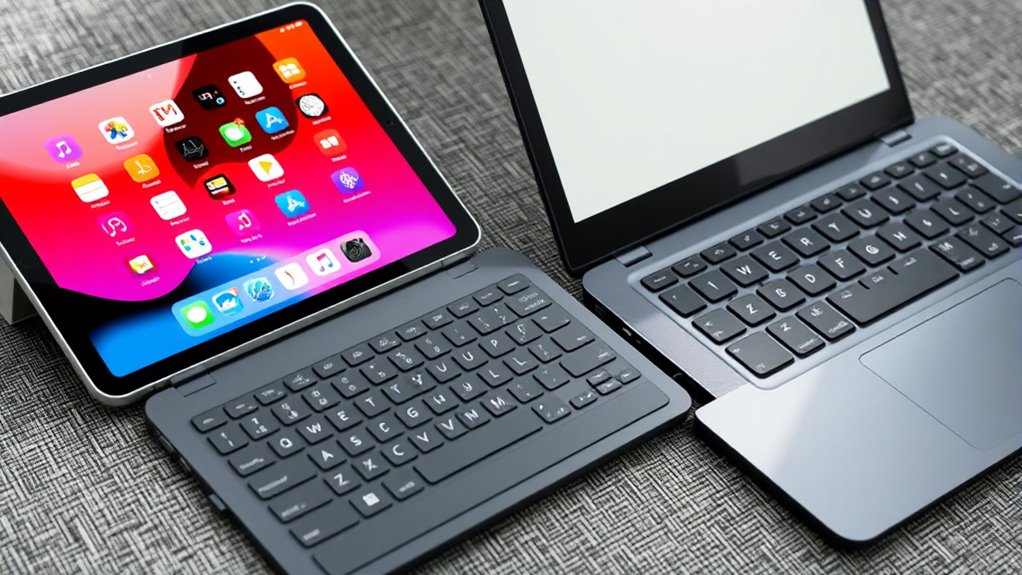
Using keyboard shortcuts can substantially boost your productivity on iPads and Chromebooks, allowing you to perform common tasks quickly without relying solely on touch or mouse input. One of the key ways to do this is by mastering gesture controls and app switching techniques. While gestures are intuitive and often faster than tapping menus, keyboard shortcuts can streamline your workflow even further, especially when you need to juggle multiple apps or windows efficiently.
On iPads, gesture controls are powerful tools for multitasking. Swiping up with four or five fingers, for example, allows you to access the app switcher quickly. This shortcut helps you move seamlessly between open applications without fumbling through menus. On Chromebooks, keyboard shortcuts play a similar role in app switching. Using combinations like Alt + Tab cycles through your open windows, letting you switch rapidly without reaching for the mouse or trackpad. This shortcut is especially useful if you’re working with multiple tabs or applications at once, as it minimizes interruption and keeps your focus on the task.
Both devices support gestures and shortcuts that enable faster navigation. On Chromebooks, pressing Search + Up opens the overview mode, showing all your open windows, which makes switching between tasks even more efficient. On iPads, swiping left or right with multiple fingers can move you between recently used apps, but combining this with keyboard shortcuts—like Command + Tab on a connected keyboard—gives you an even quicker way to switch. If you’re using a Chromebook with a touchscreen, you can also perform gestures such as pinch to zoom or swipe to scroll, but keyboard shortcuts often provide a more precise and speedy alternative. Additionally, understanding the importance of contrast ratio can help you optimize your display settings for better visibility during multitasking sessions, ensuring that your screen remains clear and easy to read.
To maximize your workflow, learn the essential shortcuts for app switching and gesture controls. For example, on iPads, Command + Shift + H takes you to the Home Screen instantly, while on Chromebooks, pressing Alt + (number key) opens specific apps pinned to your taskbar. Getting comfortable with these shortcuts means fewer interruptions and more time spent on actual work. Combining gesture controls with keyboard shortcuts creates a fluid, efficient experience—whether you’re moving between apps, scrolling through documents, or managing multiple windows.
Top picks for "keyboard shortcut ipad"
Open Amazon search results for this keyword.
As an affiliate, we earn on qualifying purchases.
Frequently Asked Questions
Can I Customize Keyboard Shortcuts on Ipad and Chromebooks?
Yes, you can customize keyboard shortcuts on both iPads and Chromebooks. With keyboard customization, you can assign specific functions to keys that suit your workflow. On Chromebooks, you can use shortcut mapping through settings or third-party apps to change key functions. On iPads, you can customize shortcuts within certain apps or use external keyboards with customizable keys. This allows you to streamline your tasks and work more efficiently.
Are There Shortcuts for Specific Apps Like Google Docs or Safari?
Did you know that over 80% of tablet users rely on app-specific shortcuts to boost productivity? Yes, you can find shortcuts for apps like Google Docs and Safari. These shortcuts help you perform tasks faster and improve accessibility. On iPads, look for app-specific commands in the settings, while Chromebooks often have dedicated shortcuts. Using accessibility features, you can customize these shortcuts further, making your workflow smoother.
How Do I Switch Between Keyboard Layouts on These Devices?
To switch between keyboard layouts on your iPad or Chromebook, you need to access the keyboard language settings. On your iPad, go to Settings > General > Keyboard > Keyboards, then add or select your preferred language. On Chromebooks, click the status area, select the language icon, and choose your desired layout. For quick layout toggling, use the designated shortcut like the globe key on Chromebooks or the globe icon on iPad.
Do Shortcut Functions Differ Between Ipad and Chromebook?
A stitch in time saves nine, and that’s true for keyboard shortcuts too. The shortcut functions do differ between iPad and Chromebook, mainly due to device-specific shortcuts. While some core commands like copy and paste stay consistent, others vary, so don’t assume they’re interchangeable. You’ll find keyboard shortcut consistency only within each device type, so familiarize yourself with each platform’s unique commands to work efficiently.
Can I Use External Keyboards With Ipads and Chromebooks?
Yes, you can use external keyboards with both iPads and Chromebooks. They offer excellent external keyboard compatibility, allowing you to connect via Bluetooth or USB. Once connected, you can customize keyboard shortcuts to suit your workflow, making your experience more efficient. Whether you’re typing documents or steering through apps, external keyboards enhance productivity on both devices, and most models support easy shortcut customization for a personalized setup.
Conclusion
Mastering keyboard shortcuts on your iPad and Chromebook can boost your productivity significantly. Did you know that users who utilize shortcuts save up to 8 hours a week? Incorporating just a few daily can make a big difference in your workflow. So, start practicing these shortcuts today—you’ll find steering your device faster and more efficient. Once they become second nature, you’ll wonder how you ever managed without them.