
When overclocking your PC, do start with small performance increases, and use reliable software to adjust settings carefully. Don’t push your hardware too aggressively, and always monitor temperatures to prevent overheating. Avoid overclocking without proper cooling solutions, and never skip stability tests. Keep track of your settings and revert to default if issues arise. Following these guidelines helps protect your hardware—if you continue exploring, you’ll learn how to do it safely and effectively.
Key Takeaways
- Do increase clock speeds gradually and test stability at each step.
- Don’t push hardware beyond manufacturer-specified voltage and temperature limits.
- Do upgrade cooling solutions to manage heat effectively during overclocking.
- Don’t overlook monitoring system temperatures to prevent overheating and damage.
- Do revert to default settings if instability or overheating occurs.
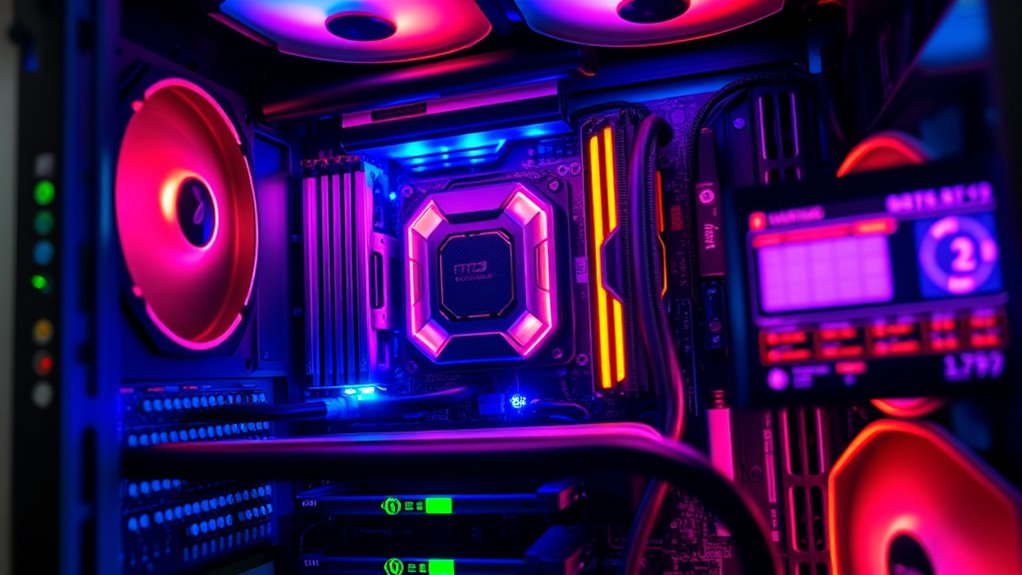
If you’re interested in boosting your PC’s performance, overclocking can be an effective way to do it. However, before you dive in, it’s essential to understand the importance of hardware safety and the potential warranty risks involved. Overclocking pushes your components beyond their factory settings, which can lead to increased heat and power consumption. If you don’t take proper precautions, you risk damaging your hardware, which could result in costly repairs or replacements. Manufacturers often specify safe voltage and temperature limits; exceeding these can cause permanent damage. Additionally, overclocking can void your warranty, meaning if something goes wrong, you’re unlikely to get support or replacements from the manufacturer. Before you start, review your hardware’s warranty policy to understand what risks you’re accepting.
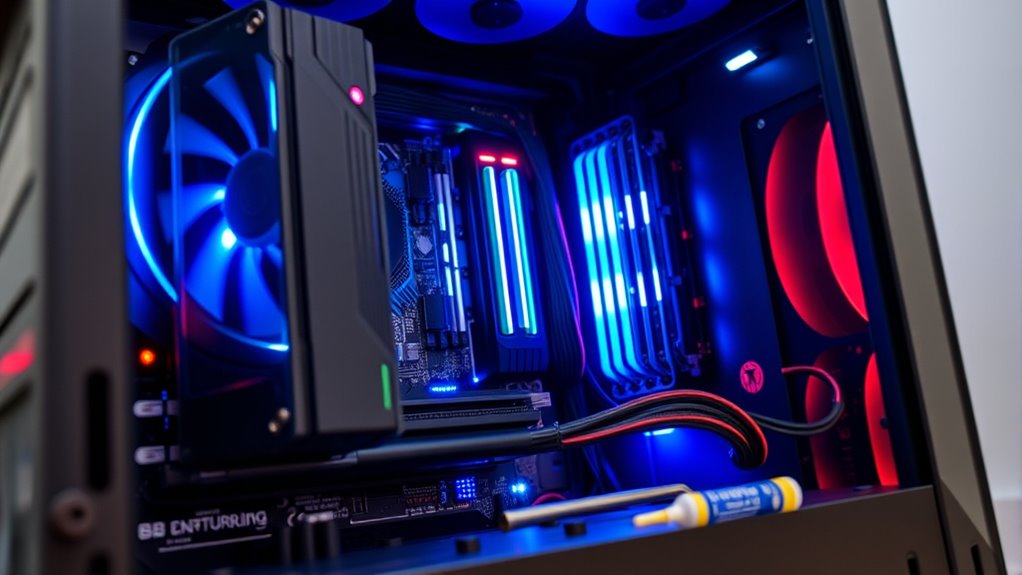
When overclocking, always prioritize hardware safety. Use reliable software tools designed for your CPU and GPU to adjust clock speeds gradually. Increase performance in small increments and test stability after each change. Monitoring temperatures is essential; if your system runs hotter than recommended, you need to improve your cooling solutions. Consider upgrading your CPU cooler or adding case fans to manage heat effectively. Remember, better cooling not only enhances performance but also extends the lifespan of your components. Avoid the temptation to push your hardware to its absolute limits in a single step. Patience and careful adjustments help prevent overheating or instability, which can damage your hardware. It’s also helpful to stay informed about Glycolic Acid benefits, as skincare products can be an essential part of personal health routines outside of tech concerns.
It’s also important to understand that overclocking can carry warranty risks. Many manufacturers include clauses that void warranties if the hardware is overclocked or if non-standard BIOS settings are used. Even if your system appears stable during testing, subtle long-term damage can occur that might not be immediately visible. This means you should weigh the performance gains against the possibility of losing manufacturer support. If you’re unsure, consider sticking to mild overclocking and keeping detailed records of your settings. This way, if you need to reset your system or seek support, you can revert to default settings easily.
Top picks for "overclock beginner"
Open Amazon search results for this keyword.
As an affiliate, we earn on qualifying purchases.
Frequently Asked Questions
What Are the Signs That My PC Is Overheating During Overclocking?
If your PC is overheating during overclocking, you’ll notice thermal sensors reporting high temperatures, especially on the CPU or GPU. You might also experience sudden shutdowns, system crashes, or noticeable lag. Check for airflow issues inside your case, like dust buildup or inadequate fan placement. These signs indicate your system struggles to cool itself, so reduce overclocking settings or improve cooling to prevent damage.
How Much Warranty Is Typically Voided by Overclocking a CPU or GPU?
Overclocking your CPU or GPU often voids most manufacturer warranties, according to manufacturer policies. Typically, you risk losing warranty coverage completely if damage occurs due to overclocking. While some brands might offer limited warranty protection, it’s generally safer to assume that overclocking voids most or all of your warranty. Always check your hardware’s specific warranty policy before pushing your components beyond stock settings.
Can Overclocking Improve Gaming Performance Significantly?
Yes, overclocking can give you a noticeable gaming boost and performance gains. By increasing your CPU or GPU speeds, you’ll see smoother gameplay, higher frame rates, and reduced lag in demanding titles. However, the extent of these improvements depends on your hardware and cooling solutions. Be cautious, as overclocking might cause instability or overheating if not done correctly, so always monitor your system carefully during the process.
What Are the Best Tools for Monitoring Overclocked Components?
Imagine your PC’s components as busy workers, and you’re the supervisor. To keep them running smoothly, use hardware sensors like HWMonitor or MSI Afterburner for real-time temperature and voltage readings. Benchmarking tools such as Cinebench or 3DMark help you test stability and performance. These tools give you a clear view of your overclocked system’s health, ensuring you stay within safe limits while boosting your gaming and multitasking experience.
Is It Safe to Overclock Multiple Components Simultaneously?
Yes, overclocking multiple components simultaneously can be safe if you prioritize component stability and thermal management. You should monitor each component’s temperature and performance closely, ensuring they stay within safe limits. Use reliable cooling solutions and adjust overclock settings gradually. If you notice instability or overheating, dial back the overclock or improve cooling. Always test stability after each adjustment to protect your hardware.
Conclusion
Diving into overclocking can be intimidating, but with diligent research and cautious steps, you can boost your PC’s performance without problems. Practice patience, prioritize safety, and stay vigilant to prevent pitfalls. Remember, successful overclocking is about balancing boldness with basic precautions. By being brave but careful, you’ll build a better, faster system—turning a simple setup into a powerhouse. So, start slow, stay smart, and soon you’ll see your PC perform at its peak!