
Choosing between shut down, sleep, or hibernate depends on how long you’ll be away from your PC. Shut down is best for long breaks since it saves energy and prevents wear, while sleep offers quick access for short rests but consumes a little power. Hibernate is ideal for longer pauses, saving battery and preserving your work without draining power. To optimize your device’s performance and lifespan, understanding these options will help you pick the right mode.
Key Takeaways
- Shut down completely powers off the PC, saving energy and preventing system issues, ideal for long-term inactivity.
- Sleep mode offers quick resume by keeping sessions in RAM, suitable for short breaks but consumes some power.
- Hibernate saves your session to disk and powers off, perfect for longer breaks without battery drain.
- Shut down provides maximum hardware longevity and system stability, while sleep and hibernate balance convenience and energy savings.
- Choose shutdown for extended periods, sleep for short-term use, and hibernate for longer inactivity to optimize performance and energy.

HOTLIFE Undetectable Mouse Jiggler, USB Mover Device Keeps PC Awake, Driver-Free Wiggler Auto Shaker with 3 Mode Switch Button to Keep Laptop Computer Screen Active, Black
【Computer Helper】Mouse Jiggler is an ideal design for computer/laptop, it auto simulates mouse movements, prevents your computer from…
As an affiliate, we earn on qualifying purchases.
As an affiliate, we earn on qualifying purchases.
Understanding the Basic Differences Between Shut Down, Sleep, and Hibernate
To understand the differences between shutting down, sleeping, and hibernating your computer, it helps to know what each process does. Shutting down turns off your device completely, closing all programs and powering down hardware, which is ideal for device compatibility and long-term storage. Sleep mode keeps your session in RAM, allowing quick resumes, but it still uses some power and may not suit all user preferences, especially if you want to conserve energy. Hibernate saves your current session to the hard drive and then powers off, making it suitable for longer breaks without draining power. Your choice depends on your device’s capabilities and what you prefer—whether fast access, energy savings, or a full shutdown. Additionally, understanding the power management options available can help optimize your device’s performance and energy efficiency, ensuring you choose the best method for your needs. Being aware of power consumption during different states can help you make more informed decisions about your device usage. For instance, selecting the appropriate power mode can significantly impact your device’s overall energy consumption and lifespan. Recognizing that different devices may have varying power profiles can further assist in making an optimal choice.

Seagate Portable 2TB External Hard Drive HDD — USB 3.0 for PC, Mac, PlayStation, & Xbox -1-Year Rescue Service (STGX2000400)
Easily store and access 2TB to content on the go with the Seagate Portable Drive, a USB external…
As an affiliate, we earn on qualifying purchases.
As an affiliate, we earn on qualifying purchases.
How Shut Down Affects Your PC’s Hardware and Software
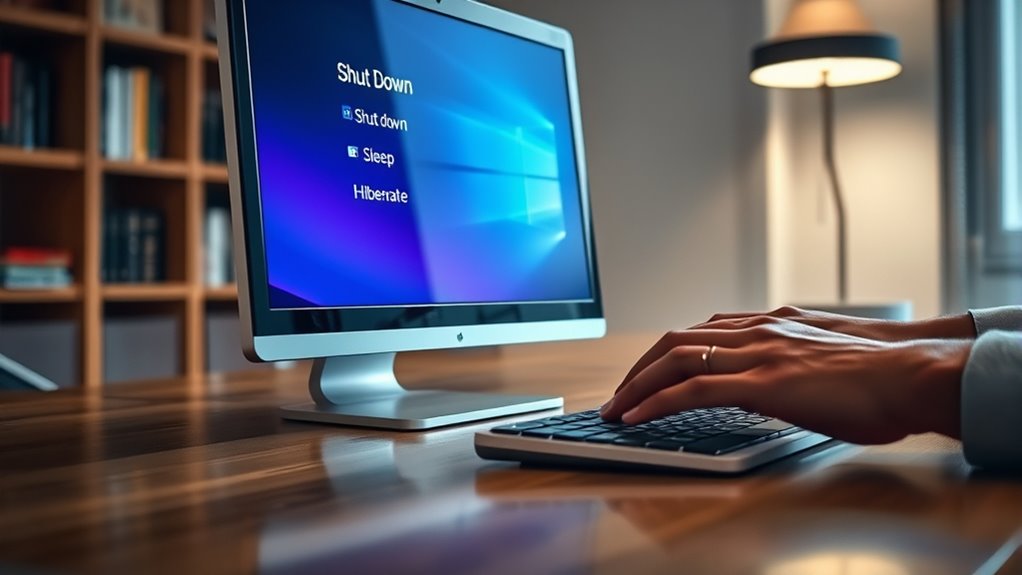
When you shut down your PC, the hardware undergoes power cycling, turning off completely and resetting components. This process also clears temporary software states, giving your system a fresh start. Additionally, any unsaved data is lost unless saved beforehand, impacting your ongoing work. Implementing power management settings can help optimize shutdown procedures and hardware longevity.
Hardware Power Cycling
Shutting down your PC triggers a process that temporarily cuts power to all hardware components, allowing them to reset and refresh. This hardware power cycling helps clear temporary glitches and prepares your system for a fresh start. When you do a system reboot, your hardware goes through this cycle again, ensuring everything runs smoothly. During shutdown, your components like the CPU, RAM, and storage devices power off completely, then restart during the next startup.
This process can help fix minor hardware hiccups and improve performance. Keep in mind:
- Hardware refreshes prevent lingering issues.
- Power cycling can extend hardware lifespan by avoiding constant use.
- A proper shutdown ensures all hardware components reset correctly.
Software Reset Effects
Powering down your PC triggers a software reset that clears temporary data and halts active processes, giving your system a fresh start. This process helps improve system stability by closing all running programs and stopping background tasks. When you perform a proper shutdown, it ensures that no residual data remains in memory, reducing the risk of software glitches or conflicts when you restart. A software reset during shutdown also allows your operating system to update system files and apply necessary patches more effectively. By doing so, it prevents potential errors caused by lingering temporary files or unstable processes. Overall, shutting down your PC promotes a more reliable environment, minimizing software issues and maintaining ideal system stability over time.
Data Saving Processes
Properly shutting down your PC guarantees that all your data is saved correctly and that hardware components are properly disengaged. When you shut down, your system flushes temporary files, closes applications, and writes critical data to storage. This process helps conserve energy and protects your hardware’s longevity by reducing wear and tear. Additionally, performing a proper shutdown can help prevent system errors and ensure that your connected devices remain in optimal condition. Using the correct shutdown method also minimizes the risk of data corruption, which can occur if the system is turned off improperly or during updates. Regular shutdowns contribute to the overall hardware health by preventing unnecessary stress and potential failures caused by improper power cycles. Engaging in regular shutdowns can also help maintain the overall health of your hardware, preventing potential issues caused by hardware stress over time. Staying consistent with proper shutdown procedures can also reduce the likelihood of encountering unexpected crashes and improve your system’s stability.

Nero Duplicate Manager | Detect & Remove Duplicate Photos, Videos & Music Files | Organize Your Media Library | Supports HEIC/HEIF, RAW, JPG, PNG | Lifetime License | 1 PC | Windows 11 / 10 / 8 / 7
✔️ Find Duplicate Photos, Videos, and Music: Detects exact and similar duplicate photos, videos, and music files across…
As an affiliate, we earn on qualifying purchases.
As an affiliate, we earn on qualifying purchases.
The Benefits and Drawbacks of the Sleep Mode

Sleep mode saves power efficiently, so your device uses minimal energy while staying ready. You can quickly resume your work without waiting for a full startup, saving you time. However, it’s important to contemplate that prolonged sleep sessions might still drain the battery or cause minor system issues. Proper maintenance of your device can help mitigate some of these concerns and ensure optimal performance.
Power Saving Efficiency
Have you ever wondered how well sleep mode helps you save energy? Sleep mode is designed for quick resumes, but it also offers solid power saving efficiency. By reducing power consumption, it helps with battery maintenance and enhances your device’s overall longevity. When you put your PC into sleep, it uses minimal energy to keep your session active in RAM, allowing for instant access later. However, it’s not as power-efficient as shutting down completely, since some power still flows to keep the memory alive. Power management strategies like sleep mode strike a good balance between convenience and energy savings. You benefit from faster startups while conserving battery life, making it ideal for short breaks. Just remember, extended use may drain your battery faster than a full shutdown. Additionally, understanding how different hardware components respond to sleep mode can help optimize your device’s energy efficiency and lifespan. Knowing the specific hardware response to sleep mode can further improve your device’s energy management practices.
Quickly Resuming Work
While sleep mode provides a quick way to resume your work, it comes with both advantages and disadvantages. When you press the power button to wake your PC, it quickly restores your session, saving you time. However, this speed can be a drawback if system updates are pending, as they often require a full shutdown or restart to install properly. Sleep keeps your programs and documents ready to go, but it remains a low-power state that still consumes some energy, which isn’t ideal for long-term energy savings. Additionally, if your system experiences a power outage, unsaved work could be lost. Overall, sleep mode is perfect for short breaks, but be mindful of updates and potential data loss during extended periods of inactivity. Using sleep mode can also be helpful for reducing overall energy consumption compared to leaving a PC fully on. Relying solely on sleep mode may lead to issues like memory leaks or system sluggishness over time, so periodic reboots are recommended for optimal performance. Understanding the importance of system stability and regular maintenance can help ensure your PC stays reliable over time. Regularly updating your system drivers and software can also prevent performance issues and improve overall stability. Using expert voice actors in instructional content can also help clarify complex topics like this for better user understanding.

DKE PC Power Button Desktop PC Computer Case Power Switch On Off HDD Push Computer Host Button Supply Supplies with 2m Cables
★ External Desktop PC Power Switch: controlling your computer from the comfort place in the room using the…
As an affiliate, we earn on qualifying purchases.
As an affiliate, we earn on qualifying purchases.
When and Why to Use Hibernate Mode
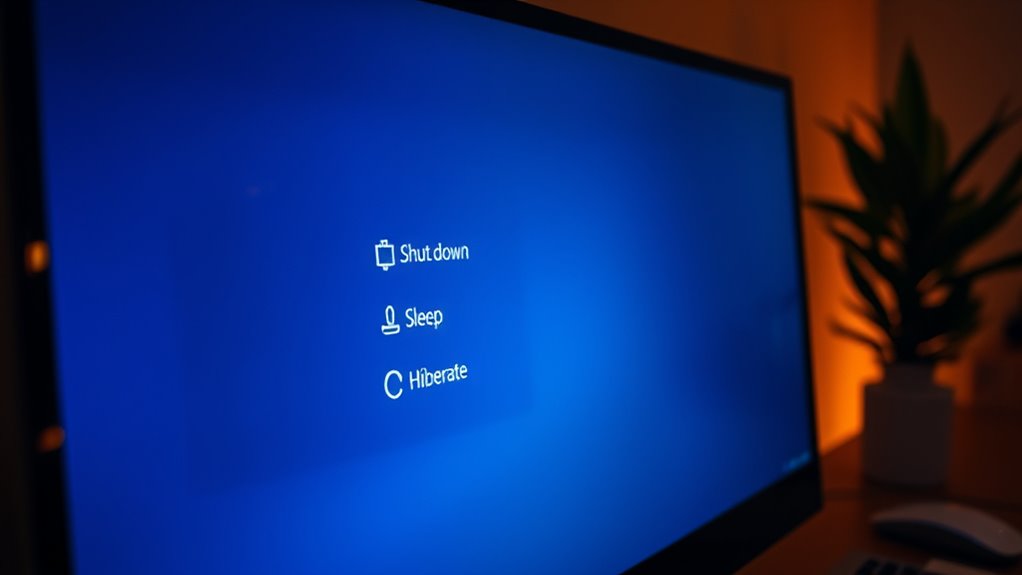
Hibernate mode is ideal when you need to save your work for an extended period without draining your device’s battery. It preserves your current session and completely powers off, which benefits battery preservation and hardware longevity. Use hibernate when you’re done for the day or won’t use your PC for a while, but want to pick up right where you left off later. It’s perfect for travel or long breaks, minimizing power consumption while keeping your work intact. Additionally, understanding power management practices can help you choose the best settings for your needs. Hibernate also helps prevent unnecessary wear and tear on internal components caused by continuous use. Choosing hibernate helps extend your device’s battery life and reduces wear on internal components, making it a smart choice for long-term storage. Incorporating proper cooling and ventilation strategies can further enhance your device’s longevity during periods of inactivity, especially when combined with energy-efficient hardware maintenance practices. Maintaining optimal system performance during hibernation ensures your device remains reliable and efficient over time.
Energy Consumption Comparison of the Three Modes
When comparing the energy consumption of Shut Down, Sleep, and Hibernate modes, it’s clear that each mode uses power differently, impacting your device’s battery drain and standby efficiency. Shut Down uses virtually no power, making it the most energy-efficient option for extended periods. Sleep mode, however, consumes a small amount of power to keep your session in memory, leading to minimal battery drain and high standby efficiency. Hibernate mode balances power use by saving your session to disk and shutting off completely, resulting in almost zero power consumption but slightly longer resume times. If conserving battery life is your priority, Shut Down and Hibernate are best. For quick access with minimal battery drain, Sleep offers a good compromise. Understanding power management helps optimize your device’s energy use based on your needs. Additionally, managing power settings effectively can extend your device’s lifespan and reduce energy costs. Properly configuring power plans can further enhance energy efficiency and device performance.
Impact on System Performance and Speed of Resuming
The choice of power mode considerably impacts how quickly your system performs after waking or turning back on. When you use Sleep, your PC resumes rapidly because it keeps background processes active in low power, maintaining system stability. Hibernate takes longer to restart since it saves your session to disk, requiring more time to reload everything. Shutting down offers the slowest resume but ensures a fresh start, reducing potential background process conflicts.
- Sleep provides the fastest wake-up, ideal for quick tasks.
- Hibernate balances power savings with faster resumption than shutdown.
- Shutdown offers maximum system stability but delays performance recovery.
Your decision affects how smoothly your system handles background processes and how swiftly it gets ready for use again, depending on your preference for speed versus stability.
Situations Best Suited for Each Power State
Choosing the right power state depends on your specific needs and usage patterns. If you’re taking a short break or plan to resume work quickly, sleep mode is ideal because it allows rapid resumption while conserving battery management. It keeps your session in RAM, enabling quick access without draining much power. For longer periods away from your PC, hibernation is better—your system saves everything to disk, ensuring minimal battery drain and maintaining system stability. If you won’t be using your computer for an extended time, shutting down is the best choice; it conserves power completely and prevents potential system issues caused by bugs or updates. Each option balances energy efficiency and readiness, so choose accordingly to optimize your device’s performance and longevity based on how long you’re away.
Common Misconceptions About Sleep and Hibernate
Many people believe that sleep and hibernate modes are interchangeable or that they serve the same purpose, but this isn’t accurate. Sleep saves your session temporarily in RAM, which uses some power and can affect your battery health over time. Hibernate, on the other hand, saves your session to the hard drive, using no power, ideal for longer breaks. A common misconception is that sleep causes overheating issues, but it usually doesn’t, unless your PC runs hot during idle. Some also think hibernate is slower to resume, but it’s often faster than a full shutdown. Remember, sleep is convenient for short rests, while hibernate conserves power for extended periods without risking battery drain. Understanding these differences helps you choose the right mode for your needs.
Tips for Choosing the Right Power Option for Your Needs
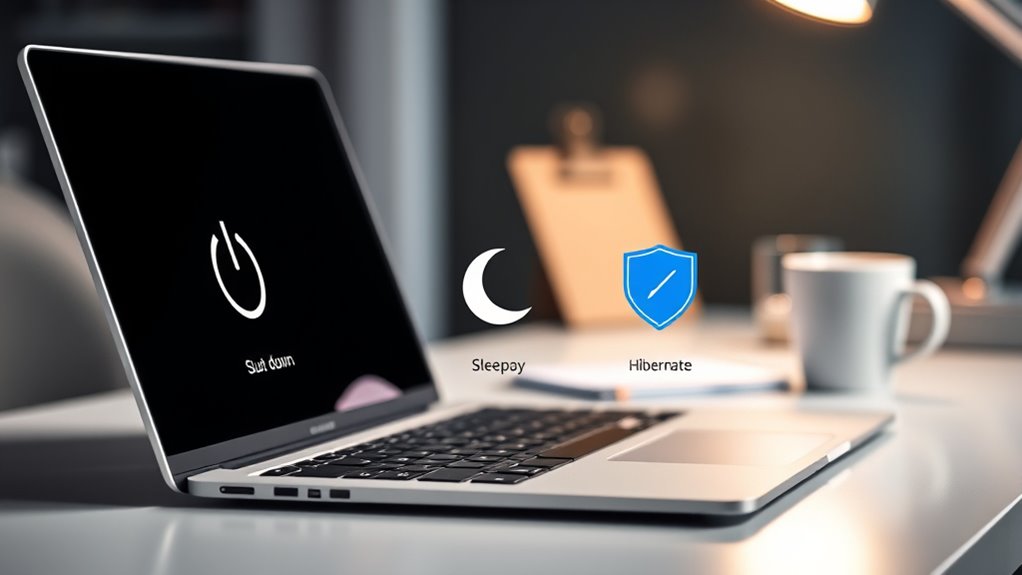
Selecting the right power option depends on how you use your device and how much energy conservation matters to you. If you want to save energy and extend hardware longevity, consider using sleep mode for quick resumes, as it consumes less power than leaving your PC on. Hibernate is ideal when you won’t use your computer for a longer period, as it saves your session without draining battery or power. For maximum energy conservation, shutting down is best, especially if you won’t need your device for a while. Think about your usage patterns: frequent short breaks favor sleep, while long absences call for hibernate or shutdown. Choosing wisely helps optimize performance, reduce energy costs, and preserve your hardware over time.
Frequently Asked Questions
Can I Customize Sleep or Hibernate Settings on My PC?
Yes, you can customize sleep or hibernate settings on your PC. You access these options through your system’s power management settings, where you can adjust timers and behavior. In Windows, go to Control Panel > Power Options, then choose your plan and click “Change plan settings.” Here, you can set specific times for sleep or hibernate, tailoring the power management features to fit your usage habits and preferences.
Do Sleep and Hibernate Modes Affect Battery Life Differently?
Think of your laptop’s battery like a garden: sleep is like watering it daily—conserving energy but still using some, while hibernate is like a deep sleep—minimal power consumption. Sleep mode uses more battery, affecting power efficiency, but it’s faster to resume. Hibernate conserves more battery, ideal for longer periods without use. So, if you want better battery life, hibernate is your best choice.
Are There Risks of Data Loss When Using Sleep or Hibernate?
Yes, using sleep or hibernate modes can pose risks of data loss if there’s a sudden power failure or instability. Sleep saves your session to RAM, which can lose data if power cuts out unexpectedly, risking data corruption. Hibernate saves to the hard drive, so it’s safer during power issues, but make certain your system’s power stability to prevent potential data loss. Always save critical work before entering these modes.
How Do Updates Interact With Sleep and Hibernate States?
Imagine you’re updating your PC overnight, but it’s in sleep mode. Updates may not install properly due to update interference or sleep mode conflicts, causing delays or errors. When your system wakes, it might need to complete updates, which can slow down startup or cause issues. To avoid this, it’s best to fully shut down or restart your PC during updates, ensuring they install correctly without sleep mode conflicts.
Is It Safe to Leave My PC in Sleep or Hibernate Mode Overnight?
It’s generally safe to leave your PC in sleep or hibernate mode overnight. Sleep mode uses minimal power, keeping your hardware ready to resume quickly, but it still consumes some power and can cause minor hardware stress over time. Hibernate mode uses almost no power, making it safer for extended periods, especially if you’re concerned about power consumption or hardware longevity. Just avoid leaving it in these states too long without updates or maintenance.
Conclusion
Choosing between shut down, sleep, or hibernate is like selecting the right gear for a journey. Each mode has its own purpose, saving energy and time in different scenarios. By understanding their differences, you can keep your PC running smoothly and efficiently. Think of these options as your trusted travel companions—knowing when to wake them up or let them rest guarantees your digital adventure stays seamless and stress-free.