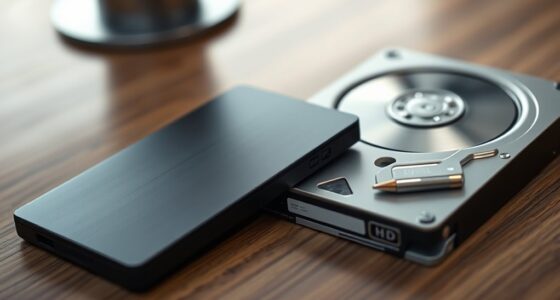

Using both Time Machine and cloud backups guarantees your data stays protected both locally and remotely. Time Machine quickly restores your system from an external drive, while cloud backups guard against theft, fire, or hardware failure by storing copies online. Setting up both ensures thorough coverage and peace of mind. To maximize these benefits, follow best practices for setup and maintenance. If you want to explore how to effectively combine these options, there’s more worth discovering.

Get the latest gadgets delivered free with Prime
- Fast, free delivery on millions of items
- Prime Video, Amazon Music and more included
- Member-only deals all year
Key Takeaways
- Combining Time Machine and cloud backup offers comprehensive protection through quick local restores and off-site disaster recovery.
- Use Time Machine for fast, automated local backups; rely on cloud services for remote, encrypted off-site storage.
- Set up Time Machine with an external drive for system recovery; configure cloud backups during stable internet periods.
- Maintain regular, automated backups on both platforms to ensure data is current and protected against various risks.
- Integrate both backup methods into your data security strategy for maximum resilience and ease of recovery.
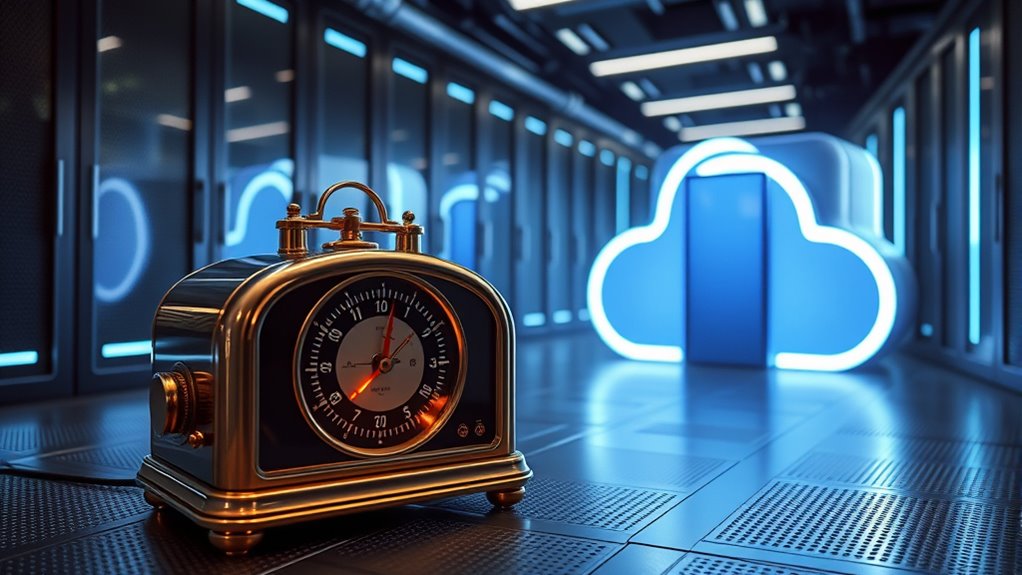
When it comes to protecting your data, choosing between Time Machine and cloud backup can be a crucial decision. Both options offer unique advantages, but understanding how they work together can give you a stronger data security strategy. Time Machine, built into macOS, automatically backs up your entire system to a local drive, making recovery quick and straightforward. It’s highly user-friendly and provides backup automation, ensuring your data is regularly saved without you having to think about it. Security is also a concern, so it’s reassuring that Time Machine employs data encryption to keep your backups safe from unauthorized access. This encryption happens seamlessly, so you don’t need to manage complex security settings.
On the other hand, cloud backup services provide off-site storage, which adds an extra layer of protection against physical damage, theft, or hardware failure. They also automate backups, often through intuitive apps that run in the background, syncing your data to the cloud at regular intervals. Cloud providers typically use robust data encryption both during transfer and while stored, ensuring your information remains confidential and secure. This encryption means that even if someone intercepts the data, they won’t be able to access its contents without the proper decryption keys. Combining Time Machine with cloud backup gives you an all-encompassing approach: local backups for quick recovery, and cloud backups for disaster resilience.
To make the most of both, start by setting up Time Machine with an external drive. This allows you to restore your system quickly if needed. Then, subscribe to a reputable cloud backup service that offers automatic, encrypted backups of your most critical files. Be sure to configure your cloud backup to run at times when your internet connection is stable and not burdened by other data transfers. This way, your backups remain current without disrupting your workflow. Keep in mind that both systems rely on backup automation, so you don’t have to remember to back up manually, reducing the risk of forgetting essential updates. Additionally, incorporating high refresh rates in your home entertainment setup can improve your viewing experience when streaming or gaming.
Products Worth Considering

Apple Watch SE 3 GPS 40mm Smartwatch

Bose SoundLink Flex Bluetooth Speaker (2nd Gen), Black
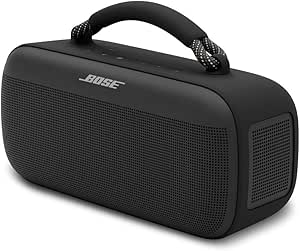
Bose SoundLink Max Bluetooth Speaker
As an affiliate, we earn on qualifying purchases.
Frequently Asked Questions
Can I Use Time Machine and Cloud Backup Simultaneously?
Yes, you can use Time Machine and cloud backup simultaneously. You should set up local backups with Time Machine for quick recovery and use remote storage solutions for cloud backups to protect against physical damage or theft. This way, you get the benefit of fast access through local backups while ensuring your data is safe in the cloud. Combining both offers all-encompassing data protection and peace of mind.
Which Backup Method Is Faster for Initial Data Setup?
For initial data setup, Time Machine is typically faster because it copies data directly from your local storage, offering quick setup speeds. Cloud backups, however, depend on your internet speed and can take longer for large initial data transfers. So, if you want a faster setup, use Time Machine first to quickly back up your initial data, then supplement with cloud backup for added security.
How Do I Restore Files From Both Backups?
Restoring files from both backups is straightforward. You simply access your Time Machine interface or cloud backup portal, select the desired file version, and click restore. To guarantee smooth recovery, keep backup scheduling consistent so your files stay current. Don’t worry about losing file versions; both methods support file versioning, so you can pick the exact backup point needed. This way, your data stays safe, organized, and easy to retrieve.
Are There Security Concerns With Cloud Backups?
Yes, there are security concerns with cloud backups. You should check if your provider uses strong encryption protocols to protect your data during transfer and storage. Additionally, consider data sovereignty issues, as your data might be stored in a different country with different privacy laws. To stay safe, choose a provider with transparent security practices, and always enable multi-factor authentication to add extra protection.
What’s the Cost Comparison Between Time Machine and Cloud Services?
You’ll find that Time Machine is free with your macOS, offering unlimited local backups, while cloud services vary widely in pricing. For example, iCloud offers 2TB at around $10/month, but storage costs can add up quickly with other providers. The pricing comparison shows cloud backups often have ongoing costs, whereas Time Machine’s storage depends on your external drive. Consider your budget and needs to choose the best option.
Conclusion
Think of using both Time Machine and cloud backup like having a safety net and a backup parachute—together, they keep you secure. By combining local backups with cloud storage, you guarantee your data is protected from any disaster, whether it’s a hardware failure or a cyber attack. Don’t leave your files vulnerable; embrace both methods to stay safe and confident. After all, a smart backup strategy is like having your cake and eating it too.