
To cut your mobile data usage in half, start by connecting only to trusted Wi-Fi networks and enabling auto-switching features. Restrict background activity for non-essential apps, disable automatic updates, and limit automatic content refreshes. Stream videos in standard quality and download content offline to avoid streaming over cellular data. Monitor your data regularly and set alerts to stay within your plan limits. Keep exploring these settings to maximize your savings even further.
Key Takeaways
- Enable Wi-Fi whenever possible and disable mobile data to reduce unnecessary data consumption.
- Restrict background app activity and disable auto-updates in device settings.
- Stream videos in standard definition and download content for offline use.
- Set data usage alerts and limits to monitor and prevent overages.
- Turn off Wi-Fi assist or similar features that automatically switch to mobile data.
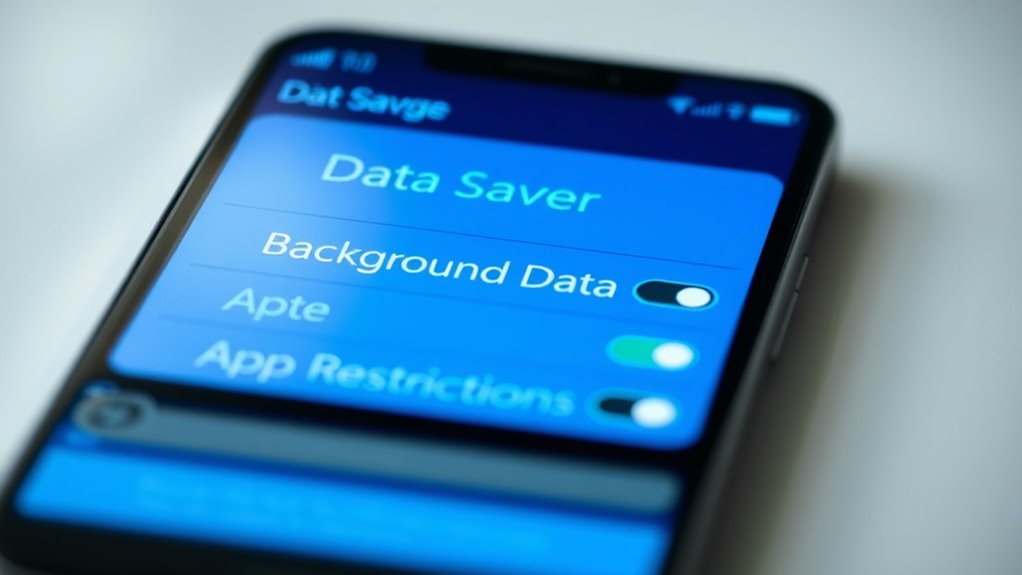
In today’s digital age, safeguarding mobile data is essential to avoid unexpected charges and ensure your connection lasts longer. One of the best ways to do this is by optimizing your Wi-Fi settings whenever possible. Wi-Fi optimization involves connecting to trusted networks and making sure your device automatically switches to Wi-Fi instead of using mobile data. This simple step can considerably cut down on unnecessary data consumption. Before you start browsing or streaming, check your Wi-Fi connection to guarantee it’s stable and secure. Disable Wi-Fi when you’re in areas with weak signals or when you don’t need internet access, as your device might otherwise default to using mobile data, which can quickly drain your plan. Also, consider turning on Wi-Fi assist or similar features that prioritize Wi-Fi over cellular data, so your device intelligently chooses the best connection without you having to think about it constantly.
Another vital aspect is managing app data usage. Many apps run background processes or update content without your knowledge, consuming data in the process. You should go into your device settings and review app permissions and background activity. Restrict apps from running in the background unless they’re necessary, especially social media, streaming, or news apps that frequently refresh content. Many apps also have built-in settings to limit data usage—use these features to set caps or restrict high-data activities. For example, streaming videos in standard definition rather than HD can save a substantial amount of data, and downloading content for offline use helps you avoid streaming over cellular networks altogether. Some apps also allow you to set notifications when they reach a certain data threshold, helping you stay on top of your usage.
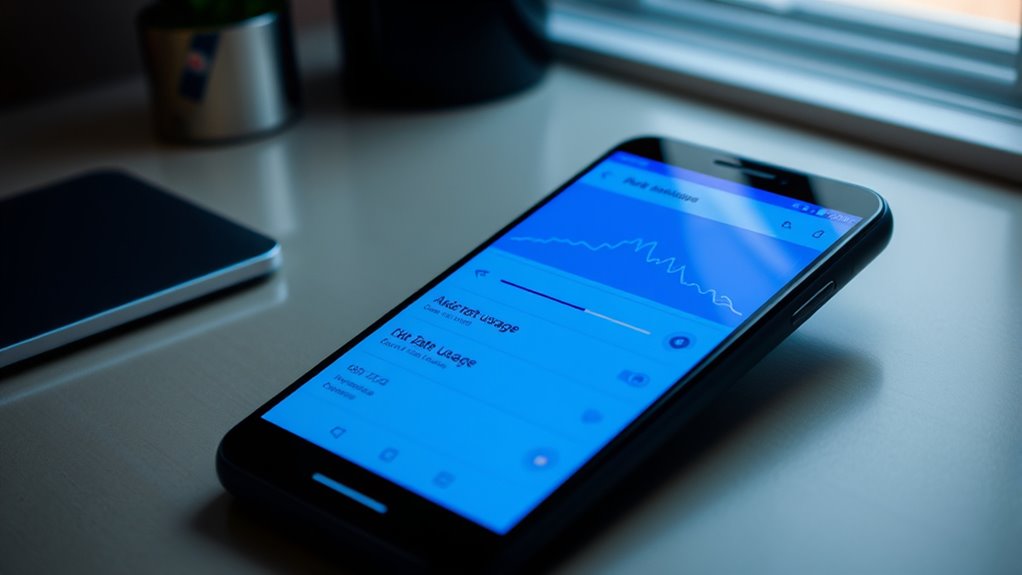
Additionally, keep an eye on your data plan’s limits and usage statistics. Most smartphones have built-in tools that show how much data you’ve used and which apps are responsible for the most consumption. Regularly monitoring this helps you identify any unexpected spikes and adjust your habits accordingly. Consider setting alerts to notify you before you hit your limit, so you can pause large downloads or streaming sessions. To maximize savings, turn off auto-updates for apps and system software when you’re not connected to Wi-Fi. Instead, update manually when you’re on a trusted Wi-Fi network to prevent unnecessary data drain.
Top picks for "save mobile data"
Open Amazon search results for this keyword.
As an affiliate, we earn on qualifying purchases.
Frequently Asked Questions
Can I Save Data Without Limiting App Functionality?
Yes, you can save data without limiting app functionality. Use data compression features in your browser and messaging apps to reduce data usage without losing key functions. Additionally, optimize your apps by updating them regularly and adjusting their settings for lower data consumption. These steps help you maintain app performance while substantially cutting down on data usage, ensuring you stay connected without sacrificing usability.
Do Data-Saving Settings Affect Wi-Fi Connections?
Data-saving settings typically don’t affect your Wi-Fi connections directly. However, if you’re experiencing Wi-Fi interference, it can slow down your network speed, making your internet seem sluggish. These settings mainly target cellular data, so your Wi-Fi performance remains unaffected. To guarantee ideal Wi-Fi, check for interference sources and optimize your router placement. Your Wi-Fi and data-saving settings operate independently, so you won’t see a negative impact on your Wi-Fi connection.
Are There Built-In Tools to Monitor Data Usage?
Yes, your device has built-in tools to monitor data usage. You can set data usage alerts and mobile data quotas to stay informed and prevent overages. These tools notify you when you approach your limit, helping you cut back on unnecessary data use. Check your device’s settings under mobile data or network options to activate and customize these features, ensuring you stay within your data plan comfortably.
How Do Data-Saving Apps Impact Streaming Quality?
Data-saving apps often reduce streaming quality by employing streaming compression and app throttling, which can lead to lower resolution or buffering delays. While they help you save data, they may diminish your viewing experience, making videos less sharp or more interrupted. You’ll notice the trade-off: fewer data costs but potentially compromised streaming quality. If maintaining high quality matters, consider adjusting app settings or streaming in lower quality manually instead of relying solely on these apps.
Will Disabling Background Data Stop All App Updates?
Disabling background data doesn’t stop all app updates, but it considerably reduces them. When you enable background app restrictions or data saver mode, you limit apps from updating or syncing in the background, which cuts down on data usage. However, some essential updates may still happen if you manually open the app. For full control, adjust individual app settings or enable data saver mode to maximize data savings.
Conclusion
By adjusting your settings, you’re building a sturdy dam that controls the flood of mobile data. Every tweak you make acts like a brick in this barrier, helping you save and stretch your data pool. Think of your data plan as a precious resource—protect it like a treasure. With these simple steps, you’ll keep your digital life flowing smoothly without overwhelming your data supply. Stay smart, stay connected, and guard your data like a fortress.