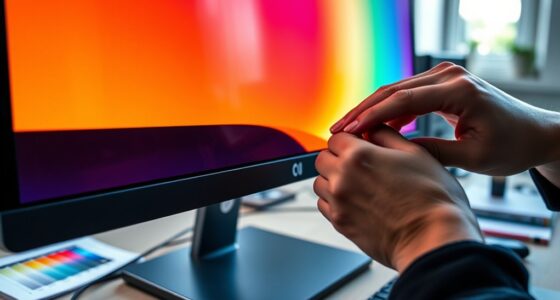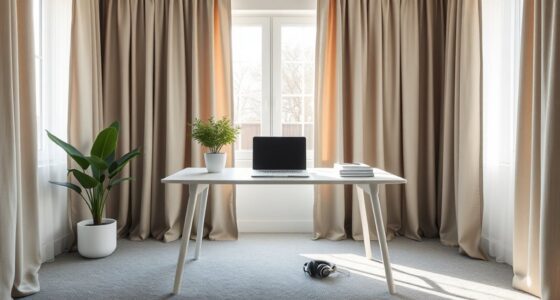
To prevent eye strain, adjust your display settings by enabling blue light filters or night mode, which warm up your screen tones and reduce fatigue. Keep your brightness matched to ambient lighting to avoid glare or dimness. Position your screen at eye level and maintain about an arm’s length distance. Don’t forget to take regular breaks following the 20-20-20 rule. If you want more tips on optimizing your screen setup, keep exploring these techniques.
Key Takeaways
- Enable blue light filters or Night Mode to reduce eye fatigue from blue light exposure.
- Adjust screen brightness to match ambient lighting for comfortable viewing.
- Position your screen at eye level and maintain about an arm’s length distance.
- Use automatic brightness settings or manually set a warmer color temperature in the evening.
- Follow the 20-20-20 rule by taking regular breaks to rest your eyes.
In today’s digital age, eye strain has become a common problem for many people who spend hours staring at screens. Whether you’re working on a computer, scrolling through your phone, or gaming, prolonged exposure to screens can cause discomfort and fatigue. One effective way to combat this is by adjusting your display settings, specifically by focusing on blue light reduction and managing screen brightness. These simple tweaks can considerably lessen eye strain and improve your overall comfort during screen time.
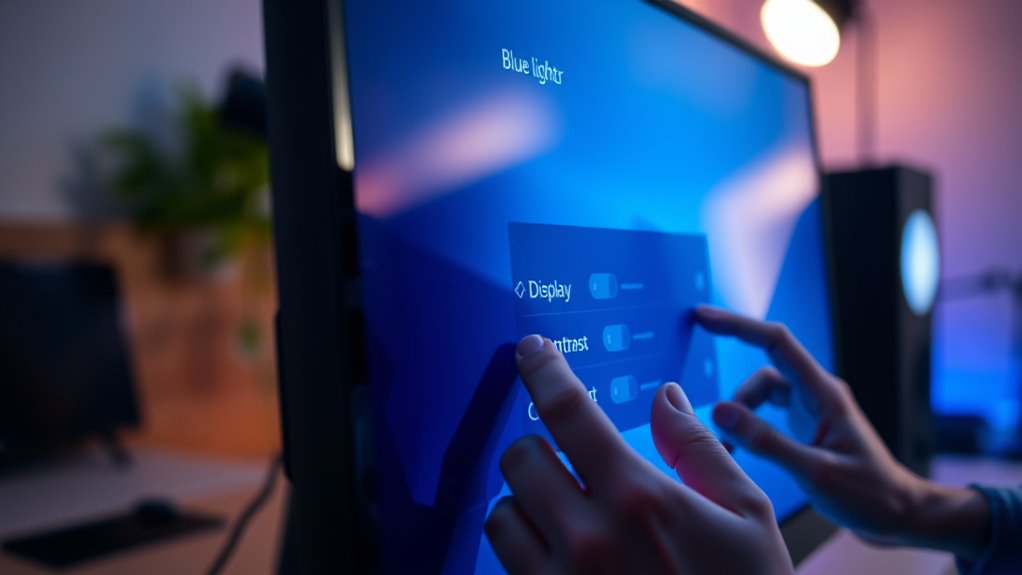
Blue light, emitted by screens, is one of the main culprits behind eye fatigue and disrupted sleep cycles. You can minimize its effects by enabling blue light reduction features on your devices. Many smartphones, tablets, and computers now come with built-in options—like Night Mode or Blue Light Filter—that bathe your screen in warmer tones, reducing the amount of blue light emitted. Using these features especially in the evening helps protect your eyes from the harshness of blue light and makes viewing more comfortable.
Enabling blue light filters in the evening can protect your eyes and improve comfort.
Adjusting your screen brightness is equally important. If your screen is too bright compared to your environment, your eyes will strain to focus, leading to discomfort and headaches. Conversely, if it’s too dim, you might squint or strain your eyes to see clearly. Find a balance by setting your display brightness to match the ambient lighting in your surroundings. Many devices have automatic brightness adjustment features, which can be very helpful, but you should also manually tweak settings if necessary. When working in a well-lit room, don’t hesitate to increase brightness slightly, and in darker environments, dial it down to prevent glare and excessive contrast.
Beyond these settings, consider taking regular breaks to give your eyes a rest. The 20-20-20 rule is a good guideline: every 20 minutes, look at something 20 feet away for at least 20 seconds. This practice reduces eye fatigue and helps reset your focus. Additionally, ensure your screen is positioned at eye level and about an arm’s length away, so you don’t have to strain or tilt your head to see comfortably. Proper screen positioning can significantly reduce unnecessary eye and neck strain during extended use.

Oilway Blue-Light Blocking Glasses Computer Reading/Gaming/TV/Phones Glasses Fashion Anti Eyestrain Glasses for Women Men
【Anti-Glare Blue Light Glasses】- Anti blue light glasses can effectively help you block harmful blue light from computer/phone/TV…
As an affiliate, we earn on qualifying purchases.
As an affiliate, we earn on qualifying purchases.
Frequently Asked Questions
Can Adjusting Display Brightness Reduce Eye Fatigue Effectively?
Yes, adjusting your display brightness can effectively guarantee eye fatigue. When your screen matches ambient lighting, it minimizes strain caused by glaring or excessive brightness. Proper screen calibration ensures your display isn’t too bright or dim, making it more comfortable to look at for extended periods. Keep your room’s lighting in mind, and tweak your brightness accordingly to create a balanced viewing environment that protects your eyes.
What Color Temperature Settings Are Best for Eye Comfort?
Think of color temperature as the mood lighting for your eyes—warmth soothes, cool tones energize. For eye comfort, set your display to a warmer color temperature around 2700K to 3500K. This soft, amber glow reduces strain and mimics natural evening light, helping your eyes relax after long hours. Adjusting your display to these settings creates a gentle environment, making your screen feel less like a spotlight and more like a cozy lamp.
How Often Should I Take Breaks to Prevent Eye Strain?
You should take a break every 20 minutes to prevent eye strain. During these breaks, practice eye exercise routines like focusing on distant objects for at least 20 seconds. Make certain you’re in ideal lighting conditions—avoid glare and harsh lights. These habits help reduce fatigue and discomfort, keeping your eyes healthy. Regular breaks and eye exercises are simple yet effective ways to protect your vision during long screen sessions.
Do Anti-Glare Screen Protectors Truly Help Reduce Eye Discomfort?
Did you know that 60% of computer users report eye discomfort? Anti-glare screen protectors can markedly improve your viewing experience by reducing reflections and glare, making them effective for eye comfort. Their anti-glare effectiveness minimizes strain, especially in bright environments. Screen protector benefits include less eye fatigue and better focus, so investing in one can help you work or browse longer without discomfort.
Are Blue Light Filters Necessary for Prolonged Screen Use?
Blue light filters can help reduce eye strain during prolonged screen use, but there’s some blue light controversy about their overall effectiveness. While they may lessen glare and improve comfort, they don’t eliminate all eye discomfort. If you notice eye fatigue or trouble sleeping, trying a blue light filter might be worth it. Keep in mind, their effectiveness varies for each person, so see if it makes a difference for you.

acer KB242Y – 23.8 Inch IPS Zero-Frame Full HD (1920 x 1080) Monitor | Tilt | Up to 120Hz Refresh | 1ms (VRB) | sRGB 99% | HDMI & VGA Ports | Adaptive-Sync Support (FreeSync Compatible)
Incredible Images: The Acer KB242Y G0bi 23.8" monitor with 1920 x 1080 Full HD resolution in a 16:9…
As an affiliate, we earn on qualifying purchases.
As an affiliate, we earn on qualifying purchases.
Conclusion
So, next time your eyes start crying for mercy, remember, tweaking your display settings could save your vision—and your dignity. No need to sacrifice your screen time just to avoid a little discomfort. After all, who wouldn’t want to become the proud owner of a pair of “eye-friendly” settings? Just a few simple changes, and you’ll be gazing happily into your device without resembling a raccoon. Your eyes will thank you—and maybe even send you a thank-you card.

Westillux Compatible with iPhone 14 and compatible with iphone 13 / 13Pro Privacy screen protector 2 Pack Gradient Colorful anti Blue light eye protection Mirror Tempered Glass Anti-Peep Anti-Spy HD clear Film(Purple 6.1 inch)
【Compatibility】Specially designed compatible with iphone 14 Privacy screen protector,compatible with 13 Privacy screen protector,compatible with 13 Pro Privacy…
As an affiliate, we earn on qualifying purchases.
As an affiliate, we earn on qualifying purchases.

HUANUO FlowLift™ Dual Monitor Stand, Fully Adjustable Gaming Monitor Desk Mount for 13–32″ Computer Screens, Full Motion VESA 75×75/100×100 with C-Clamp & Grommet Base, Each Arm Holds 4.4 to 19.8 lbs
Compatible with Wide Screens – To ensure compatibility with the dual monitor mount, your each monitor must meet…
As an affiliate, we earn on qualifying purchases.
As an affiliate, we earn on qualifying purchases.