TL;DR

Get the latest gadgets delivered free with Prime
- Fast, free delivery on millions of items
- Prime Video, Amazon Music and more included
- Member-only deals all year
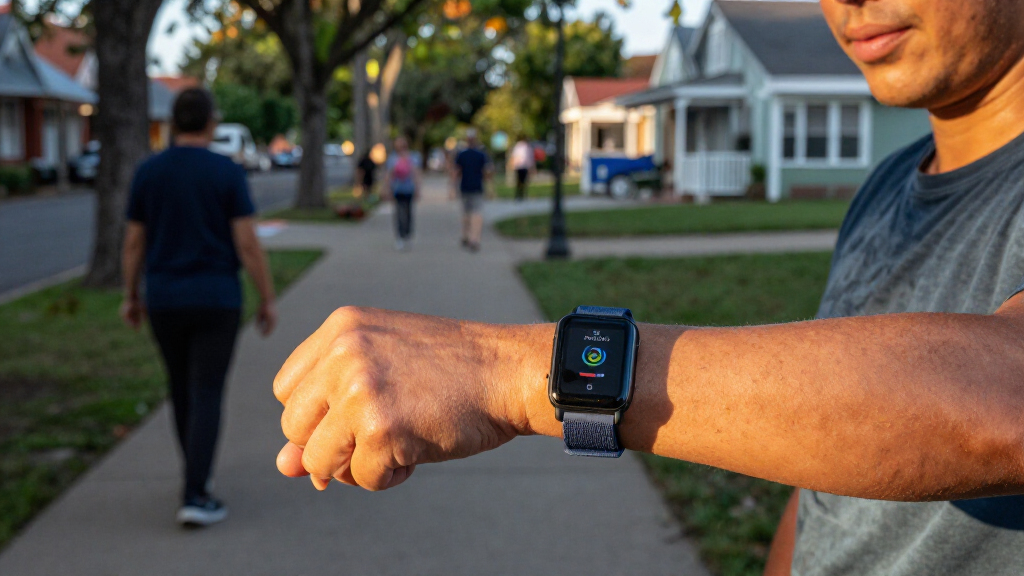
Lifehacker published a practical guide to using the Fitbit Edge, covering watch faces, button orientation, coaching prompts, Strava heart-rate sharing, step counting, GPS, multiple Fitbit devices and screen magnification. The tips describe settings and workflows reported by the guide; the source does not provide independent testing or broader product-performance findings.
Lifehacker has published 10 tips for Google’s Fitbit Edge, explaining how users can adjust its watch face and button orientation, manage health-coaching prompts, share heart-rate data with Strava and change tracking settings. The guide matters to owners who want to make the tracker’s small screen and pared-back workout tools better fit their routines, though its recommendations are practical instructions rather than a formal product test.
The guide describes ways to personalize the Edge through the Google Health app. Users can browse available watch faces under device settings, install one, and tap Customize to change its color scheme or select complications, such as daily steps or weather. A long press on the watch face opens a carousel of selected faces; its final screen offers a shortcut to the phone’s face library. Lifehacker reports that the face-sharing button appears to send a broken link to an older Fitbit website.
For comfort and accessibility, the article says users can reverse the tracker’s orientation in Device preferences, moving the side button from right to left, and turn on magnification. With magnification enabled, three quick taps enlarge the display, which users can move around to inspect different areas. The guide also explains how to set Wrist preference to dominant. Lifehacker says this can reduce step counts generated by incidental arm movements, but does not quantify the change or establish how accurate the count becomes.
Several tips concern workouts and battery choices. Users can turn off unsolicited AI Health Coach insights while retaining access to the coach through its Ask Coach button. The Edge can also broadcast heart-rate data to Strava, which the guide says can add lap controls and a route map to a phone-recorded workout. In GPS settings, users can choose the phone’s GPS or the tracker’s built-in GPS instead of automatic switching. The article also says the Edge can be set up alongside a Fitbit Air, allowing users to wear either device without repeating setup each time.
Wearable guide / Everyday tracking
10 Fitbit Edge Tips To Make Everyday Tracking Easier
Lifehacker’s practical guide outlines ways to personalize the Fitbit Edge, adjust tracking choices and connect it to phone based workouts. The supplied material describes settings and workflows; it does not report independent testing or product performance results.
01 / Personalize & access
Make the display work for you
Several adjustments are described as app settings, with quick access from the watch face for installed designs.
Choose a watch face
In Google Health device settings, browse All Clocks, install a face, then select Customize for color and complication options such as steps or weather.
Open the face carousel
Long press the watch face to cycle through selected faces. The final carousel screen offers a shortcut to the phone’s face library.
Move the side button
Device preferences reportedly let you reverse orientation, shifting the side button from right to left for a more comfortable fit.
Magnify small details
Turn on magnification, then tap three times quickly to enlarge the display. Move around the enlarged view to inspect different areas.
Set wrist preference
Lifehacker says setting the wrist to dominant may reduce step counts from incidental arm movement. The guide gives no measured change.
Note the reported link issue
The guide reports that its watch face sharing button appeared to lead to a broken link on an older Fitbit website. This may change with service updates.
02 / Coaching & workouts
Choose how tracking connects
The recommendations describe settings that shape prompts, heart rate sharing and location tracking.
Coaching control
Keep help on your terms
In Google Health Settings, choose Coaching and select No Coach Insights to stop unsolicited prompts. The guide says the Ask Coach button remains available for direct requests.
Heart rate / Strava
Use the Edge as a sensor
Swipe down on the tracker and enable heart rate broadcasting. Then start a Strava recording and select the Edge as the heart rate sensor in workout options, according to Lifehacker.
GPS selection
Pick a location source
The guide says users can select phone GPS or the tracker’s built in GPS rather than automatic switching. It does not compare battery life or GPS accuracy.
Multiple devices
Set up Edge and Fitbit Air
Lifehacker says both can be configured in the app so users can wear either device without repeating setup or taking extra switching steps.
03 / A Strava workflow
From wrist sensor to phone workout
The source describes the Edge sending heart rate while Strava records the workout on a phone.
Swipe down on the Edge and turn on its heart rate broadcasting control.
Begin a workout recording in the phone app.
Choose Fitbit Edge in Strava workout options.
The guide says phone recording can include heart rate, lap controls and a route map.
04 / What the source establishes
Useful setup guidance, limited evidence
These are reported instructions and observations from the supplied Lifehacker material.
The source frames the Fitbit Edge as a minimalist activity tracker with a screen for time and workout information. Its practical theme is that phone settings can add flexibility to pared back hardware.
Lifehacker also describes the Edge as a heart rate sensor for phone recorded Strava workouts and says multiple Fitbit devices can be set up in one app. The supplied material does not establish how these options perform across devices or app versions.
05 / Quick answers
Settings to check on your device
Labels and availability may change with software updates. Check the current Google Health app and Edge menus.
How do I change the watch face?
Long press the face to open the carousel. In Google Health device settings, open All Clocks, install a face, then tap Customize for available color and complication options.
Can I stop coaching insights?
The guide says to open your profile, go to Google Health Settings, choose Coaching, then select No Coach Insights. Ask Coach remains available for direct requests.
How does heart rate sharing work?
Enable broadcasting from the Edge, start a Strava phone recording, then select the Edge as the heart rate sensor in workout options, as described by Lifehacker.
Can I use another Fitbit too?
The source says users can configure the Edge and Fitbit Air in the app, then wear either device without additional setup steps.
More Control Over Daily Tracking
The tips address common trade-offs in a minimalist tracker: simple hardware can mean fewer on-device controls, while phone settings can add flexibility. Changing faces and orientation may make the Edge more comfortable to use, and magnification offers a workaround for reading details on its small display. Turning off unsolicited coaching alerts may also suit users who want access to health tools without receiving repeated prompts.
The workout recommendations show how the Edge can fit into a wider phone-based setup. Heart-rate broadcasting lets Strava record from the phone while using the tracker as a sensor, according to Lifehacker. Choosing GPS sources gives users a way to decide which device should handle location tracking and battery use. These options may be useful, but the source does not compare battery life, GPS accuracy or Strava performance across devices.
Products Worth Considering

LG UltraGear 27-Inch QHD OLED Gaming Monitor, 240Hz, 0.03ms, G-SYNC Compatible, FreeSync Premium Pro, HDMI 2.1

Bose QuietComfort Wireless Bluetooth Headphones with Active Noise Cancellation, Mic, USB‑C Charging, Deep Bass, 24‑Hour Battery – White Smok

Amazon Kindle Paperwhite (12th Generation, 2024), 16 GB, 7-inch Display, Jade
As an affiliate, we earn on qualifying purchases.
Settings Behind the Edge Tips
The source presents the Fitbit Edge as a minimalist activity tracker with a display for time and workout information. Its tips rely on a mix of controls on the tracker and settings in the Google Health app. The article lists the Edge at $179.99 on Amazon in the supplied product listing; that price is a source-provided listing, not an independently verified current price.
The guide’s central theme is that several features are less apparent than the basic activity display. Watch-face customization, orientation, coaching controls and GPS options are accessed through phone settings, while heart-rate broadcasting starts from the tracker. The source also describes support for using multiple Fitbit devices in the app, including the Edge and Fitbit Air, without additional switching steps after setup.
“The Fitbit Edge really hits a sweet spot for anyone who wants a minimalist fitness tracker but still wants a screen to tell the time and display workout data.”
— Lifehacker
Limits of the Published Guidance
The supplied source does not identify its publication date, provide independent testing, or report results from users trying the settings. It does not say how much changing Wrist preference affects step counts, how battery life changes under either GPS option, or whether accuracy varies by phone model. Its comments about older phones and GPS accuracy are presented as guidance, not backed by measurements in the material provided.
The source text ends partway through the final tip list, so it does not include the remaining two tips needed to complete the stated total of 10. It also does not provide a complete product specification sheet or confirm whether every menu name and feature is available across all app versions, regions or device configurations. The reported broken watch-face sharing link is attributed to Lifehacker’s experience and may change if the service is updated.
Check Settings on Your Device
Readers who want to try the recommendations can check the current Google Health app and Edge menus for the settings described, since labels and availability may change with software updates. Before changing GPS or wrist preferences, users can consider which device they want to use for location tracking and which wrist they wear the tracker on. The source gives no announced software update, follow-up test or company response, so there is no specific next milestone confirmed in the supplied material.
Key Questions
How do I change the Fitbit Edge watch face?
According to Lifehacker, long-press the watch face to open the carousel of faces selected in the app. To browse or customize faces, open the device settings in Google Health, choose All Clocks, install a face, then tap Customize for available color and complication options.
Can I stop the Edge from sending AI coaching insights?
The guide says to tap your profile picture in Google Health, open Google Health Settings, choose Coaching and select No Coach Insights. It says the Ask Coach option remains available for users who want to request help directly.
How can the Fitbit Edge share heart-rate data with Strava?
Lifehacker says to swipe down on the tracker and turn on the heart-rate broadcasting icon, then start a recording in Strava and select the Edge as the heart-rate sensor in workout options. The guide says Strava can then show lap controls and a map on the phone.
Can I use the Fitbit Edge with another Fitbit?
The source says the app can be set up with multiple Fitbit devices, including the Edge and Fitbit Air. Once both are configured, the user can wear either one without additional switching steps, according to the guide.
Source: Lifehacker